How To Save The Results Of a Local Run
Learn about CsvPath Framework: Find lots more information and how-tos about CsvPath Framework automating data preboarding at https://www.csvpath.org.
FlightPath generates run data in tabs at the bottom of the center of the app. This tab bar is called the Help and Feedback area. You can save the contents of Help and Feedback tabs to a file by right-clicking the tab.
The tabs you can save include:
- Run results
- AI request results
- Help files
How to do it
- Open the current project’s
examplesdirectory. Then open theschemasdirectory. - Click the
schemas.csvpathsfile - Click in the top csvpath statement. You can click on the comment or the schema below.
- Right-click and select run (or type control-r)
- The Help and Feedback area should show your run results tabs
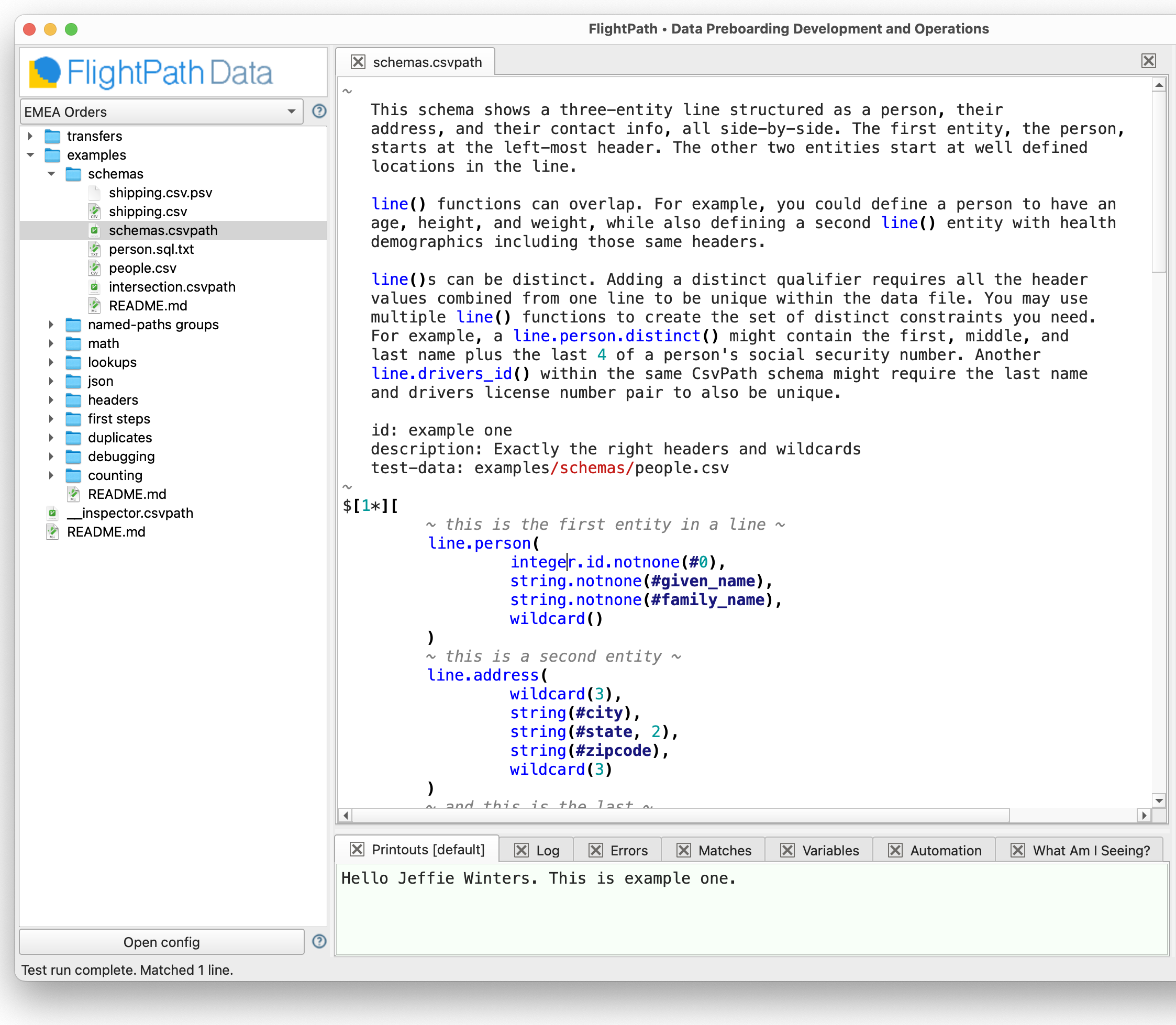
- At the bottom of the screen, right-click on
Printouts [default] - A small context menu appears with one option
Save as. Select it. - A dialog opens asking for the same you want to save the file as
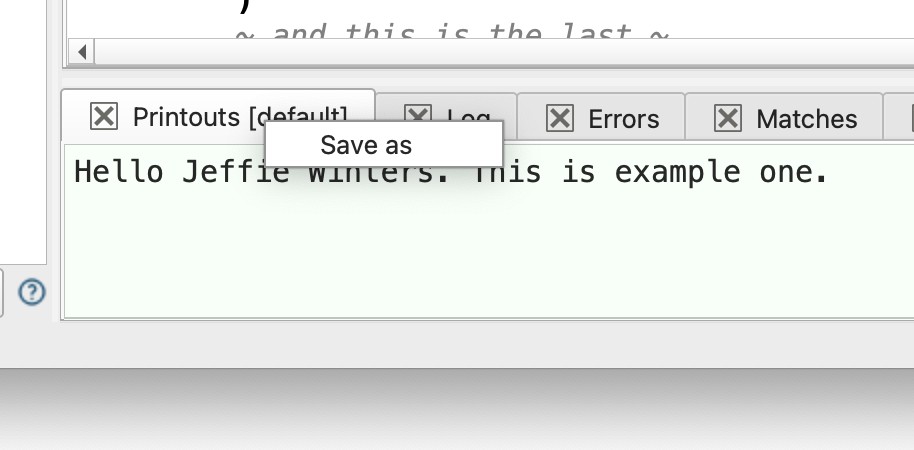
Above we saved the output of the default Printer object. FlightPath only shows the default printer, but programmatic use of CsvPath Framework allows for any number of printers. Another printer could send output to a web page, SFTP file, or some other destination. Note that Printer objects are not the same as printstreams. A print() or error() function can direct its output to a printstream to separate it from other print() or error() output. All the printstreams for the default printer are shown in the results’ print tab. The different printstreams are concatenated and labeled for easy reading or programmatic use.