How To Stage All the Data Files In a Directory
FlightPath allows you to manually stage data file-by-file or as a batch based on a folder. When you stage a folder, all the data files it holds are registered with named-files. Any files that don’t map to a named-file will create a new one.
The staging process has a few options:
- Stage file-by-file
- Stage all data files in a directory by registering all of them under one named-file, based on the directory name
- Stage all data files by registering each as a named-file, based on each file name
In the latter two cases the order of registrations is not deterministic.
There are a few secondary options:
- Find data files recursively, or stop at the top directory
- Register using a template, or not
- If a template is provided, use it as a default for future registrations to the same named-file(s), or not
Templates are used to register files at a specific path within a named-file. This allows the structure of the named-file to follow the path structure of the arriving files and/or be laid out to match another system. You can learn more about templates on https://www.csvpath.org.
How to do it
- Navigate to your project’s
examples/schemasfolder - Right-click the directory in the project files tree on the left
- Select
Stage data - The Stage Data Dialog opens
- Uncheck
Separate named-filesand add the nameschemasto theNamed-file namefield
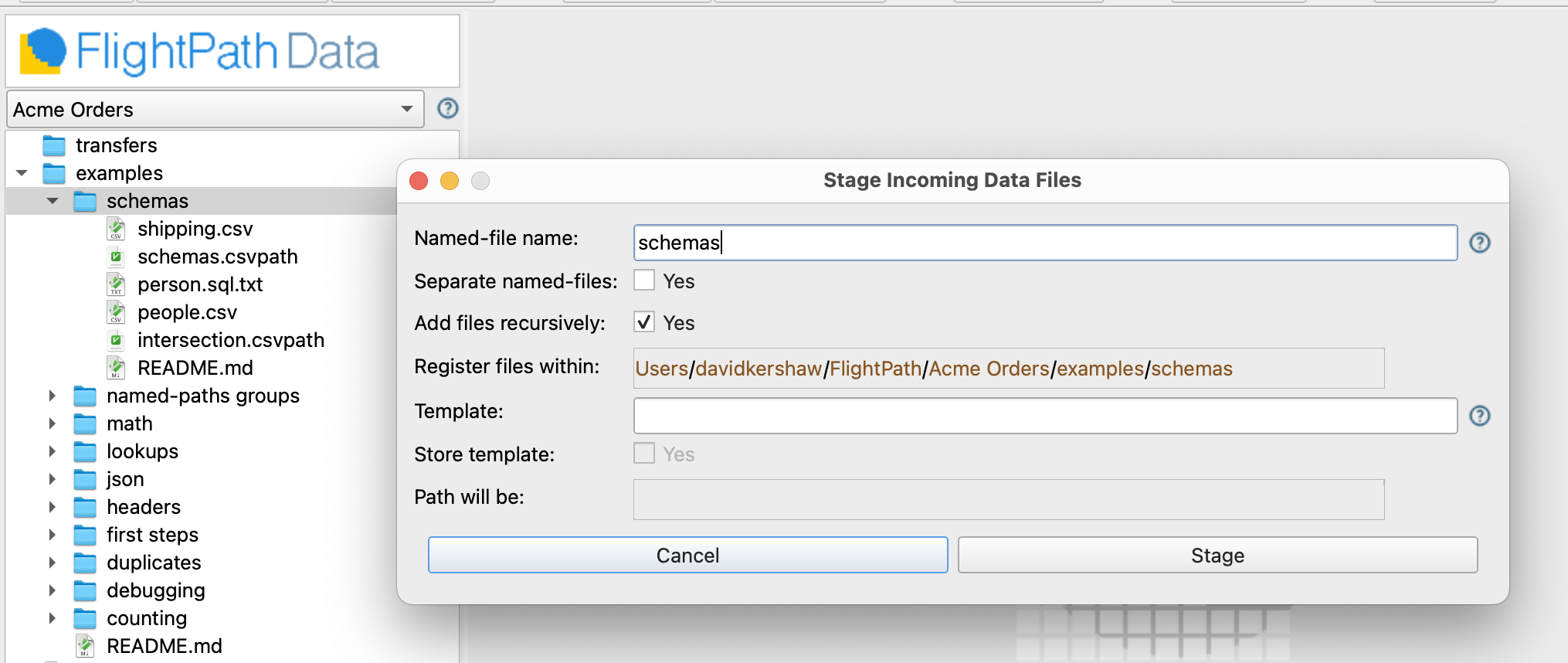
- Click
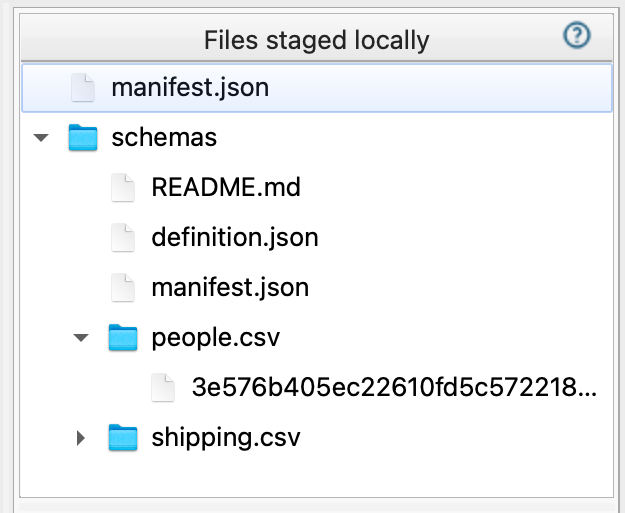
Stage - Look in the registered files window at the top right. Notice there is a
schemasnamed-file. - Open the
schemasnamed-file and you see a folder calledpeople.csvand another calledshipping.csv - Within the
people.csvandshipping.csvdirectories confirm that each has a single CSV file with a SHA256 hash for a name