How To Start a Group Run
Production-like runs in FlightPath Data are part of development and can demonstrate that your production deployment is ready. A production-like run is manually triggered. It can apply a named-path group from any set of groups to data staged in any source location.
How to do it
- Navigate to your project’s
examples/mathfolder - Right-click the data file
Automobiles_Annual_Imports_and_Exports_Port_Authority_of_NY.csvand clickStage data - In the Stage Data Dialog enter
autosas the named-file name and clickStage. Your new named-file appears in the top right window with the file registered in it.
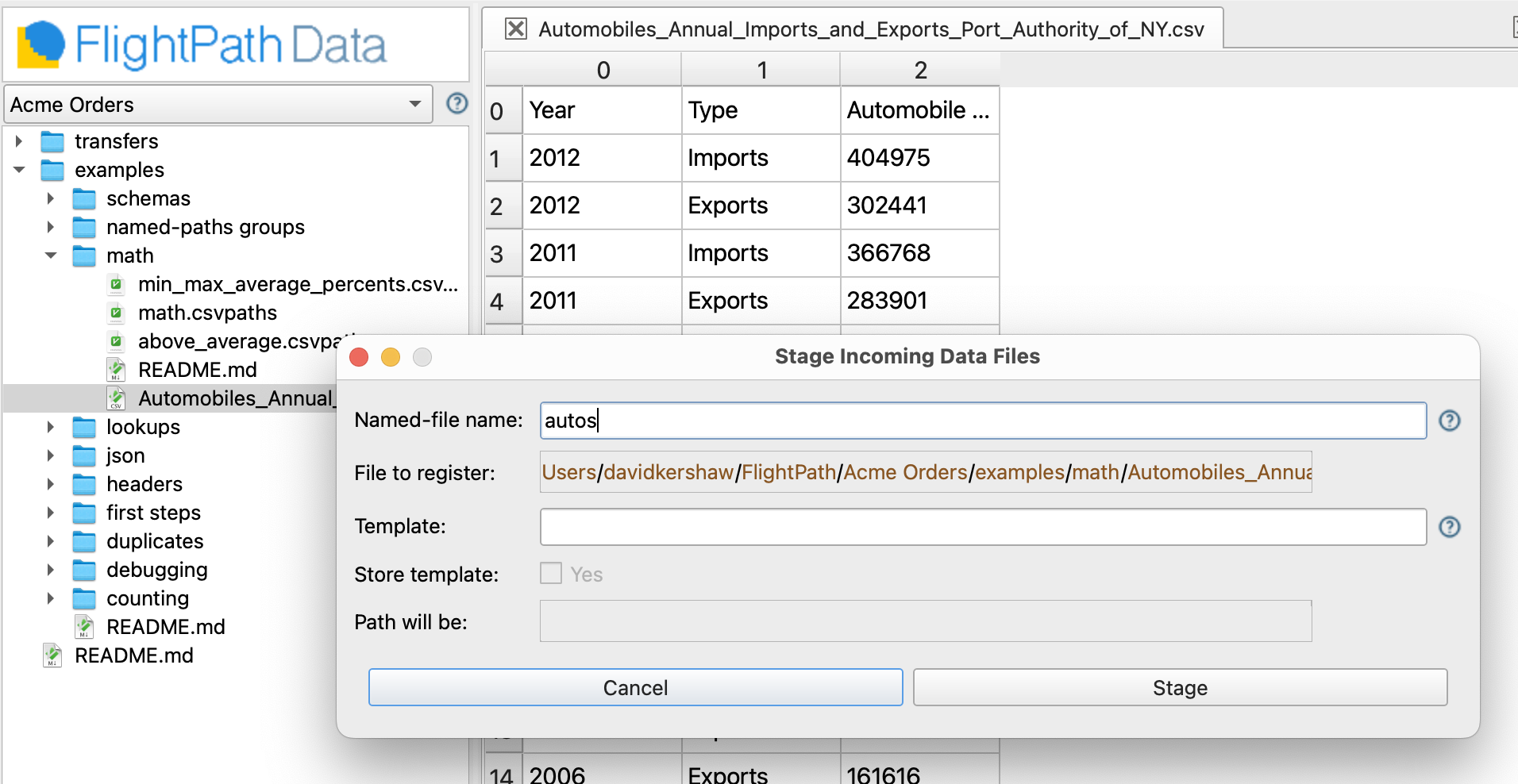
- Next right-click the directory and select
Load csvpaths - In the Load Dialog enter the name
mathand click theCreate or overwritebutton
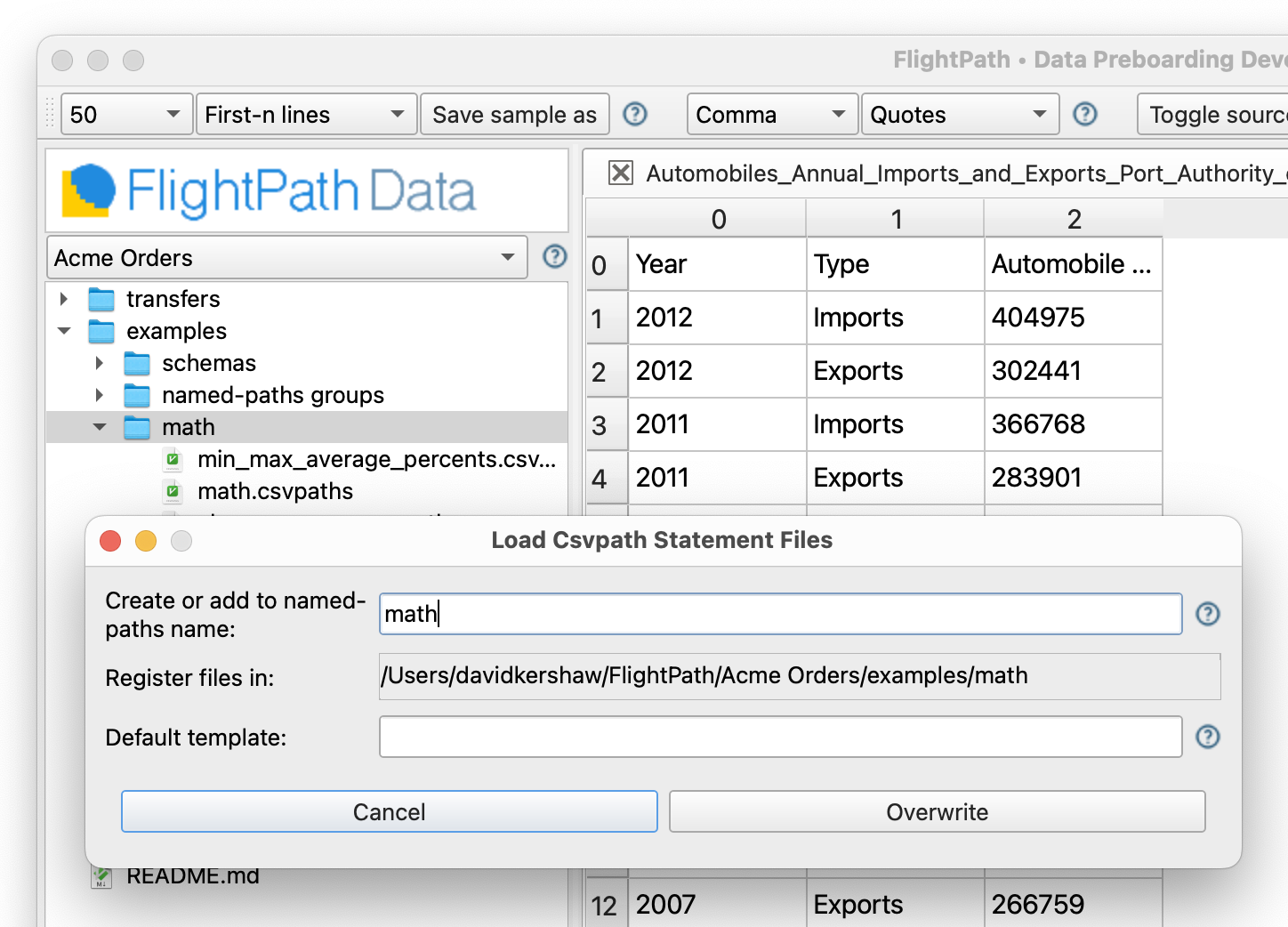
- You will see the
headersnamed-paths group in the middle right-hand window. Right-click its directory and selectNew run. - In the Run Dialog, select the named-file
autosand the named-paths groupmathand clickRun
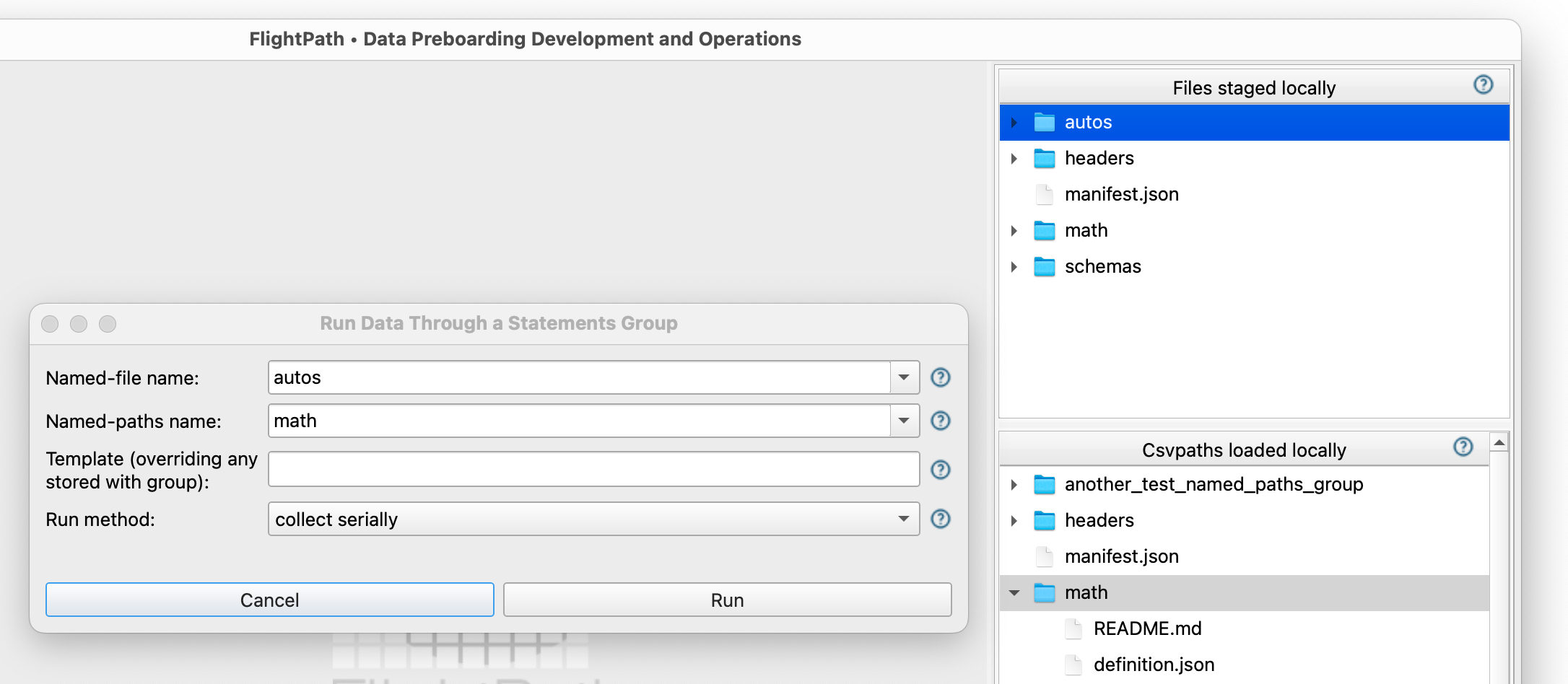
- Your new run appears in the
Runstab in the results window at the bottom right.
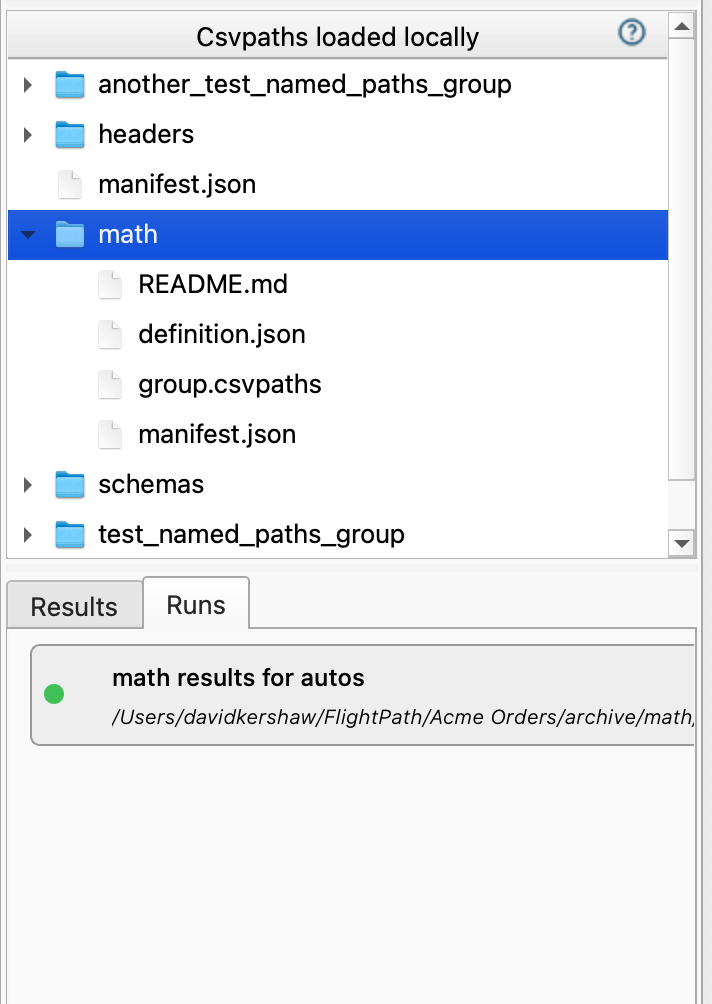
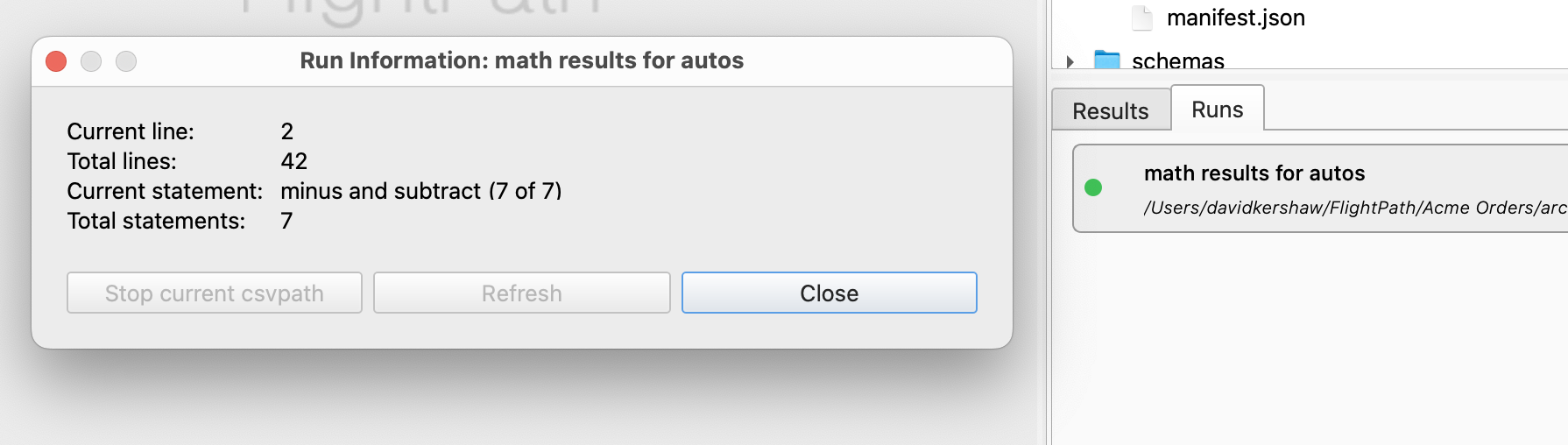
Your run should complete successfully in less than a second. You will know when it is done when the yellow dot at the right of the run label turns green, which it should do essentially immediately.
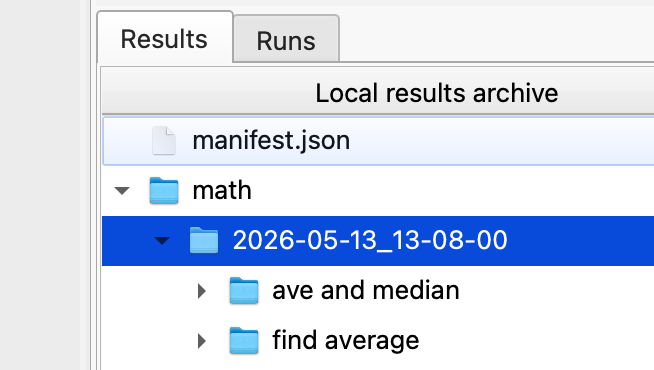
To jump to the run directory, just click the name of the run. The name will be math results for autos. You can see the full path to the results directory below the run’s name. The run directory itself will be a datestamp, disambiguated with a trailing number, if needed.
To see basic stats for the run click the green dot. The Run Information dialog opens. The main purpose of this dialog is to give you information about long-running jobs as they are happening. You can see progress and, if needed, stop any csvpath in the run.
Named-paths group templates must end in the token :run_dir. :run_dir is the placeholder for the datestamp directory name containing the run.