How To Do a Local Dev Run
We refer to a run that doesn’t involve a named-paths group or a named-file as a “local run”. Local runs are simply pointing a single csvpath at a data file in the project directory and clicking ctrl-r or right-clicking and selecting Run. All the run outputs are generated, but the run specifically tests just the one csvpath.
Local runs happen all in the left-hand project files and the center editing area. The ops windows on the right are not involved.
A local run simpler than deploying a group and registering a file, but only a bit. Because it’s a faster way to iterate and specific to a single csvpath statement, you will do much of your development and testing using local runs.
Learn about CsvPath Framework: Find lots more information and how-tos about CsvPath Framework development and testing at https://www.csvpath.org.
How to do it
- Open FlightPath Data - if you just installed you will be in the
Defaultproject - Click the
Copy data inbutton

- Select your CSV or Excel file and click Ok - your file should be copied into your project and be visible in the project files window
- Right-click in the file explorer window on the left and select
New file. Call your filetest.csvpath.
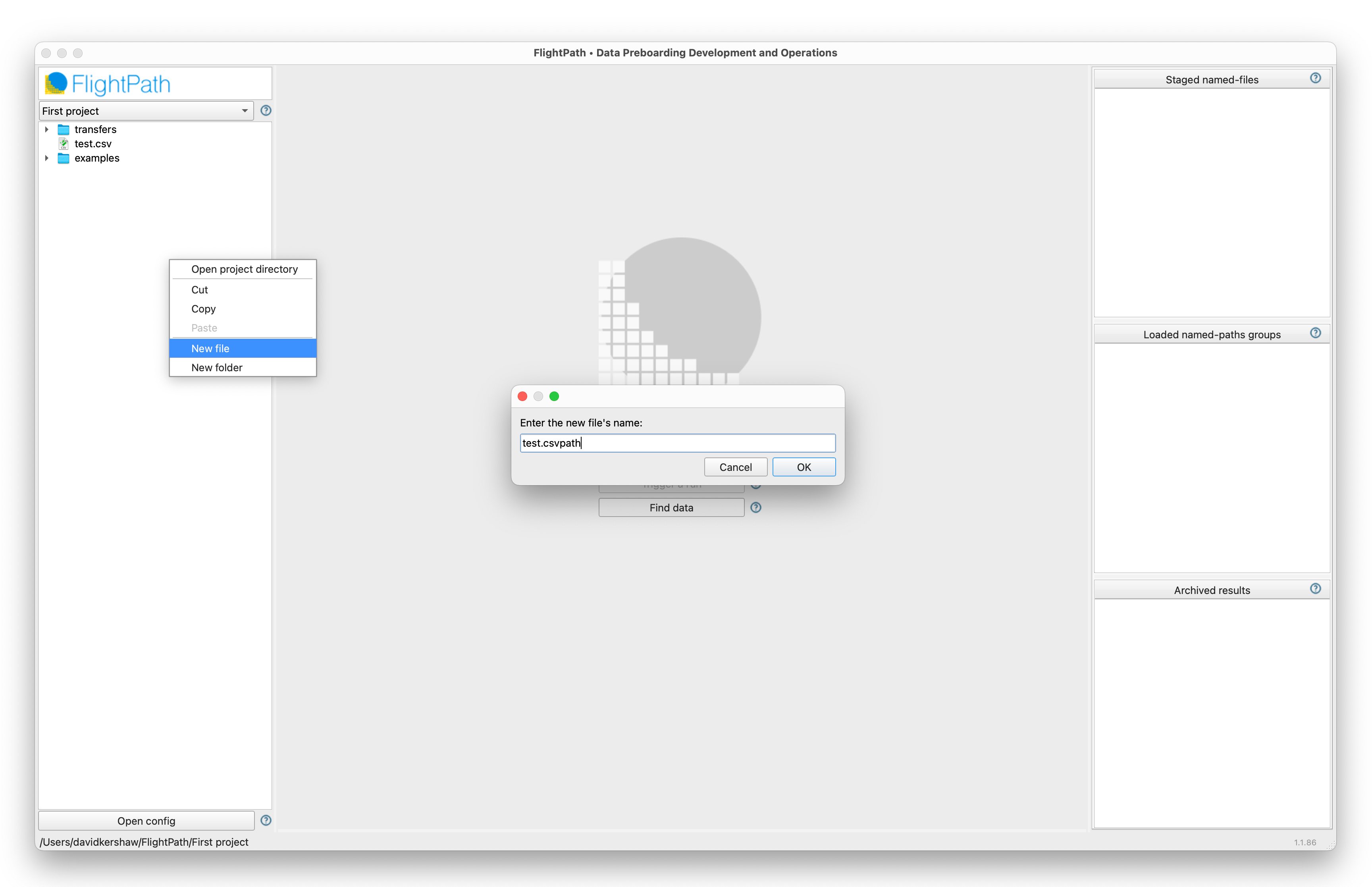
- Click on the new file to open it.
- At the top, between the
~characters (a comment) addtest-data: - Right-click on your data file and select
Copy relative path. - Paste (ctrl-v or cmd-v on macOS) the relative path into your csvpath file next to
test-data:so that you have something liketest-data: test.csv.
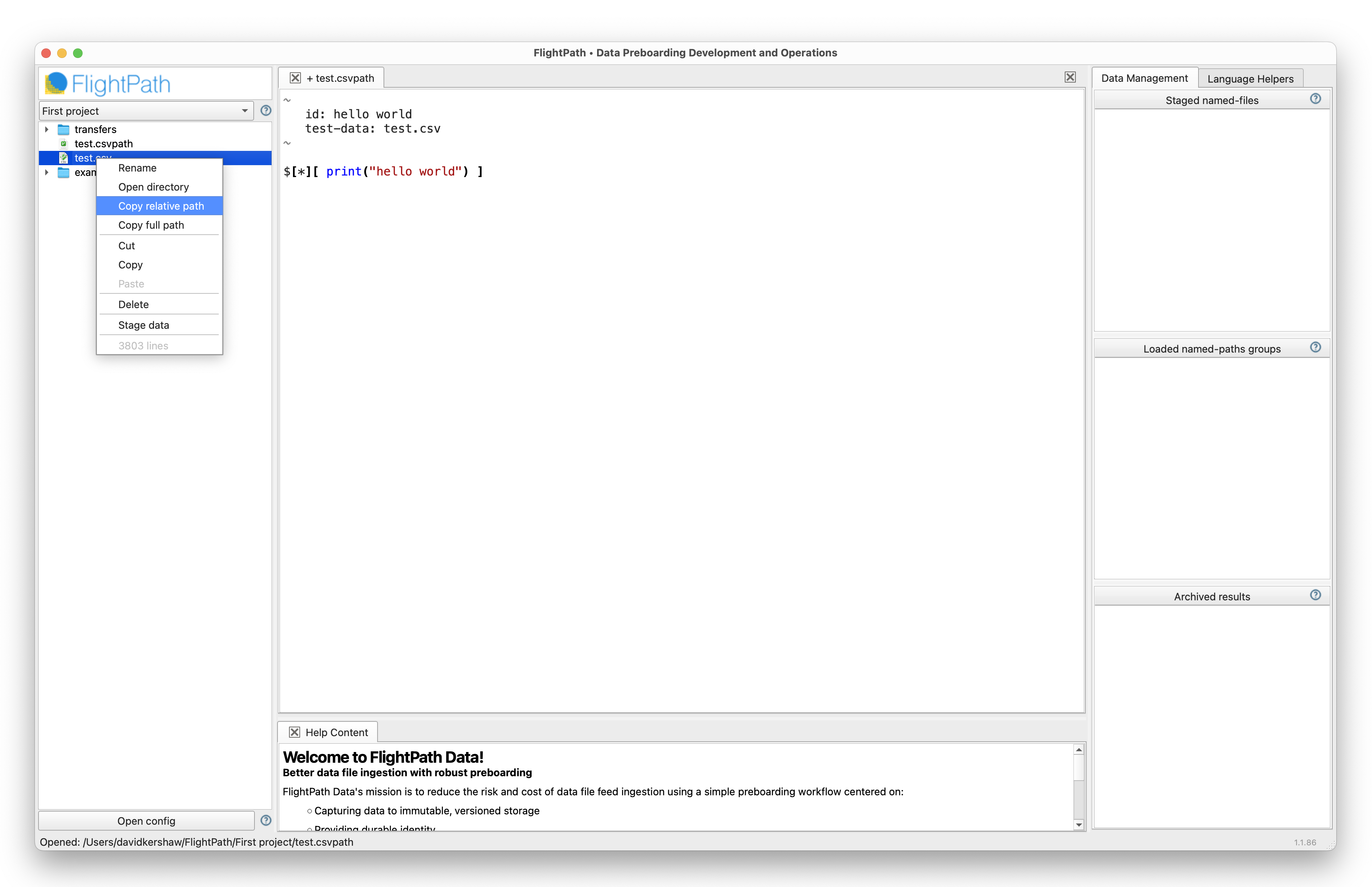
- Make your csvpath look something like
$[*][last() -> print("hello world")]. This csvpath printshello worldwhen it sees the last line. - With your cursor anywhere in the csvpath or its comment, click ctrl-r (cmd-r on macOS) to run.
- You should see the Help and feedback window open below your csvpath with several tabs of results of the run.
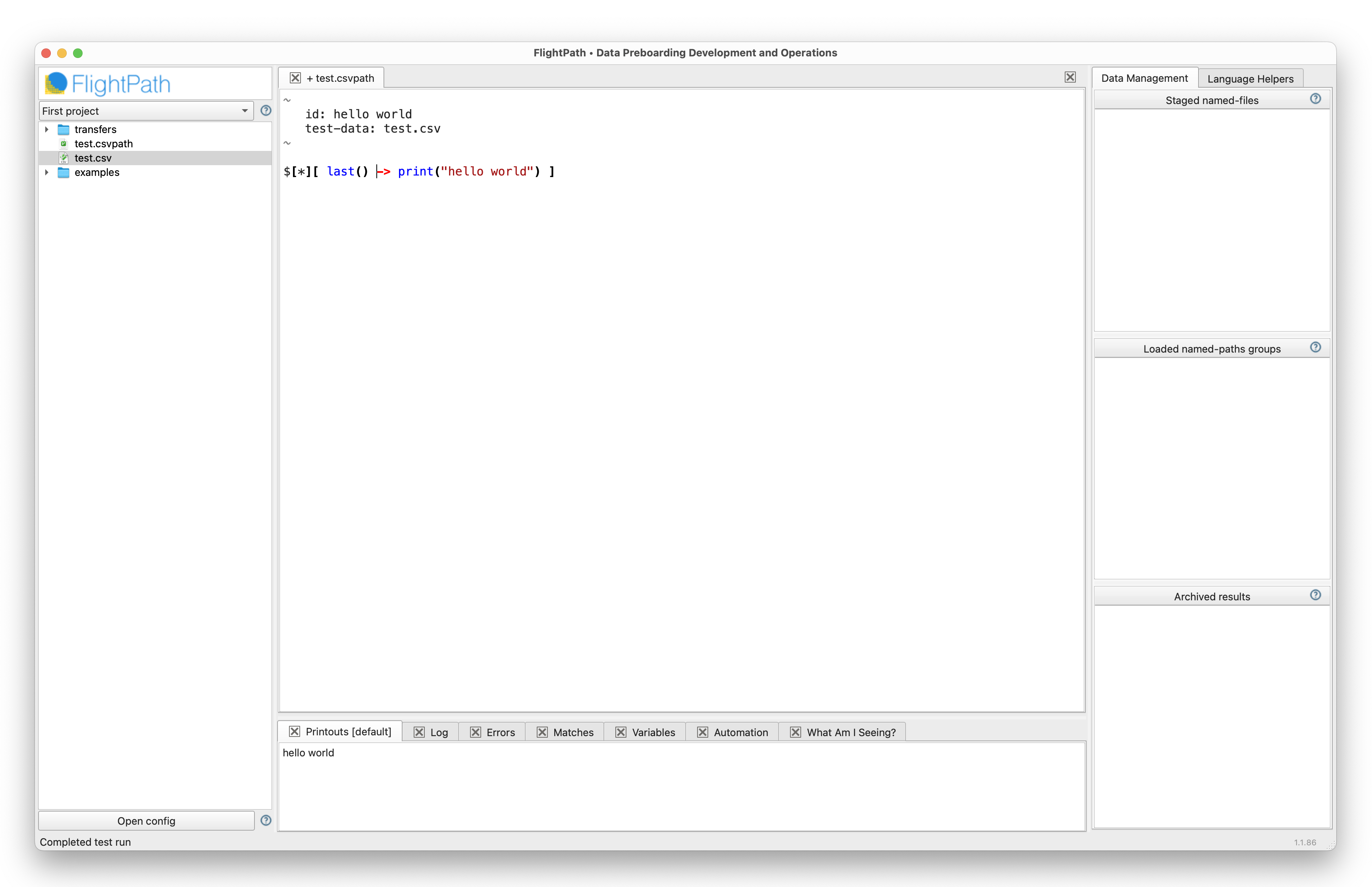
And that’s it, your first simple csvpath.