Running FlightPath Server as a Windows Service
A background process for automation
FlightPath Server was built for automation. For that purpose, it should be available at all times. On Windows, that means running it as a Windows service.
Using an .exe as a service is common and easy. There are several ways to do it, including the Task Scheduler or sc.exe utility from Microsoft. Servy is another friendly option.
Steps
Install Servy
Follow the instructions on Servy’s GitHub site. Basically just open a command window and type: winget install servy.
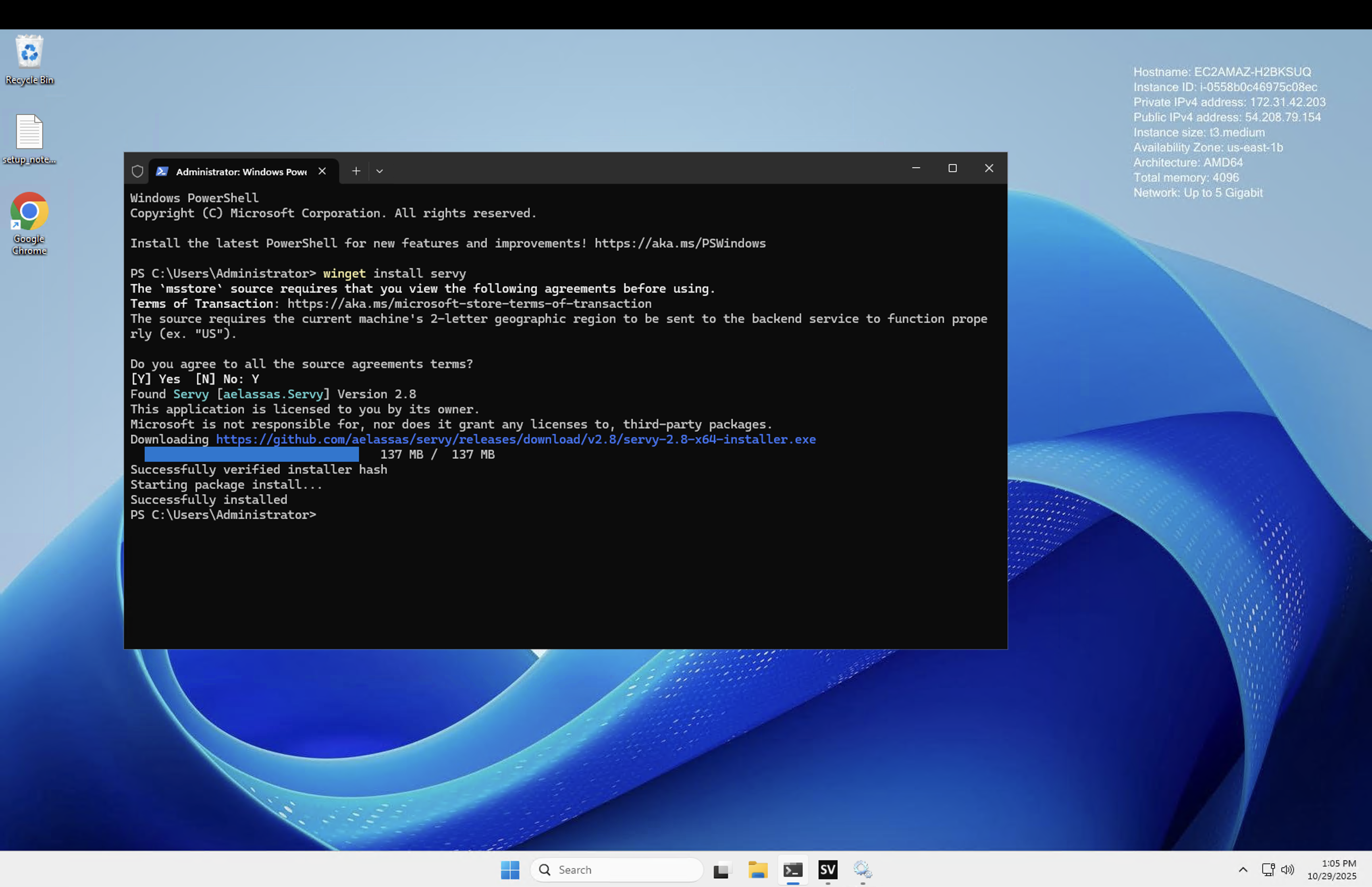
Open Servy
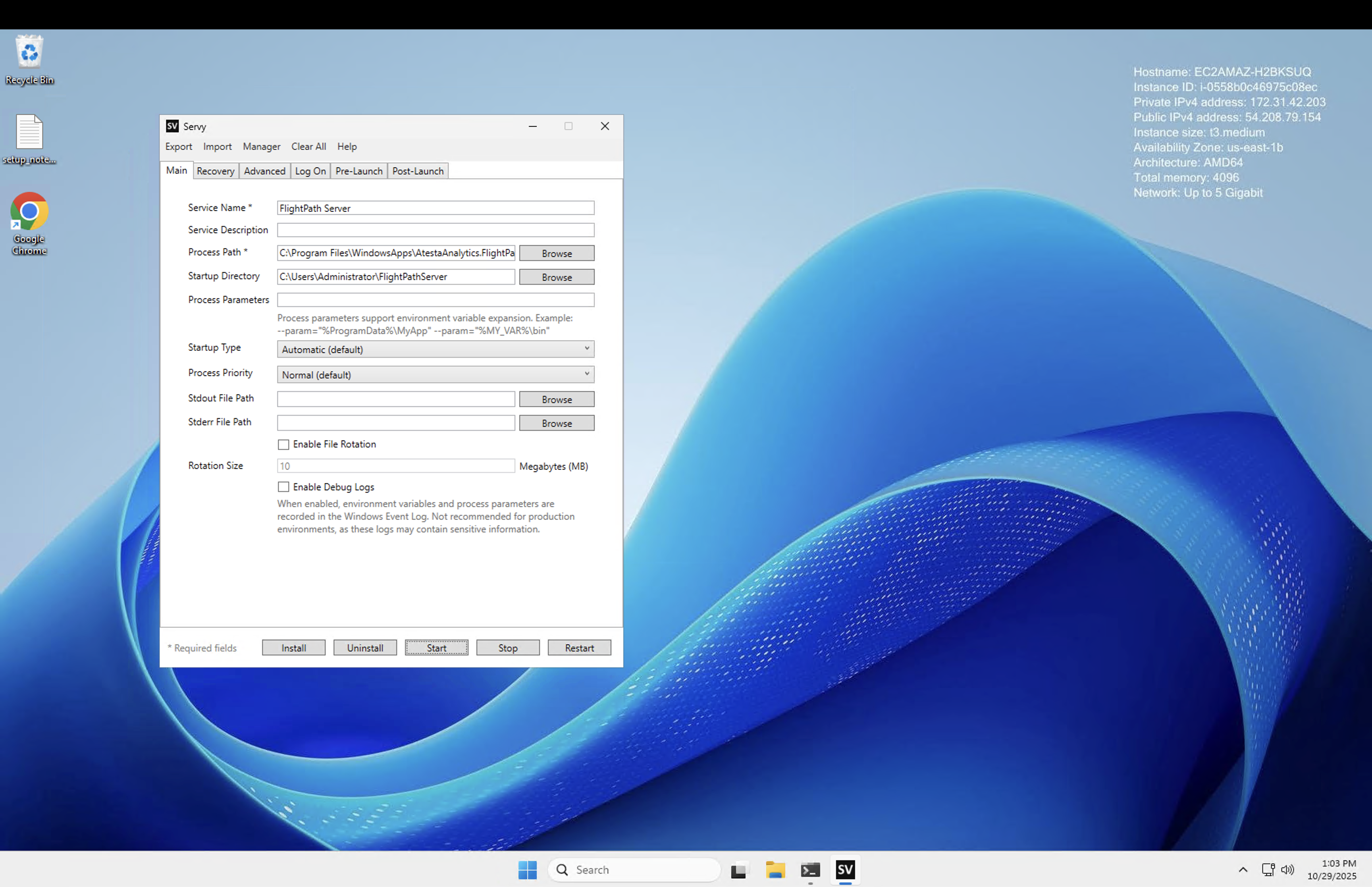
Open the Servy app. There is one config form for creating a service. It has quite a few fields, but you only need:
- Service Name - anything you like, but
FlightPath Serverwould be sensible - Process Path - Something like:
C:\Program Files\WindowsApps\AtestaAnalytics.FlightPath\FlightPathServer.exe - Startup Directory - Something like:
C:\Users\Administrator\FlightPathServer
Then click Install and you’re done.
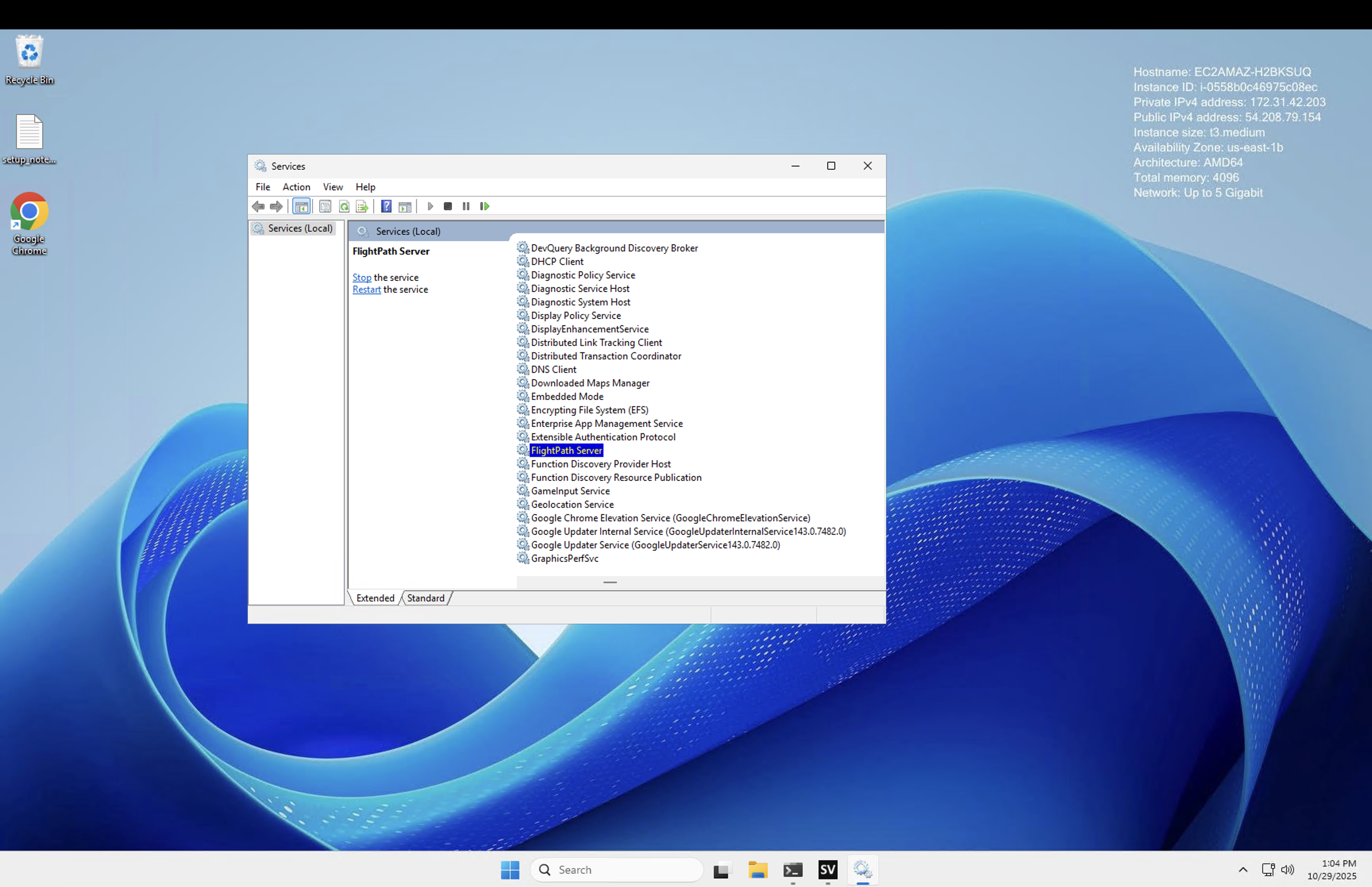
Check the service
Search for services and open the Services control panel. You should see your FlightPath Server service running.
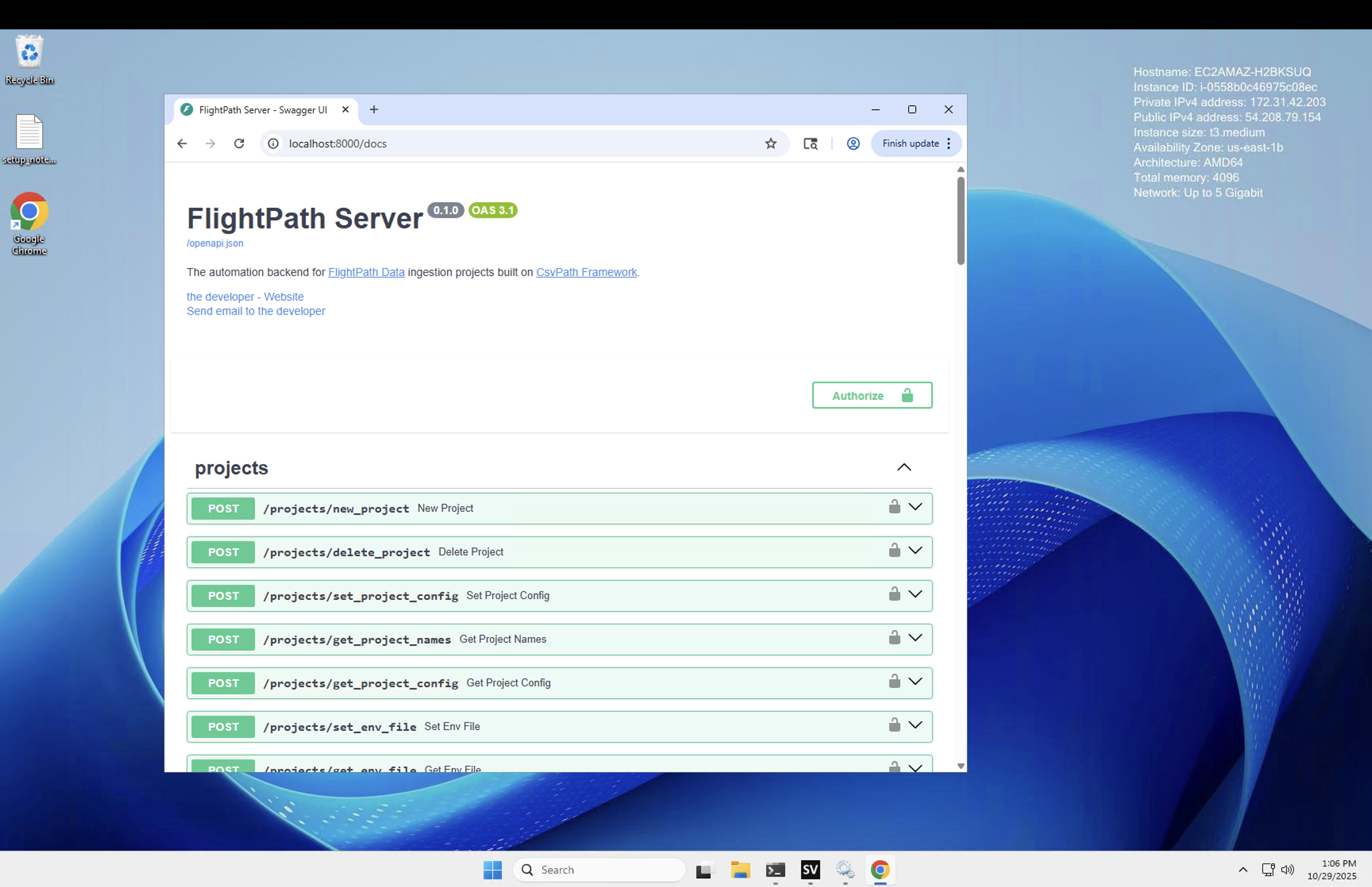
And you can see the OpenAPI docs at http://localhost:8000/docs.
That’s all there is to it.