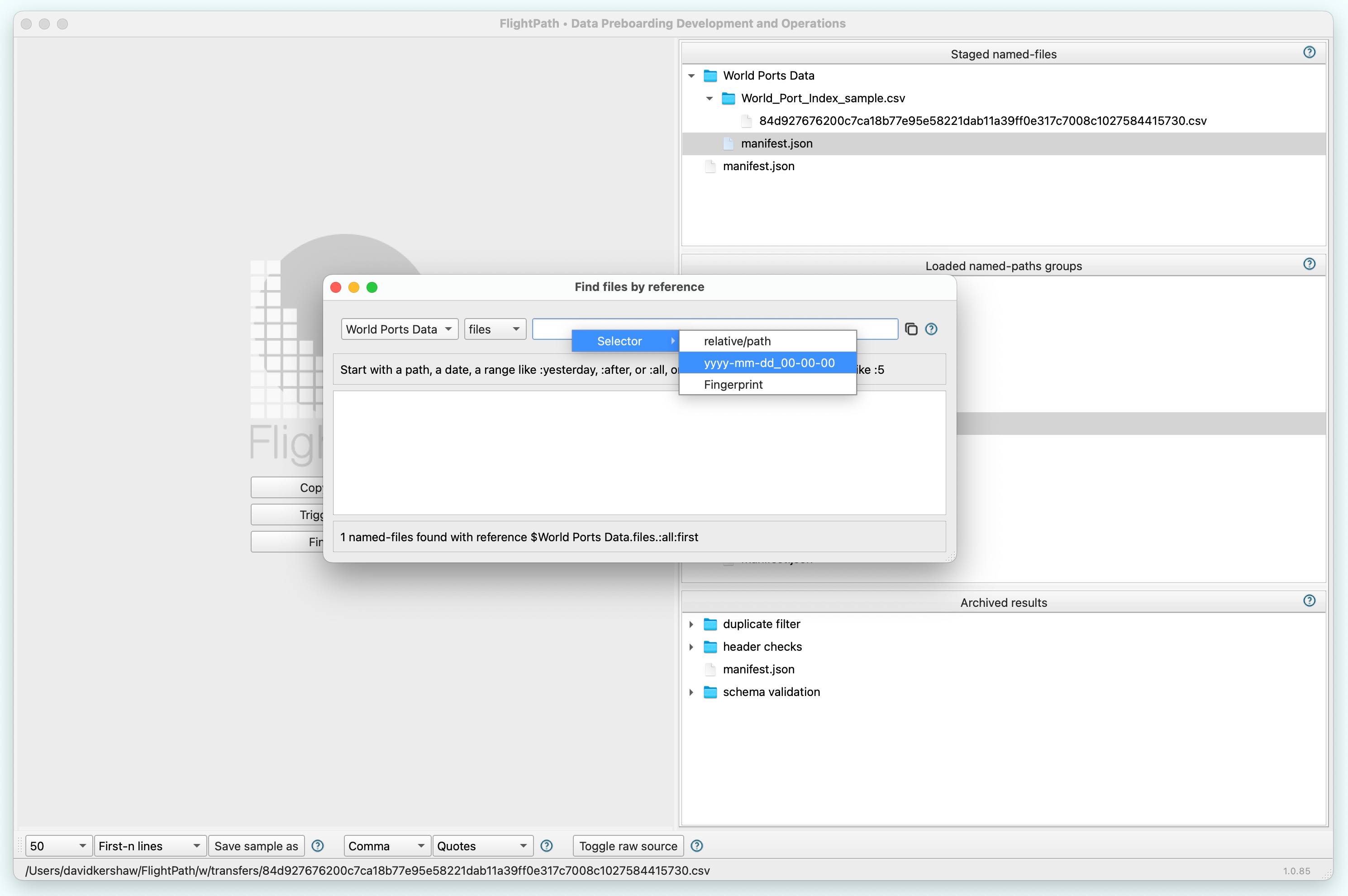
Click the Find data button at the center of the home screen.
In the drop-downs, select files and the named-file you are looking for
In the text box enter the path, arrival date, range, or fingerprint of the file you are looking for
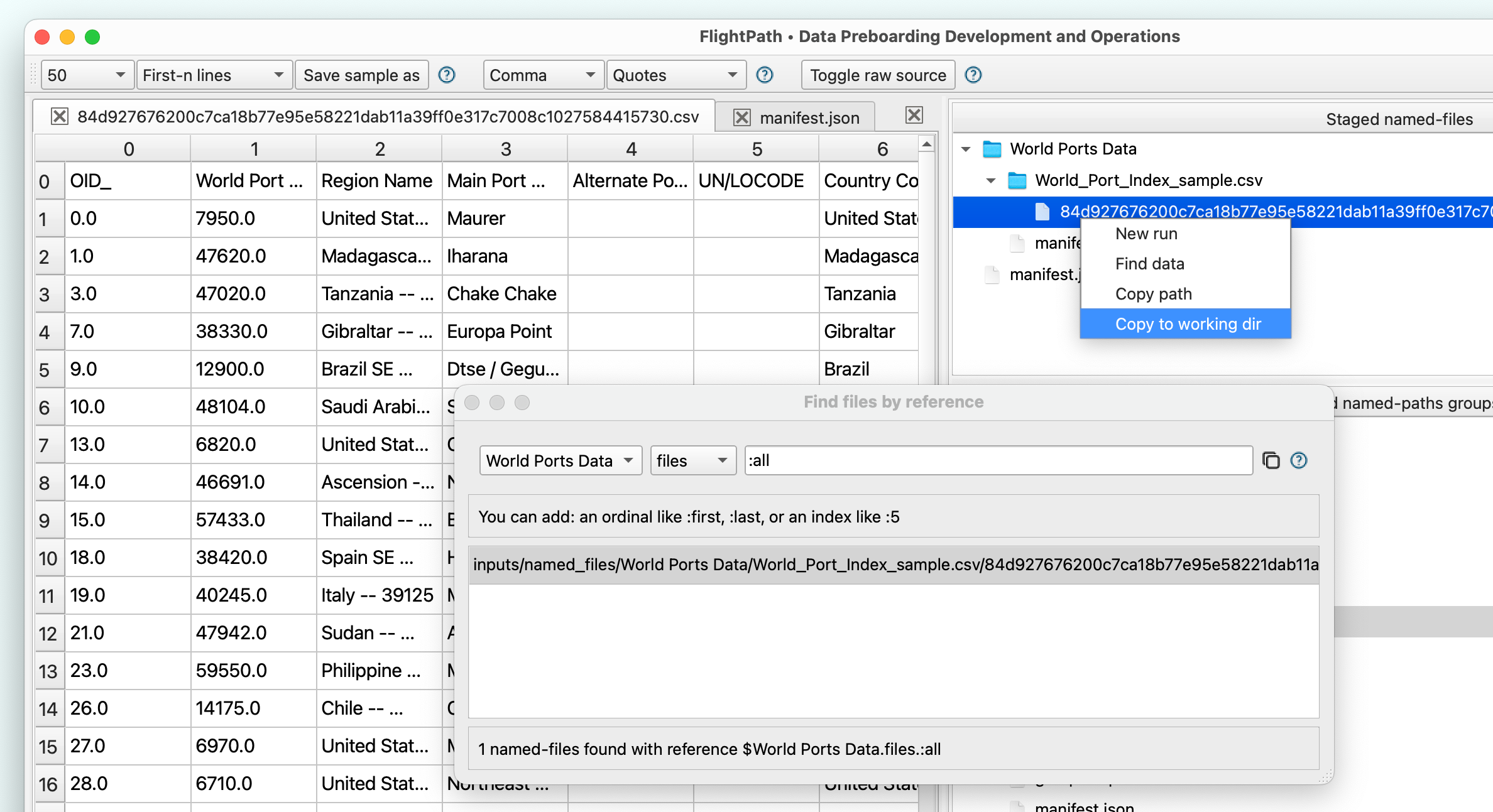
When you see the file in the list of results, right-click to open the metadata or the file
If you want to use the file as test data, right-click on the file in the named-files window and select Copy to working dir. This copies the immutably staged file back to the project directory so you can work with the data.
What you need
Access to your archive. If you are working in S3 you will need an IAM user with read access. Your credentials will be in environment variables. You can set environment variable within FlightPath using the env tab in the config settings.
The named-file name. Physical files are staged within named-files. A named file can be setup with any directory structure required, so you have to be familiar with the data delivery naming conventions, if they are replicated in your named-file layout.