MFT Arrivals
Receiving files from an MFT server
Managed file transfer servers (MFT) are the transit point for file feeds from external data partners. SFTPGo is an open source MFT. It is broadly representative of a number of other good MFT servers. Like most of its peers, SFTPGo can be configured to perform actions when files arrive. FlightPath Server endpoints can receive alert events from SFTPGo and use them to stage data and perform runs.
In particular, you can have SFTPGo call these methods:
/csvpath/register/csvpath/register_and_runThe first endpoint receives the notification and pulls the file into the named-files staging area.
The second endpoint goes further in that after registering the data it starts a run immediately, resulting in new assets going to the archive.
Steps
- Install SFTPGo
- Open the SFTPGo admin webapp
- Create a SFTPGo user
- Create an SFTPGo action
- Create an SFTPGo rule
- Use FlightPath Data to create a FlightPath Server project
- Configure the SFTP server address and credentials
- Save your config
- Upload the project config to FlightPath Server
- Create a csvpaths script
- Load the csvpaths script
- Wait for a file to arrive
Install SFTPGo
Follow the instructions on docs.sftpgo.com
Open the SFTPGo admin webapp
Create a SFTPGo user
Ours is named “Fred”. 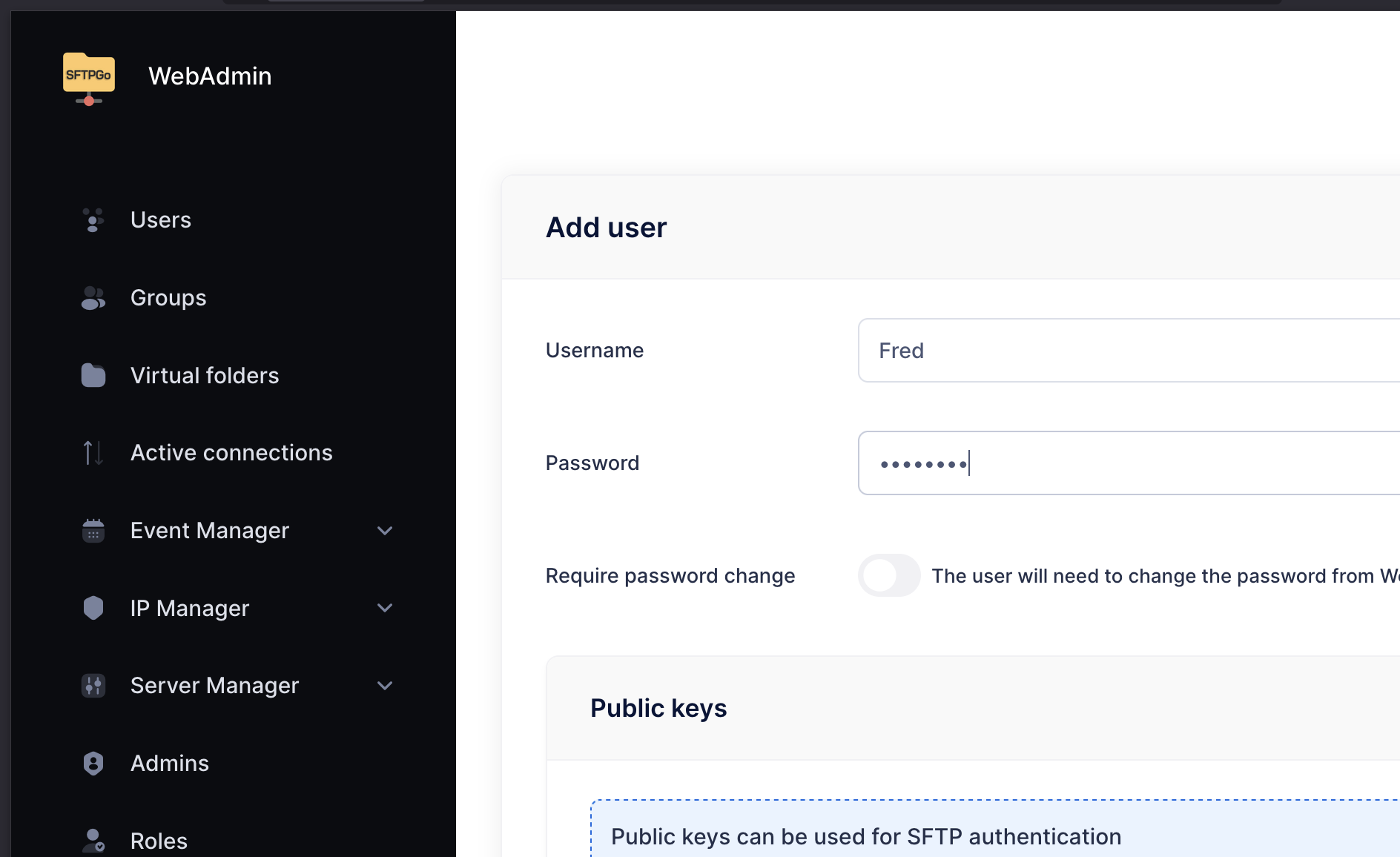
Create an SFTPGo action
Click Event Manager > Actions > Add Action and create an action that calls the /csvpath/register_and_run endpoint when a new file arrives for Fred, passing the API key in the access_token header and JSON in the body: 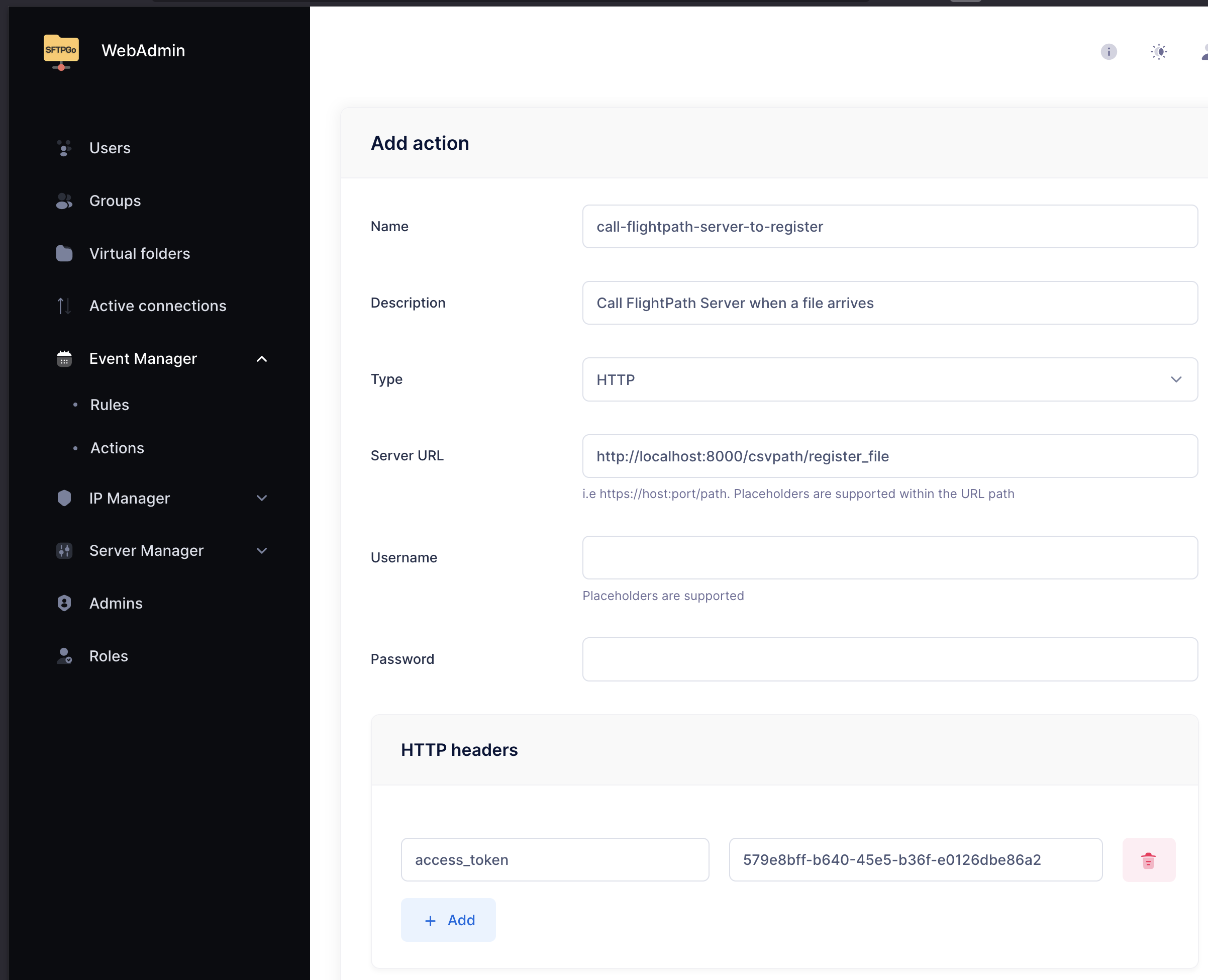
                {
                  "project_name": "my project",
                  "file_location": "",
                  "file_name": "invoices",
                  "csvpaths_group_name": "invoices",
                  "method": "collect_paths"
                }
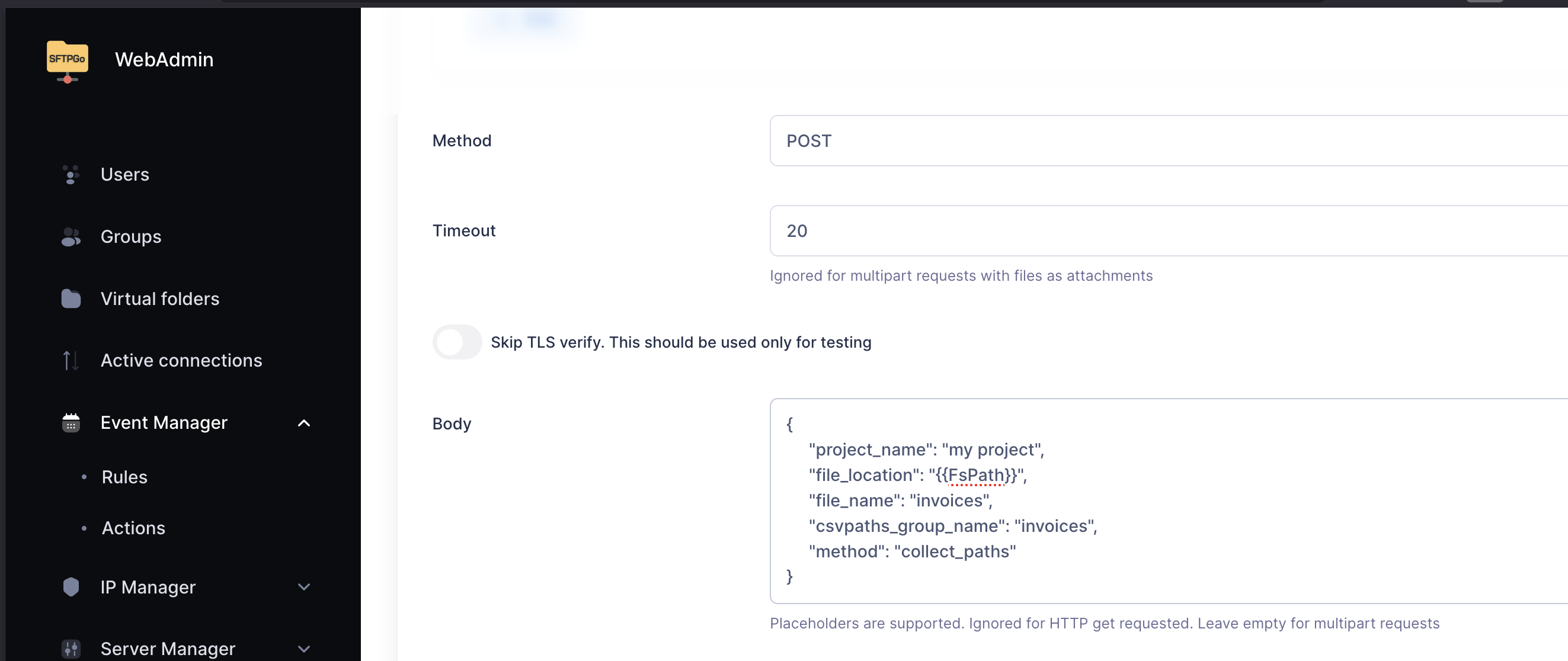
See the replacement vars descriptions here: https://docs.sftpgo.com/2.6/custom-actions/
invoices is our new named-file. When the Fred account receives files they are registered as versions of invoices and are available by date, order, path, or identity. Then the file will be validated using a set of one or more csvpath scripts also called invoices. The run will use the collect_paths method. Collect paths gathers valid lines into a result file.
Create an SFTPGo rule
Click Event Manager > Rules > Add Rule to fire when a file arrives for Fred. Make sure to choose the action you just created as the result of the rule firing. 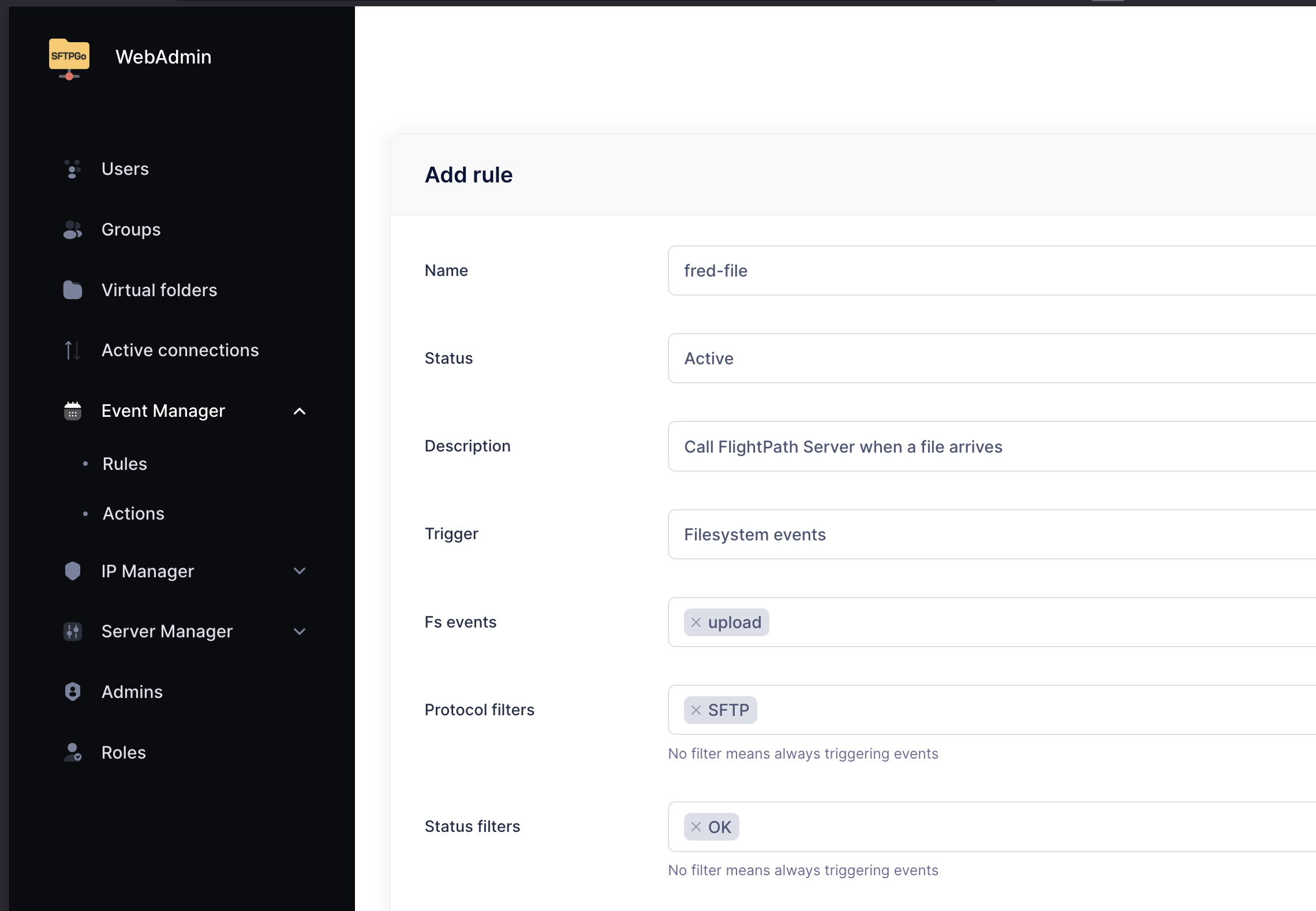
Use FlightPath Data to create a FlightPath Server project
Open the config panel and switch to the server form. Right-click in the projects list and select new project. Ours is called “my project” 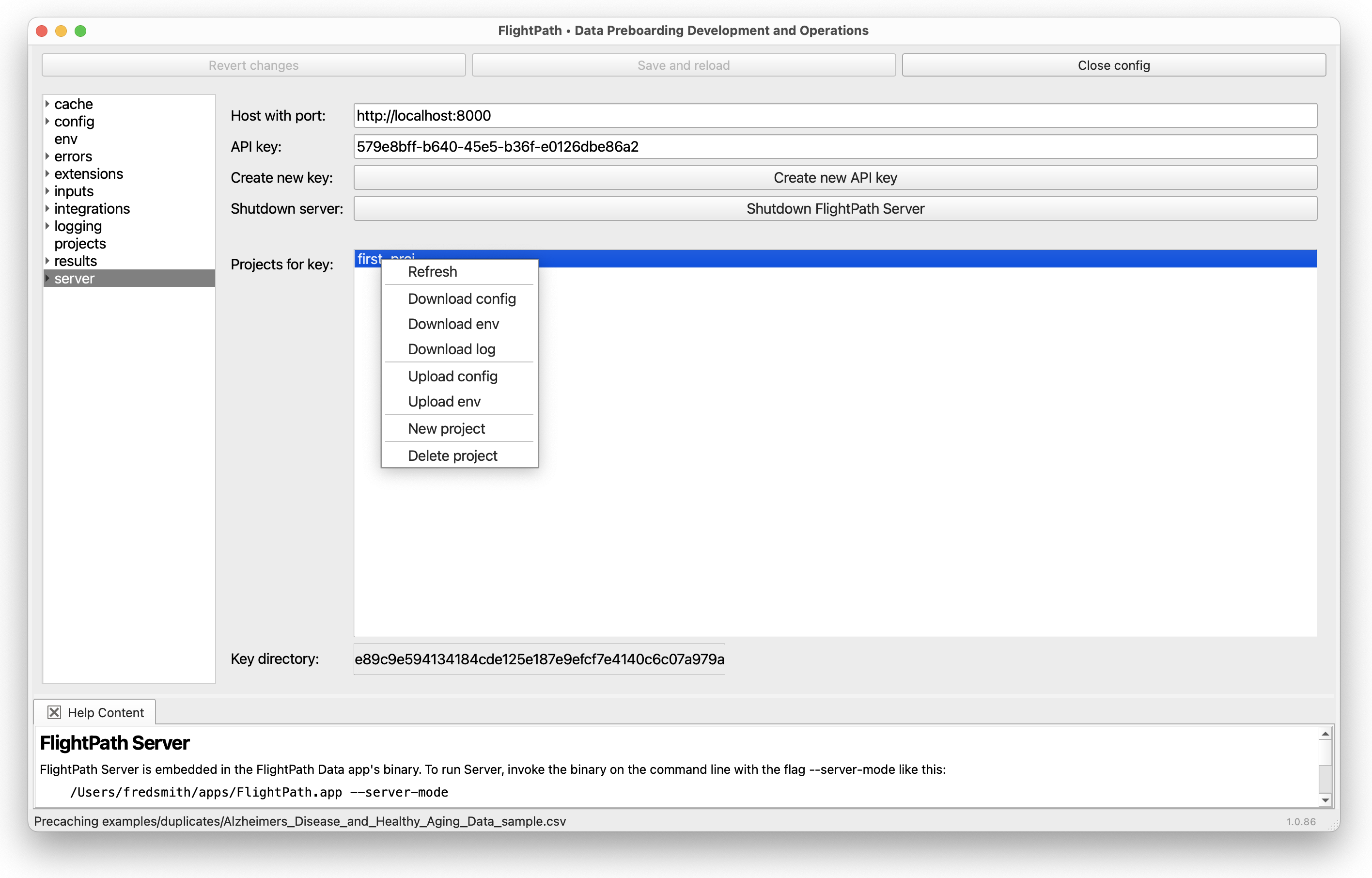
Configure the SFTP server address and credentials
In the Integrations tab > SFTP tab add server name or IP address, port, username, and password. 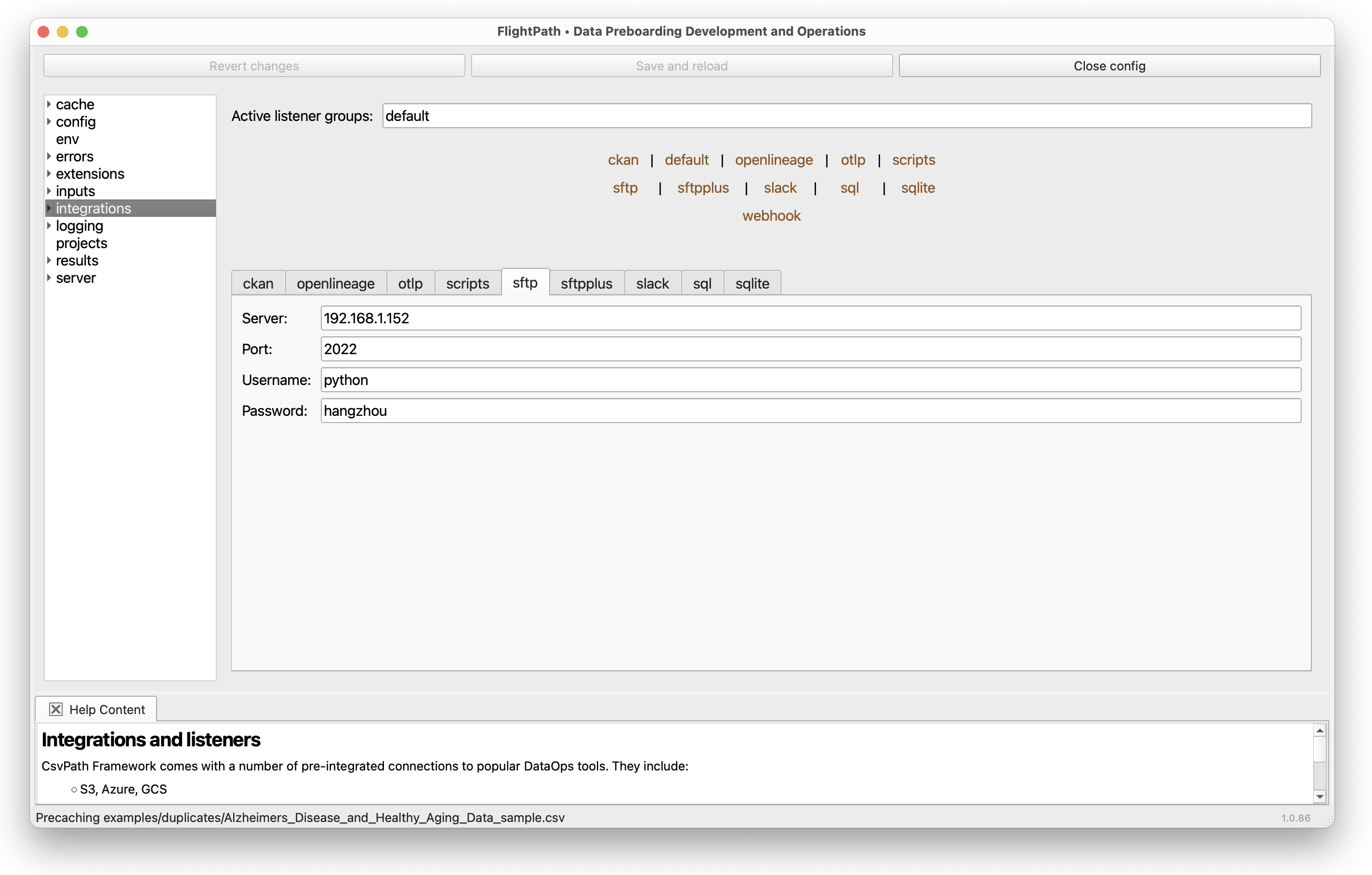
Save your config
Click the Save and reload button at the top of the Config panel. The configuration of your FlightPath Data project will become the configuration of your FlightPath Server project as well in the next step 
Upload the project config to FlightPath Server
In the server tab of the Config panel, right-click on your project name and select Upload config. FlightPath will warn you that you will be overwriting the existing project config. 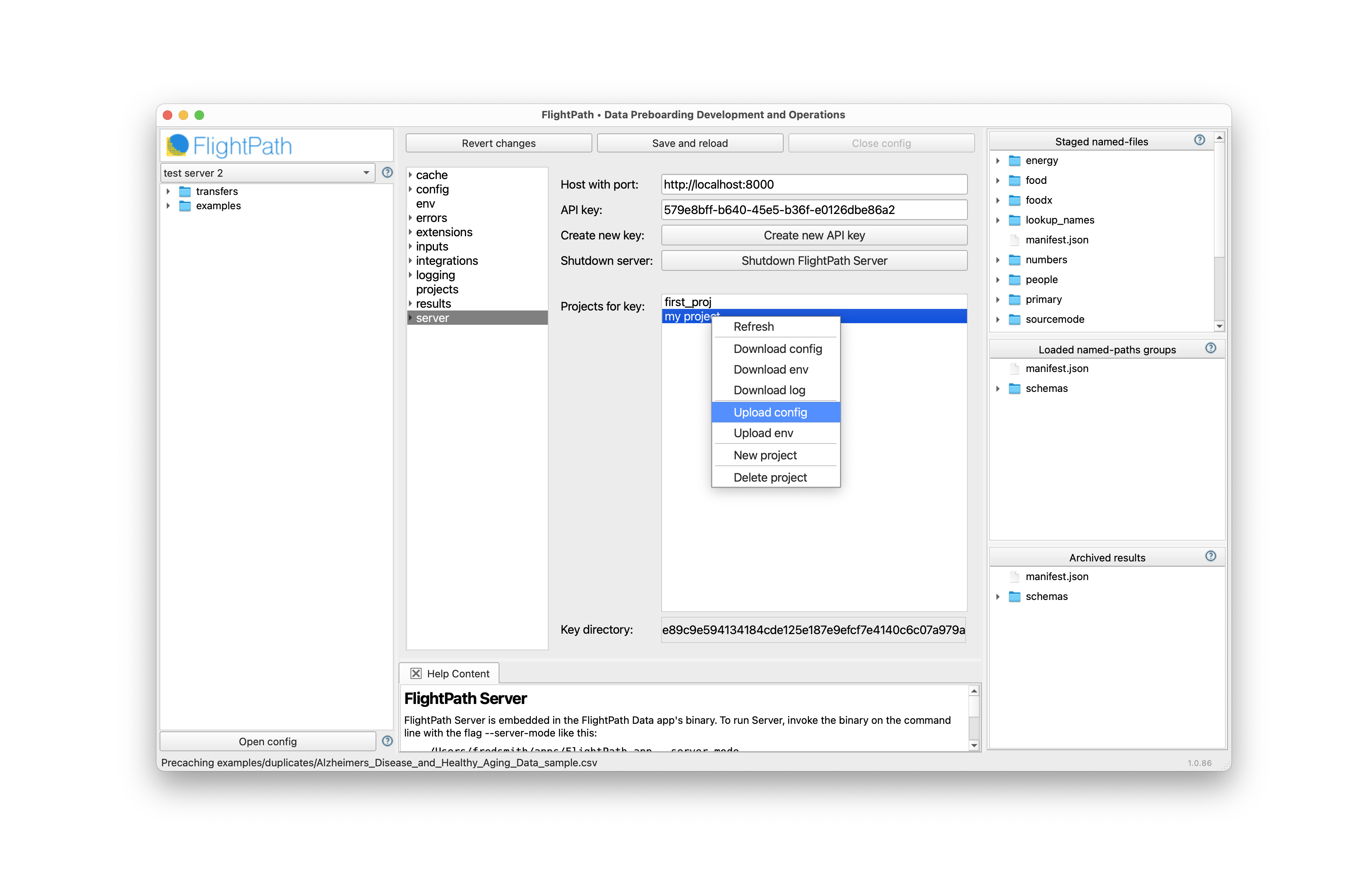
Create a csvpaths script
In the left-hand file manager sidebar right-click and create a csvpaths file 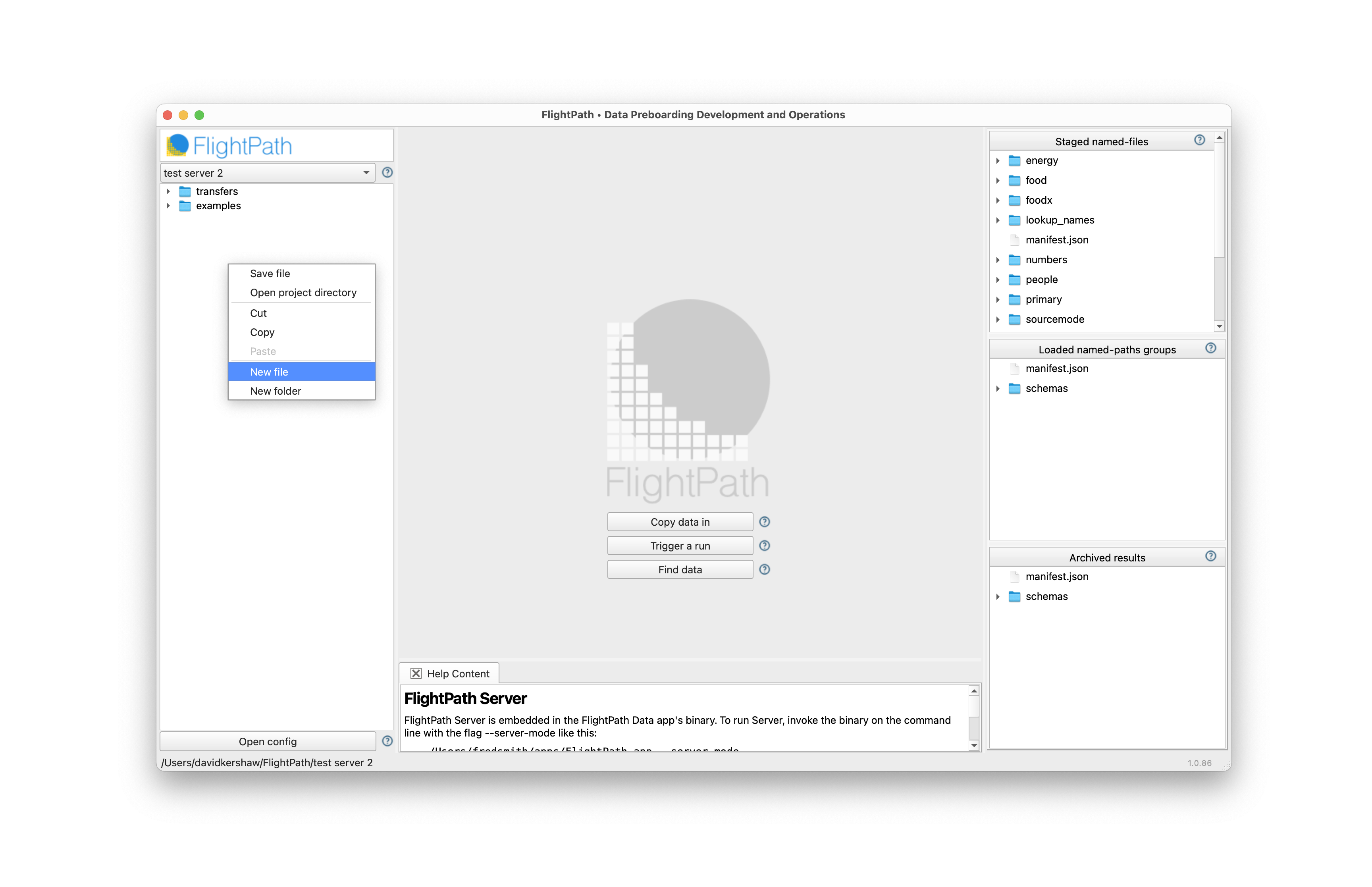
Use a .csvpath or .csvpaths extension, to match the extensions configured for CsvPath Validation Language files. 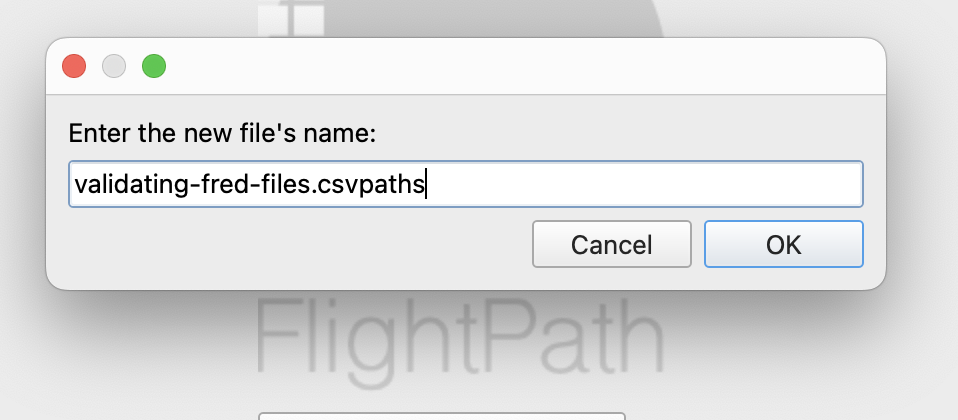
You need at least one csvpath in the file. Your csvpath can be as simple as $[*][yes()]. 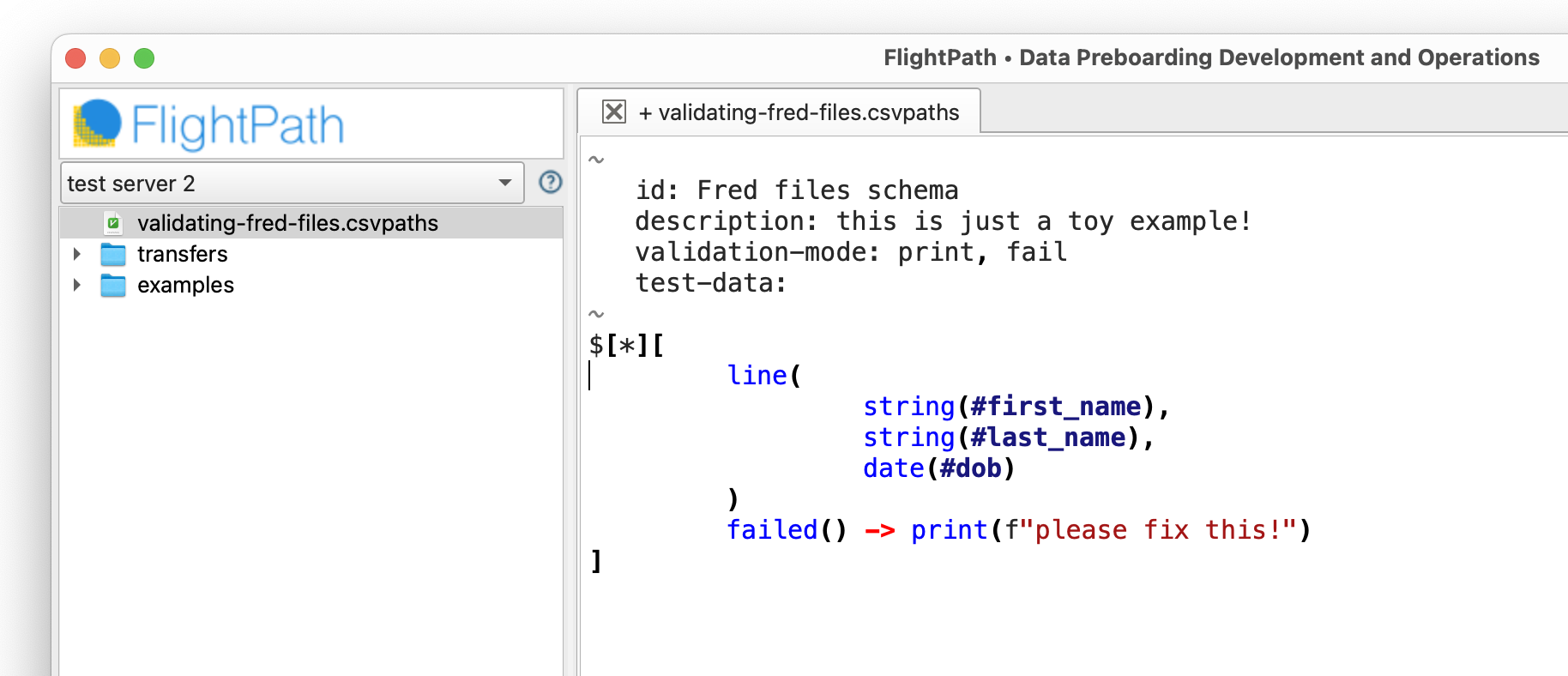
Pretty soon you will want to go beyond that. As you begin learning CsvPath validation remember the right-hand Help tab. 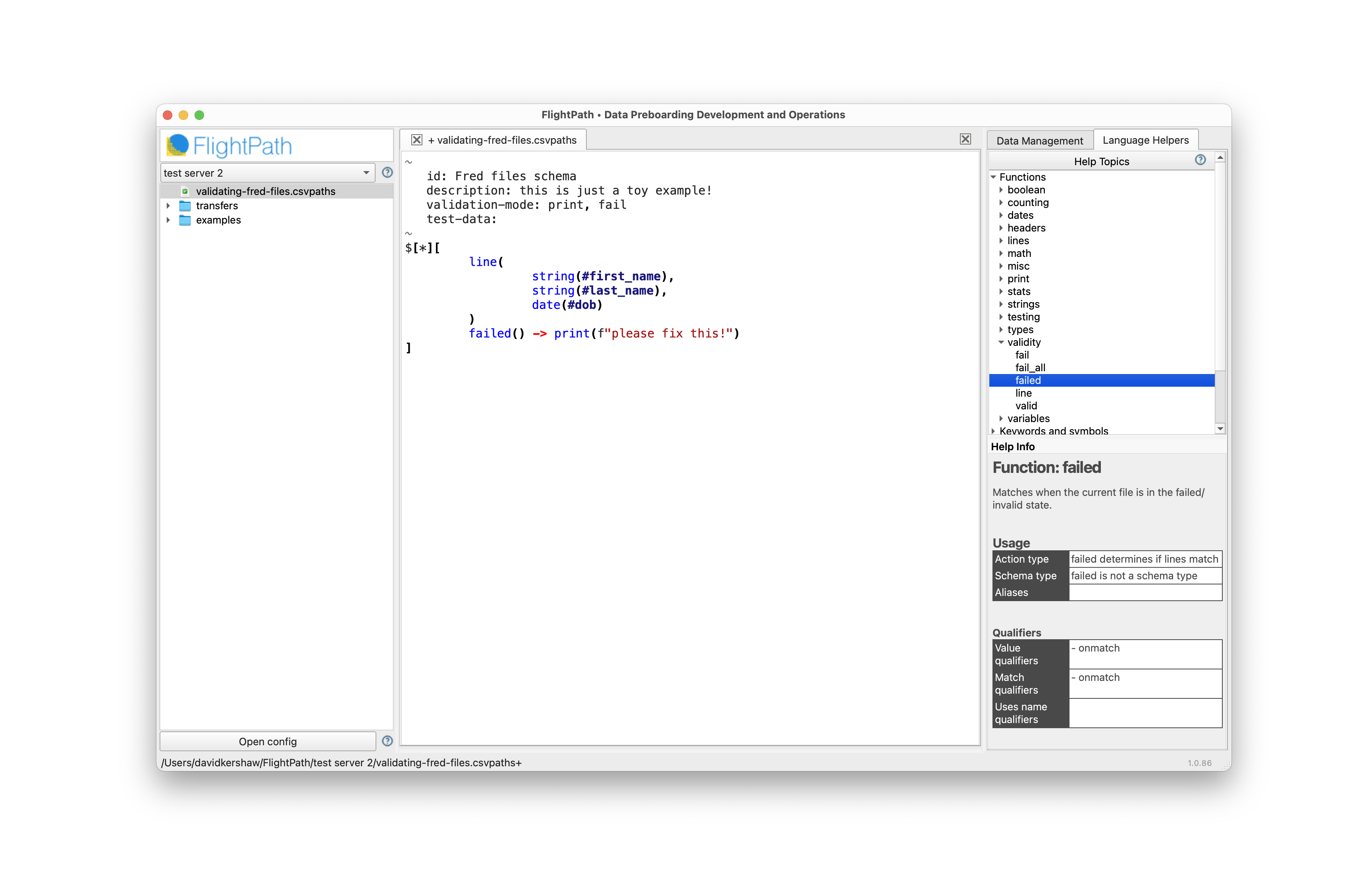
Load the csvpaths script
Right-click your csvpath file in the file navigator and select Load csvpaths. 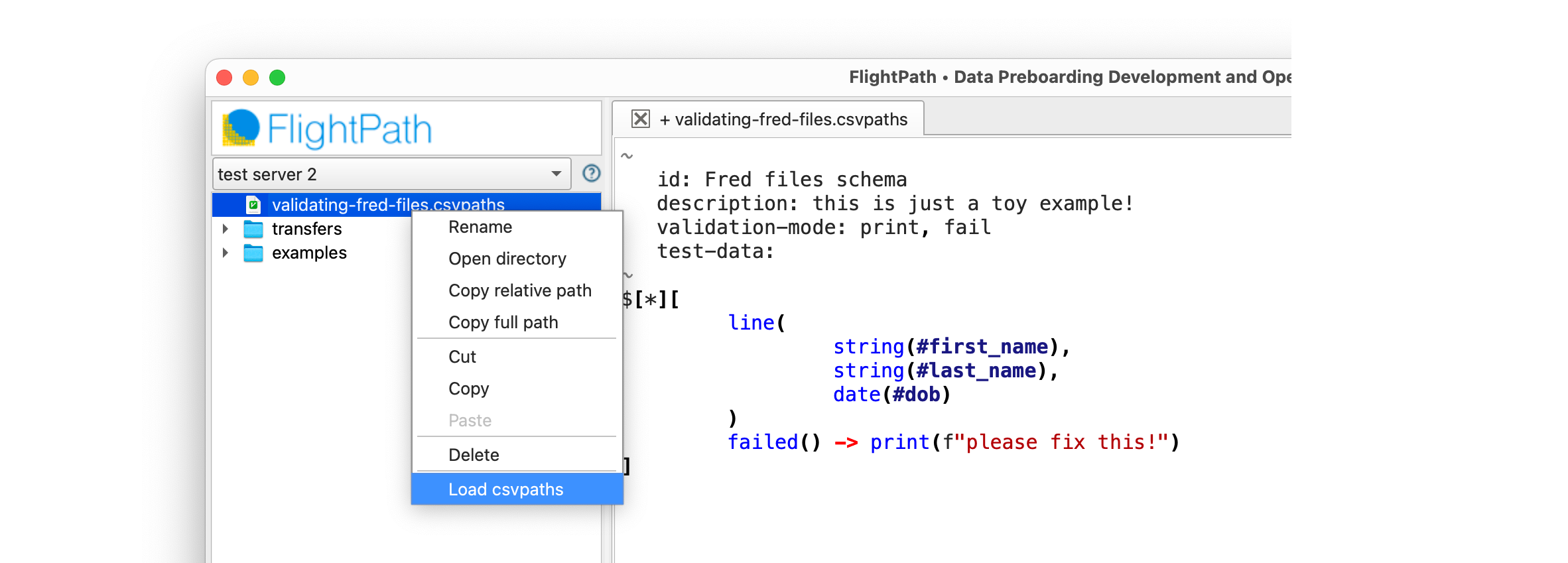
In the load csvpaths dialog use the same named-paths group name we used earlier with the csvpaths_group_name in our register_and_run request. 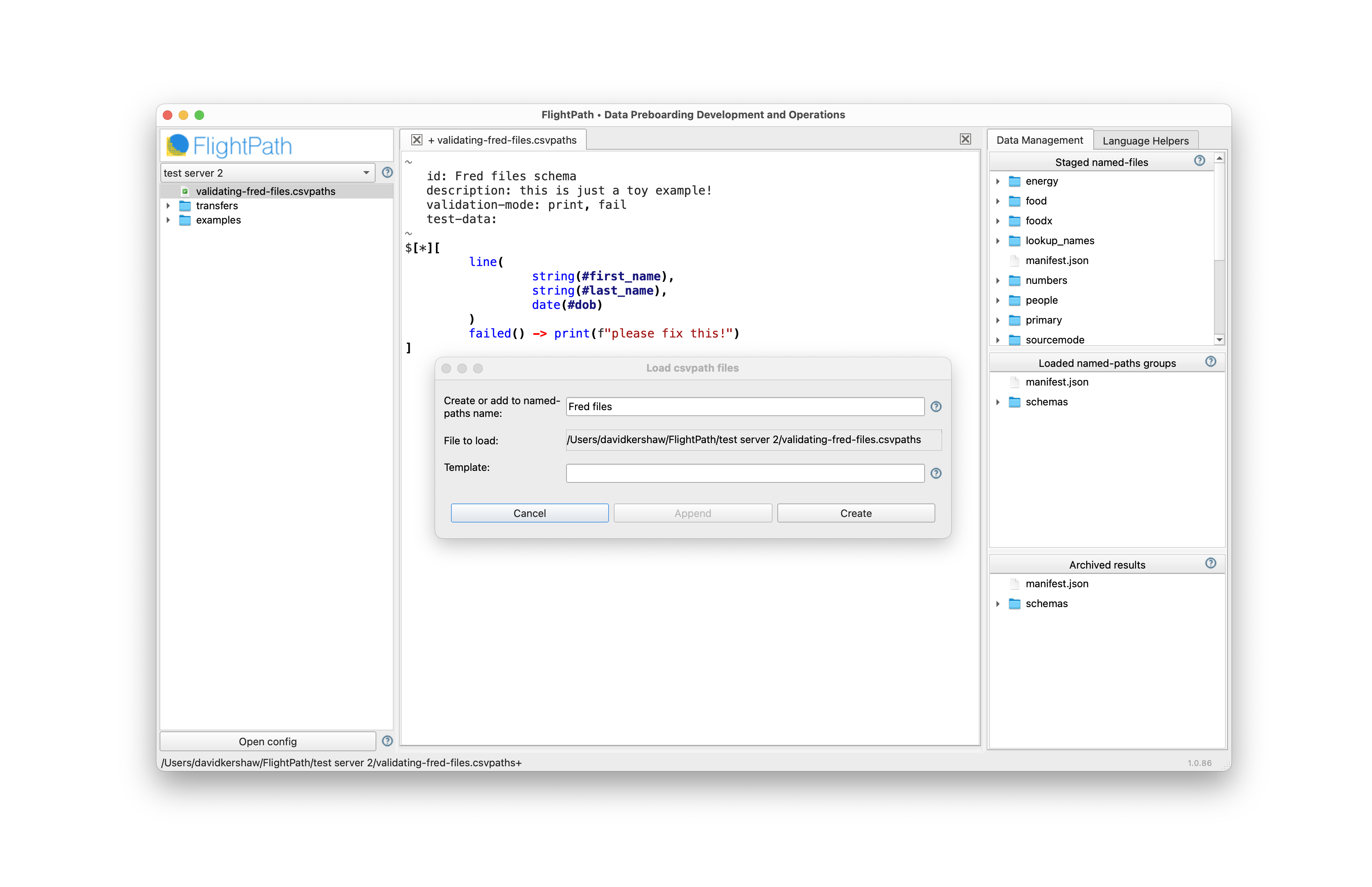
Wait for a file to arrive
You are done. When a file arrives in the Fred SFTPGo account, SFTPGo will notify FlightPath Server using the /csvpath/register_and_run endpoint.
FlightPath Server will in turn load the file into the project’s raw files staging area as the most recent version of a named-file called invoices. Then FlightPath Server will run the new invoice through our named-paths group of validation statements, also called invoices. The resulting data and metadata will be available in the archive.
The OpenAPI docs for these endpoints is here.
The response will include a reference to the specific version of the named file that you just registered. It will look like this:
{"reference":"$projects.files.a711df7d2846e8ba46125d3f7adb7aea0ede50eb20a6550fca2358628a05425b"}
However, since the register and run is completely automated we would pick from several next steps.
- Search to find the file when needed
- Configure a notification to tell us a file arrived
- Watch for manifest updates or metadata database updates
- Watch the project’s log file, and/or
- Set alerts in an OpenTelemetry or OpenLineage system In short, there are many options for following up the automated register and run we just configured, but those options are covered elsewhere.