How To Add Files To a Project
Your projects will use existing files, as well as creating new ones. Adding files is easy. You use your computer’s file manager to copy files in to the project directory. (Your file manager is Explorer for Windows; Finder for MacOS)
The important thing to remember is that you are working in a sandbox. A sandbox is a protected area that constrains what apps can do, in order to increase security. The sandbox is a big benefit, but it comes with caveats too.
The sandbox puts files in protected areas but makes them readily available and appear to be on your desktop, in the documents folder, or in other well-known locations. Nevertheless, since they aren’t where they seem to be moving files is something to pay attention to.
The secret is simply to open Explorer (Windows) or Finder (MacOS) from the buttons in FlightPath, so that the sandbox knows to trust the files you select. Simple!
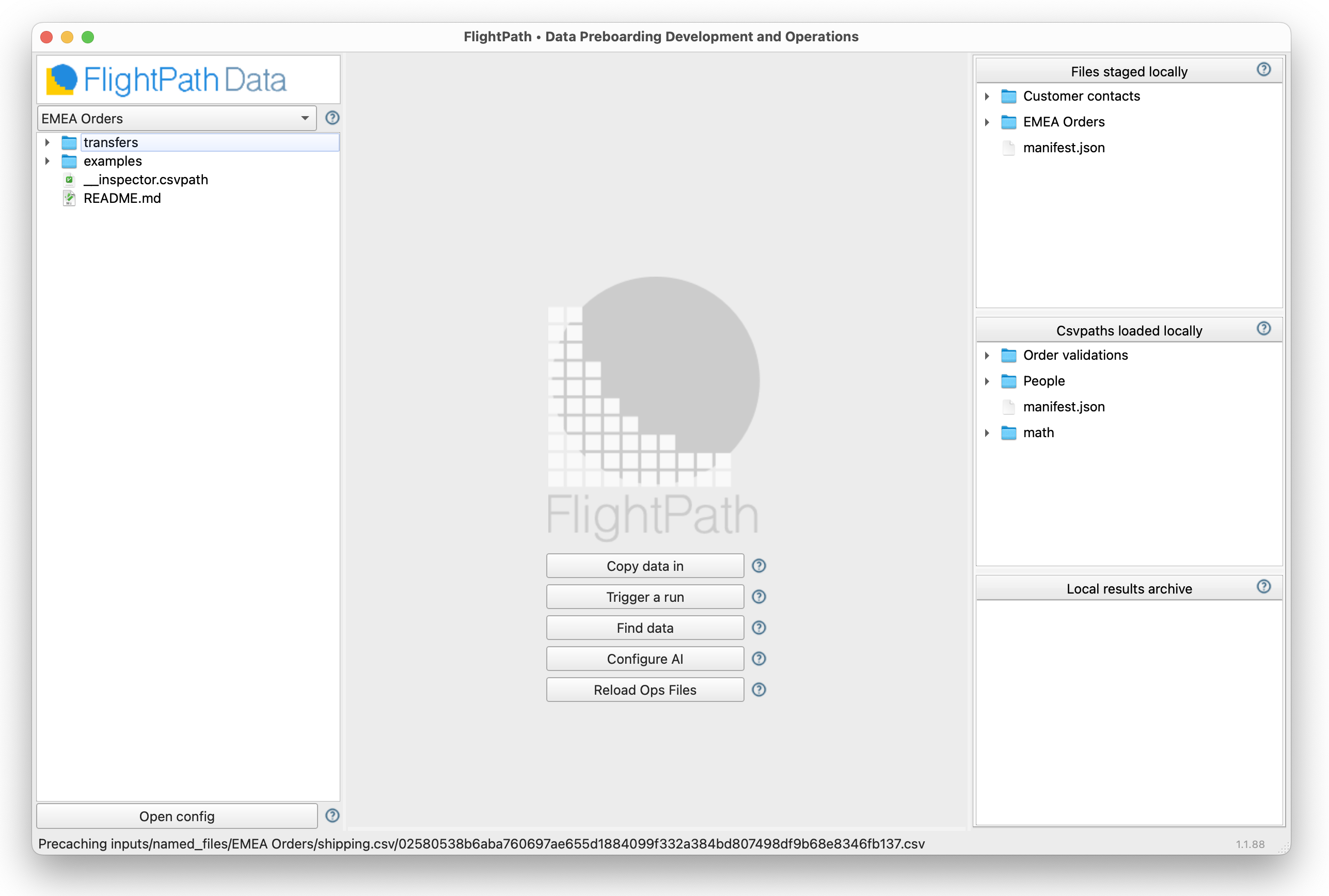
Use the Copy files in button on the Welcome screen to open Explorer or Finder. Alternatively, you can open Explorer or Finder from any of several buttons on the config forms.
How to do it
- Open FlightPath
- Click the
Copy data inbutton in the center of the Welcome screen - Use your computer’s file manager to copy files to your project directory
Remember that your project folder is, by default, in the FlightPath directory in your home folder.
- Alternately, you can open your computer’s file manager several other ways:
- Right-click on the whitespace in the project files tree on the left and click
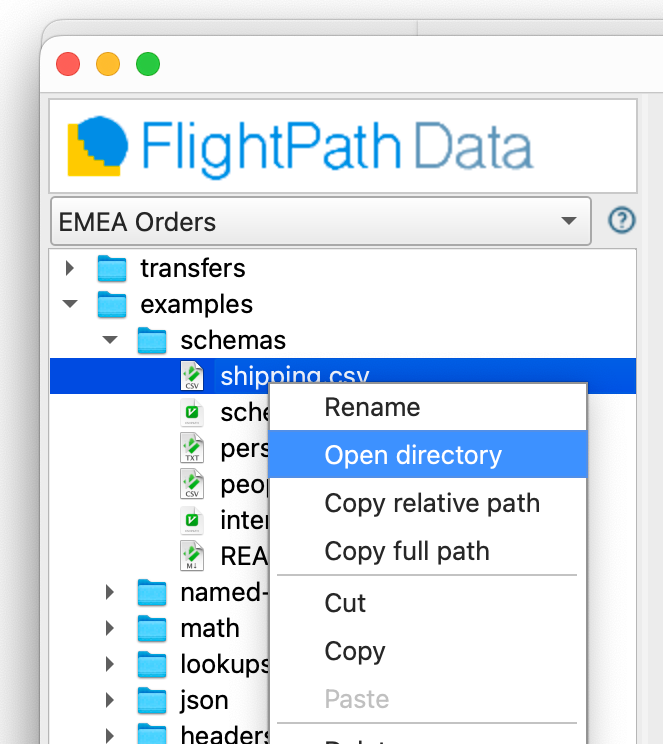
Open project directory - Right-click on any item in the project files tree and click
Open directory - In the Config panel, look for open-directory buttons in Config, Logging, LLM, and Projects
- Right-click on the whitespace in the project files tree on the left and click
What you need
- A FlightPath project. The
Defaultproject is fine.