How To Edit a JSONL File As JSON
JSONL files are data, similar to CSV or XLSX. However, they have substantial structural differences from CSV. Among those are the different way headers are handled. JSONL labels every item of data on every line with the “header” name of that item, and these headers are not ordered. There are several other differences, some subtle.
When you edit a JSONL file in the grid and try to save it, you will be prompted to choose a delimiter, quote char and file name. Despite it’s productivity for viewing and editing, the Grid View cannot save a JSONL file as JSONL. Instead, it does a save-as to CSV. Clearly, JSONL calls for a different, additional view.
The JSON View is equally good for editing JSONL. JSON differs from JSONL in a few ways; most obviously, it is a set of JSON documents each on its own line. The JSON View handles these JSONL peculiarities well.
To open a JSONL file in the JSON View, just right-click on it in the project tree and select Edit as JSON.
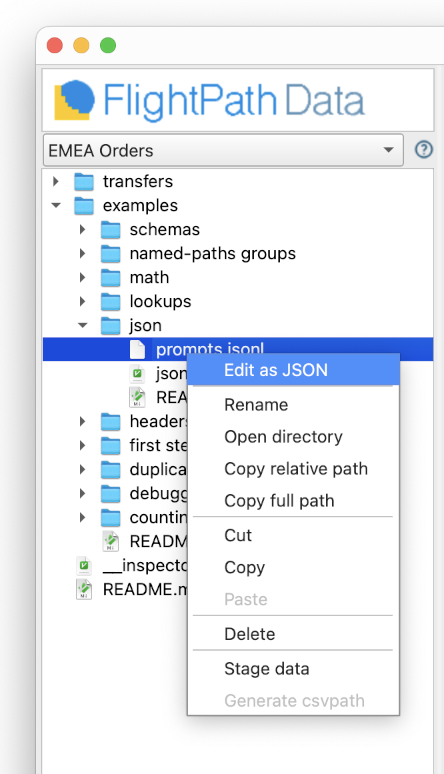
How to do it
- Open FlightPath
- Navigate to your project’s
examples/jsonfolder - Right-click
prompts.jsonl - Select
Edit as JSON - The JSON View opens with the file’s contents