API How-tos
FlightPath Server’s API allows you to work with server hosted CsvPath Framework projects simply and effectively. This page illustrates the use of some of the endpoints via Python.
The examples here were auto-generated as a Python export from a simple RapidAPI session.
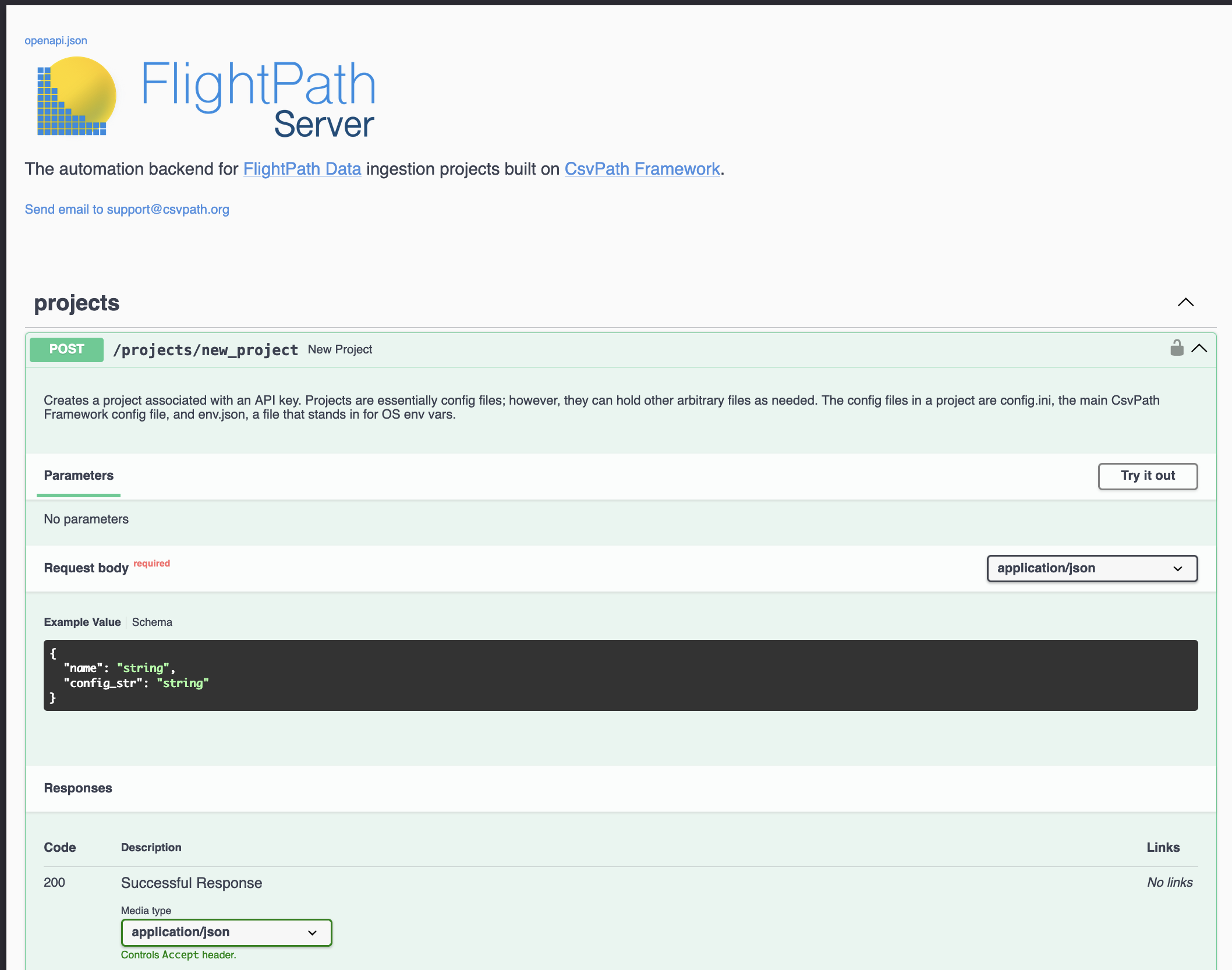
The FlightPath Server API docs are here. Your local FlightPath Server also serves them at /docs.
Ping
Let’s start with a simple ping to make sure FlightPath Server is available. There’s nothing complex here. Just fill in your own server address.
First, start FlightPath Server on the command line. Remember that macOS users have one binary, FlightPathData.app, and use the --server-mode flag to invoke the server. Windows users have two binaries and should simply start FlightPathServer.exe.
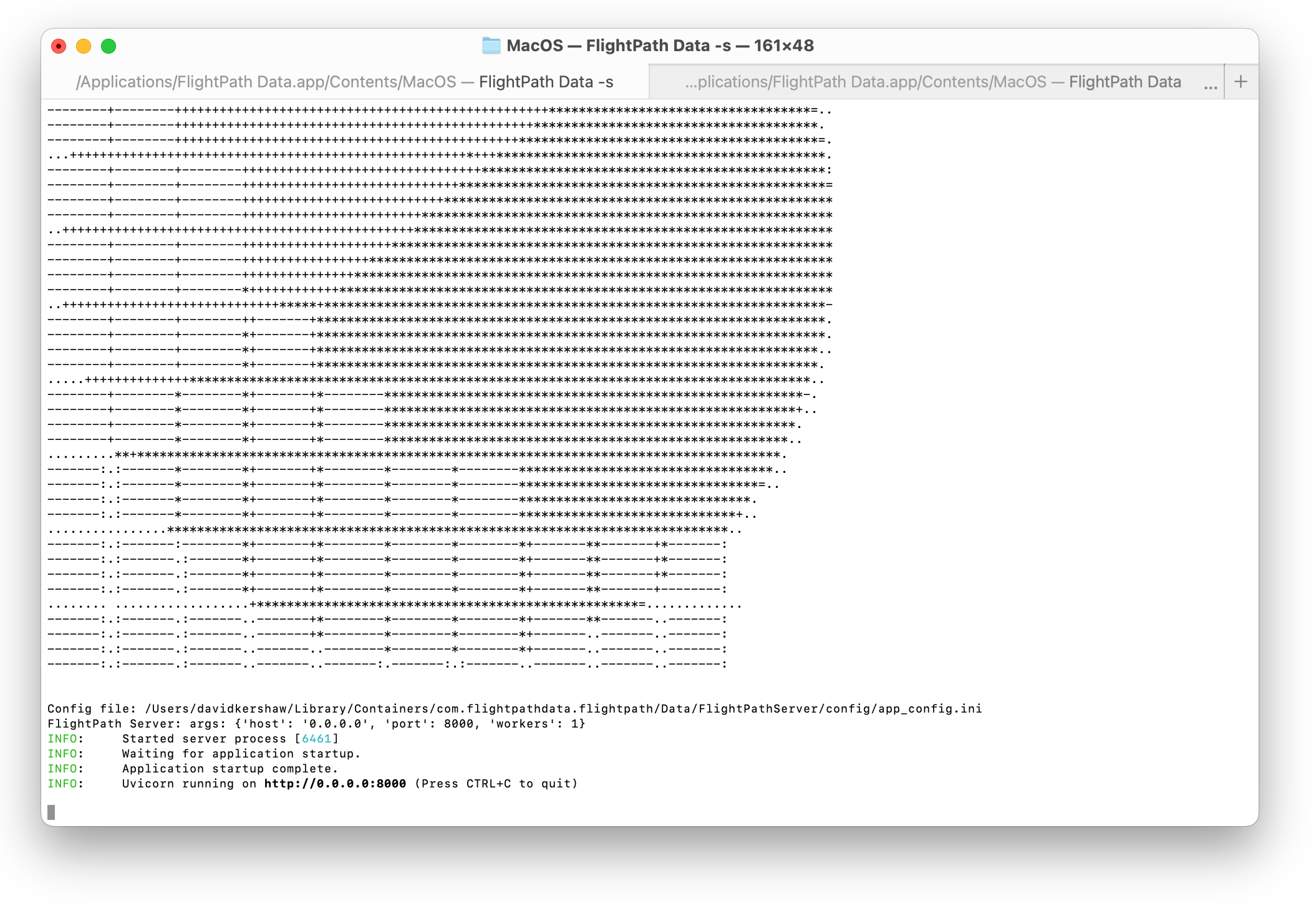
When FlightPath Server starts up for the first time it creates a FlightPathServer folder in your home directory. The server’s config is in FlightPathServer/config/app_config.ini. Open that file to set the hostname or IP you want FlightPath Server to listen on.

import requests

def send_request():

    try:
        response = requests.get(
            url="http://192.168.1.152:8000/",
            headers={
                "Content-Type": "application/json",
            },
        )
        print('Response HTTP Status Code: {status_code}'.format(
            status_code=response.status_code))
        print('Response HTTP Response Body: {content}'.format(
            content=response.content))
    except requests.exceptions.RequestException:
        print('HTTP Request failed')
The result is just a short message that lets you know FlightPath Server is available.
Server and Project Management
Create the admin key
When FlightPath Server is first installed it has no keys. To create your first key you use the same new_key endpoint you would use to create any key. However, when you are creating your first key you don’t have to provide an API in your request. In all the requests below this one, an access_token header is required. access_token passes your API key. In this one case, though, you don’t need an API key.
The key that FlightPath Server returns is an admin key. It has a very small number of powers reserved for admins.
import requests
import json

def send_request():
    try:
        response = requests.post(
            url="http://192.168.1.152:8000/admin/new_key",
            headers={
                "Content-Type": "application/json",
            },
            data=json.dumps({
                "key_owner_name": "Fred",
                "key_name": "Rockworks Invoices",
                "key_owner_contact": "fred@csvpath.org"
            })
        )
        print('Response HTTP Status Code: {status_code}'.format(
            status_code=response.status_code))
        print('Response HTTP Response Body: {content}'.format(
            content=response.content))
    except requests.exceptions.RequestException:
        print('HTTP Request failed')
Create your first project
Like FlightPath Data, work in FlightPath Server is encapsulated in projects. The concept is essentially identical. The main differences in how projects work between FlightPath Data and FlightPath Server are:
- Server projects cannot access the OS environment variables
- A few features that are not conducive to multi-user environments are disabled or limited
- Some file system locations are fixed on the server, rather than being user-settable
In place of OS environment variables, both FlightPath Data and FlightPath Server allow users to create JSON files of variables that work essentially the same way, but are scoped to a project. In FlightPath Server this is the only option for variable substitution.
As far as disabled features, there aren’t many. A good example is local file loading. In regular CsvPath Framework use or in a FlightPath Data project you can load data files and csvpath files from the local file system into the controlled staging areas. In FlightPath Server you must stage your data in a secure backend, such as an SFTP server or S3, where use is authenticated, demarcated, and auditable.
import requests
import json

def send_request():
    try:
        response = requests.post(
            url="http://192.168.1.152:8000/projects/new_project",
            headers={
                "Content-Type": "application/json",
                "access_token": "093cf365-b60f-4d77-b1be-82dee0d36959",
            },
            data=json.dumps({
                "name": "first_proj"
            })
        )
        print('Response HTTP Status Code: {status_code}'.format(
            status_code=response.status_code))
        print('Response HTTP Response Body: {content}'.format(
            content=response.content))
    except requests.exceptions.RequestException:
        print('HTTP Request failed')
Download a project’s config file
When you create a FlightPath Server project the server creates a config file for you. You will want to review the defaults and customize the values. To download your new config.ini file just use this /projects/get_project_config endpoint. You can do the same thing in FlightPath Data from the server management config form by right-clicking on your project’s name and selecting download config.
import requests
import json

def send_request():

    try:
        response = requests.post(
            url="http://192.168.1.152:8000/projects/get_project_config",
            headers={
                "access_token": "093cf365-b60f-4d77-b1be-82dee0d36959",
                "Content-Type": "application/json",
            },
            data=json.dumps({
                "name": "first_proj"
            })
        )
        print('Response HTTP Status Code: {status_code}'.format(
            status_code=response.status_code))
        print('Response HTTP Response Body: {content}'.format(
            content=response.content))
    except requests.exceptions.RequestException:
        print('HTTP Request failed')
Upload a project config file
A FlightPath Server project is largely just a FlightPath Data project that has been uploaded to FlightPath Server and lightly modified for operations in a server environment. When you want to change the way your project works you just edit the config file.
FlightPath Data makes updating a server project’s config.ini super simple. You just send the config you are working in to a project with the click of button. Using FlightPath Server’s API the process is almost as easy, as you can see from this request to update a project’s config.
import requests
import json

def send_request():

    try:
        response = requests.post(
            url="http://192.168.1.152:8000/projects/set_project_config",
            headers={
                "Content-Type": "application/json",
                "access_token": "093cf365-b60f-4d77-b1be-82dee0d36959",
            },
            data=json.dumps({
                "name": "first_proj",
                "config_str": """[logging]
log_file = logs/csvpath.log
csvpath = info
csvpaths = info
log_files_to_keep = 100
log_file_size = 50000000
handler = file

[extensions]
csvpath_files = csvpaths, csvpath
csv_files = csv, tsv, dat, tab

[errors]
csvpath = print,fail,collect
csvpaths = print,collect
use_format = full
pattern = {time}:{file}:{line}:{paths}:{instance}:{chain}:  {message}

... your config goes here ...

"""
            })
        )
        print('Response HTTP Status Code: {status_code}'.format(
            status_code=response.status_code))
        print('Response HTTP Response Body: {content}'.format(
            content=response.content))
    except requests.exceptions.RequestException:
        print('HTTP Request failed')
Upload the project’s variable substitution file
As a multi-user environment, FlightPath Server cannot rely on OS environment variables for variable substitution in config files and as inputs to CsvPath Framework components. Instead users create simple JSON dictionaries of key-value pairs that are used transparently in the same way env vars are used in FlightPath Data and CsvPath Framework.
FlightPath Data also is able to rely on env files, rather than OS env vars; however, a FlightPath Data project must pick one or the other. Regardless of its FlightPath Data settings, when a project is uploaded to FlightPath Server the config is updated to only use env files. FlightPath Data has a handy UI for collecting key-values into env files, but you can easily do it in an editor and upload it as shown here.
import requests
import json

def send_request():

    try:
        response = requests.post(
            url="http://192.168.1.152:8000/projects/set_env_file",
            headers={
                "Content-Type": "application/json",
                "access_token": "093cf365-b60f-4d77-b1be-82dee0d36959",
            },
            data=json.dumps({
                "name": "first_proj",
                "env_str": "{\"AWS_ACCESS_KEY_ID\": \"AMMIC2KA2Q919C1JVI6E\",\"AWS_SECRET_ACCESS_KEY\": \"U0uoGk7zD1kCJ17iKzarZaF9SRhTLcWR3CjgDraQ\"}"
            })
        )
        print('Response HTTP Status Code: {status_code}'.format(
            status_code=response.status_code))
        print('Response HTTP Response Body: {content}'.format(
            content=response.content))
    except requests.exceptions.RequestException:
        print('HTTP Request failed')
Download the variable substitution file
You may want to compare your env file or maybe use it in a FlightPath Data project, separate from the server. Downloading the file is straightforward, as you can see below. If you want to access it on the server, it is always in the project’s config directory and called env.json.
import requests
import json

def send_request():

    try:
        response = requests.post(
            url="http://192.168.1.152:8000/projects/get_env_file",
            headers={
                "Content-Type": "application/json",
                "access_token": "093cf365-b60f-4d77-b1be-82dee0d36959",
            },
            data=json.dumps({
                "name": "first_proj"
            })
        )
        print('Response HTTP Status Code: {status_code}'.format(
            status_code=response.status_code))
        print('Response HTTP Response Body: {content}'.format(
            content=response.content))
    except requests.exceptions.RequestException:
        print('HTTP Request failed')
Update one key in the variable substitution file
In some cases you may only want to update or add one key to your env file. Rather than downloading, editing, and uploading the file, you can just patch the particular key you need to change using this request.
import requests
import json

def send_request():

    try:
        response = requests.post(
            url="http://192.168.1.152:8000/projects/set_env_key",
            headers={
                "Content-Type": "application/json",
                "access_token": "093cf365-b60f-4d77-b1be-82dee0d36959",
            },
            data=json.dumps({
                "name": "first_proj",
                "key": "OTEL_EXPORTER_OTLP_ENDPOINT",
                "value": "http://192.168.73.1:5080/api/default/v1/logs"
            })
        )
        print('Response HTTP Status Code: {status_code}'.format(
            status_code=response.status_code))
        print('Response HTTP Response Body: {content}'.format(
            content=response.content))
    except requests.exceptions.RequestException:
        print('HTTP Request failed')
Registration and Runs
Data preboarding is all about ingesting data file feeds in a more controlled and efficient way. The most core concepts are data registration and data validation. This section gives you a high-level view into how FlightPath Server helps you operationalize data preboarding.
Register data as a named-file version
The concept of a named-file is central to how CsvPath Framework organizes information. Zoomed out, the concept is straightforward.
- Each data file feed has its own name
- When new data arrives it is registered as the current value of the name with a unique identity
- Each registered file is an immutable version that can be found by location, arrival, identity, sequence, etc.
The request below to /csvpath/register_file tells FlightPath Server to pull the bytes from the given address and register them under name invoices.
If we needed to, we could add a template to tell FlightPath Server how to store the data. A template string is a pattern based on a file’s source location that becomes the path in the named-file’s folder tree. But templates are more advanced than most people need. Here we’re just doing the simplest registration because that’s all that is required.
Keep in mind that we since we are using the SFTP backend to fetch the file we need to make sure our project’s config.ini has the credentials required.
import requests
import json

def send_request():

    try:
        response = requests.post(
            url="http://192.168.1.152:8000/csvpath/register_file",
            headers={
                "Content-Type": "application/json",
                "access_token": "093cf365-b60f-4d77-b1be-82dee0d36959",
            },
            data=json.dumps({
                "name": "invoices",
                "file_location": "sftp://192.168.1.152:2022/projects.csv",
                "project_name": "first_proj"
            })
        )
        print('Response HTTP Status Code: {status_code}'.format(
            status_code=response.status_code))
        print('Response HTTP Response Body: {content}'.format(
            content=response.content))
    except requests.exceptions.RequestException:
        print('HTTP Request failed')
Load a csvpath validation and upgrading script
After a file has been stored and registered the preboarding process moves on to validation and upgrading. FlightPath Server uses CsvPath Validation Language to apply quality control to data files.
Validation language scripts are collected into groups known as named-paths groups. Each csvpath in a named-paths group applies rules and/or schemas to a registered file in a run. There can be as many csvpaths in a named-paths group as you need to enable you to automate your quality checks. In CsvPath Framework terms, named-files are checked against named-paths to create run results.
Run results include pristine data, error capture and reports, metadata, and printouts. But before all that can happen, you have to load csvpaths into a named-paths group. This request makes that happen.
Again, we are using permissioned storage to load our csvpath scripts. Your env file must have the access credentials for the backend you choose.
import requests
import json

def send_request():

    try:
        response = requests.post(
            url="http://192.168.1.152:8000/csvpath/register_csvpath_group",
            headers={
                "Content-Type": "application/json",
                "access_token": "093cf365-b60f-4d77-b1be-82dee0d36959",
            },
            data=json.dumps({
                "name": "reconcilation checks",
                "file_location": "s3://csvpath-example-1/missing_bounds_canon.csvpaths",
                "project_name": "first_proj"
            })
        )
        print('Response HTTP Status Code: {status_code}'.format(
            status_code=response.status_code))
        print('Response HTTP Response Body: {content}'.format(
            content=response.content))
    except requests.exceptions.RequestException:
        print('HTTP Request failed')
Find registered files
In order to perform runs of named-files against named-paths groups we need to be able to find and select registered files. The /find/find_files endpoint is how you do that.
Finding one or more versions of a named-file is done with references. A reference is a path-based query that can be based on combinations of:
- The named-file name
- Version source file name
- Path within the named-file space
- Arrival time
- Arrival sequence
- Version identity, in the form of a hash value
While you can perform a run using a simple named-file name, for example invoices, that only applies your rules to the most recent file registered. If you want a more specific file, you use a reference. Creating a reference is obviously harder than just invoices, but once you know how it becomes a snap.
In this example we are selecting a specific registered file from within the projects named-file. The long string of numbers and letters at the end of the reference is a cryptographic hash of the contents of the registered file. That is the most specific reference possible. You will get this most specific type of reference back from FlightPath Server when you register a file.
A simpler reference might look like $projects.files.2025-07:last, indicating we want the last file registered in July 2025 within the projects named-file.
import requests
import json

def send_request():

    try:
        response = requests.post(
            url="http://192.168.1.152:8000/find/find_files",
            headers={
                "Content-Type": "application/json",
                "access_token": "093cf365-b60f-4d77-b1be-82dee0d36959",
            },
            data=json.dumps({
                "reference": "$projects.files.a711df7d2846e8ba46125d3f7adb7aea0ede50eb20a6550fca2358628a05425b",
                "project_name": "first_proj"
            })
        )
        print('Response HTTP Status Code: {status_code}'.format(
            status_code=response.status_code))
        print('Response HTTP Response Body: {content}'.format(
            content=response.content))
    except requests.exceptions.RequestException:
        print('HTTP Request failed')
Get a registered file
When you’ve found the registered file you are looking for in the staging area you can download it with a request like this one.
import requests
import json

def send_request():

    try:
        response = requests.post(
            url="http://192.168.1.152:8000/find/get_file",
            headers={
                "Content-Type": "application/json",
                "access_token": "093cf365-b60f-4d77-b1be-82dee0d36959",
            },
            data=json.dumps({
                "reference": "$projects.files.a711df7d2846e8ba46125d3f7adb7aea0ede50eb20a6550fca2358628a05425b",
                "project_name": "first_proj"
            })
        )
        print('Response HTTP Status Code: {status_code}'.format(
            status_code=response.status_code))
        print('Response HTTP Response Body: {content}'.format(
            content=response.content))
    except requests.exceptions.RequestException:
        print('HTTP Request failed')
Register an incoming file and trigger a run
Most managed file transfer servers and services can call a webhook to alert a collaborating system that new data has arrived. In many cases setting up this type of alert requires essentially no coding. This endpoint is the best way to have FlightPath Server register a new file and process it right away from just that one notification.
The notification you get from an MFT or workflow system needs to tell FlightPath Server where the file is located, so it can be ingested. Your project’s config.ini and/or env.json must be provisioned with the access credentials for FlightPath to download the new data.
We have seen named-paths groups (csvpaths_group_name) and named-files (file_name) before. The method value indicates exactly how we want the run to work. The four options are for the run to:
- Either generate data results or only metadata, and
- Either run the csvpaths against the file serially or run all csvpath scripts together line-by-line (breadth-first)
This is a more advanced topic. It is covered more fully in the CsvPath Framework docs on CsvPath.org.
import requests
import json

def send_request():

    try:
        response = requests.post(
            url="http://192.168.1.152:8000/csvpath/register_and_run",
            headers={
                "Content-Type": "application/json",
                "access_token": "093cf365-b60f-4d77-b1be-82dee0d36959",
            },
            data=json.dumps({
                "csvpaths_group_name": "people",
                "method": "collect_paths",
                "file_name": "projects",
                "project_name": "first_proj",
                "file_location": "sftp://192.168.1.152:2022/projects.csv"
            })
        )
        print('Response HTTP Status Code: {status_code}'.format(
            status_code=response.status_code))
        print('Response HTTP Response Body: {content}'.format(
            content=response.content))
    except requests.exceptions.RequestException:
        print('HTTP Request failed')
Find the results of a run
Whether for ops management or for downstream data access, FlightPath Server makes the archive available to query. Finding run results relies on the same reference language used in identifying data to process and returned when you register data or load csvpath rules.
Your references are scoped to the name of the csvpath group you applied to the named file feed. Within that scope, you can find results by path, run time, sequence, or individual csvpath. The find_results endpoint returns the paths to the data files created by runs. Data files include all matched lines or all unmatched lines, depending on how the run was setup.
import requests
import json


def send_request():

    try:
        response = requests.post(
            url="http://192.168.1.152:8000/find/find_results",
            headers={
                "Content-Type": "application/json",
                "access_token": "093cf365-b60f-4d77-b1be-82dee0d36959",
            },
            data=json.dumps({
                "reference": "$people.results.2025-10-:all",
                "project_name": "first_proj"
            })
        )
        print('Response HTTP Status Code: {status_code}'.format(
            status_code=response.status_code))
        print('Response HTTP Response Body: {content}'.format(
            content=response.content))
    except requests.exceptions.RequestException:
        print('HTTP Request failed')
Download a project file
Project files and registered data files are very different things, although there is some overlap. While server projects are not expected to have the kind of ad hoc files you will naturally have in your FlightPath Data development projects, there are still files you may want to store with the other project assets. In addition, this endpoint gives you access to project logs, manifests, and other useful information.
import requests
import json

def send_request():

    try:
        response = requests.post(
            url="http://192.168.1.152:8000/projects/get_file",
            headers={
                "Content-Type": "application/json",
                "access_token": "093cf365-b60f-4d77-b1be-82dee0d36959",
            },
            data=json.dumps({
                "name": "first_proj",
                "file_path": "logs/csvpath.log"
            })
        )
        print('Response HTTP Status Code: {status_code}'.format(
            status_code=response.status_code))
        print('Response HTTP Response Body: {content}'.format(
            content=response.content))
    except requests.exceptions.RequestException:
        print('HTTP Request failed')
Get the metadata produced by a run
A large part of the value of data preboarding is tied up in the metadata generated as data arrives and is inspected. CsvPath Framework runs generate numerous categories of detailed metadata. These include variables, printouts, error events, logging, and more. The get_run_metadata endpoint bundles up three closely related types of run metadata:
- Manifests
- Metadata fields
- Runtime indicators and metrics
Manifests are where CsvPath Framework does its preboarding bookkeeping to give you durable identity, lineage, and chain of custody information. There are multiple points where data processing events are filed in manifests, as well as being fired off to external systems and data stores.
Metadata fields are a combination two things:
- User-defined name-value pairs, often used for documentation or as organizational labels, and
- Optional settings that can be applied on a csvpath-by-csvpath level.
The latter are referred to as modes and can change the way boolean logic is applied, how errors are handled, what rows are considered to have matched, and other core advanced topics. Integrations also use special named-values that look and operate like the modes, but are specific to a given integration.
And finally, runtime metrics are mainly counters and signals of progress and validity. The metrics change line by line as files are processed and their final state is stored with the rest of the run results.
import requests
import json

def send_request():

    try:
        response = requests.post(
            url="http://192.168.1.152:8000/csvpath/get_run_metadata",
            headers={
                "Content-Type": "application/json",
                "access_token": "093cf365-b60f-4d77-b1be-82dee0d36959",
            },
            data=json.dumps({
                "run_reference": "$people.results.2025-10-:last.reset headers",
                "project_name": "first_proj"
            })
        )
        print('Response HTTP Status Code: {status_code}'.format(
            status_code=response.status_code))
        print('Response HTTP Response Body: {content}'.format(
            content=response.content))
    except requests.exceptions.RequestException:
        print('HTTP Request failed')