How To Call a Webhook When a Run Completes
Learn about CsvPath Framework: Find lots more information and how-tos about CsvPath Framework automating data preboarding at https://www.csvpath.org.
You can trigger up to four webhooks at the end of a run. If you like, a webhook can optionally fire at the end of every run. In addition, one or more of the follow conditions can trigger a call to a webhook endpoint:
- An error was raised during the run
- The run completed successfully in a valid state
- The run completed successfully, but in an invalid state
Keep in mind that a run doesn’t automatically become invalid when an error is raised. Nor does a run have to have any errors for it to be marked invalid. Validity is completely at the discretion of the csvpath statement writer. To mark a run invalid, just use the
fail()function. To automatically fail a run when an error is raised, usevalidation-modewith the setting includingfail.
How to do it
- Right-click on a named-paths group and select
Set webhooks - The Webhooks Dialog opens
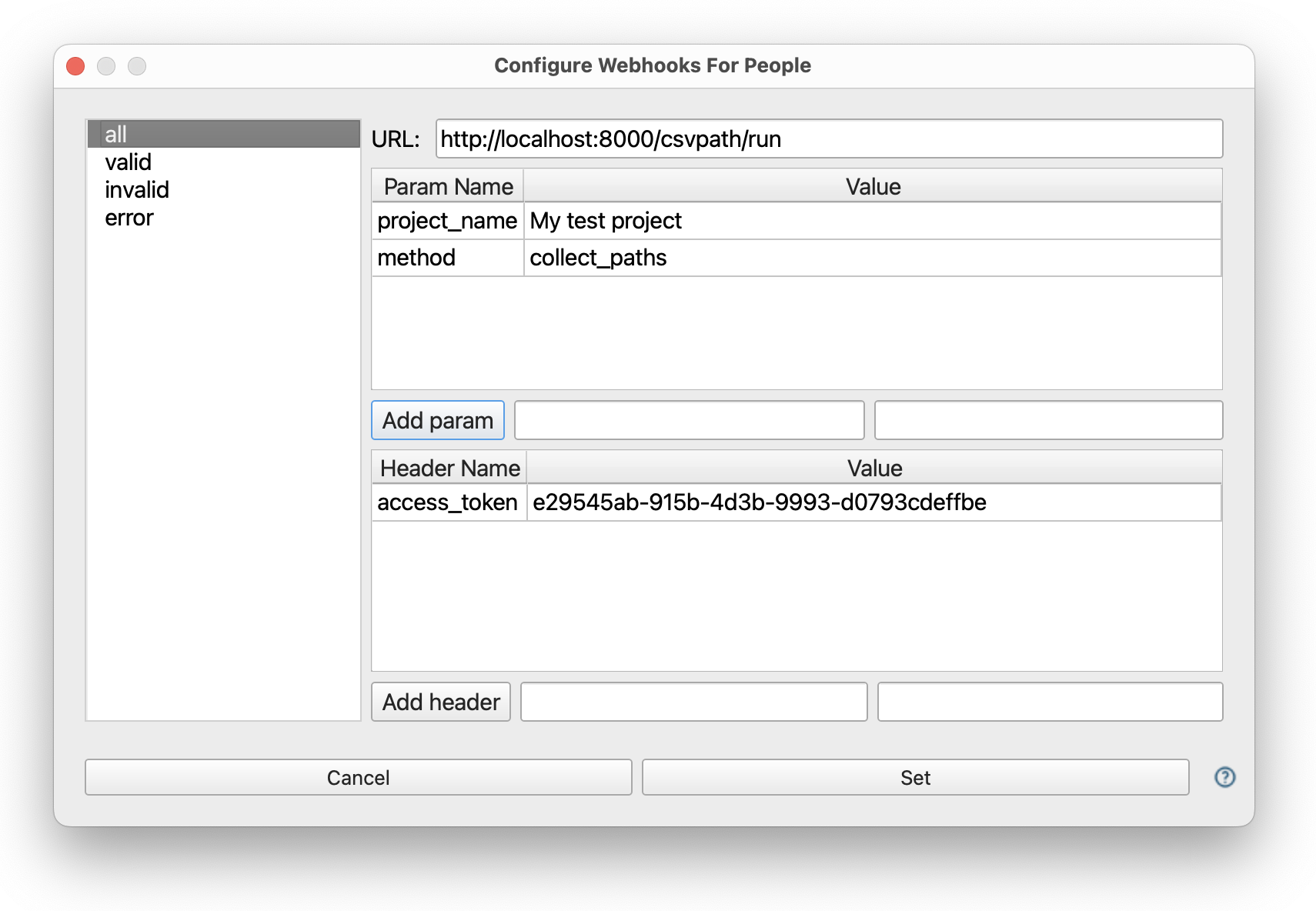
- In the image above the configuration is pointing towards a local FlightPath Server.
- On the left you see the four types of webhooks in vertical tabs. When the Dialog opens you are looking at the
allwebhook. This is the webhook that will always run, if it is configured. - At the top right, add your parameters.
- Below the parameters add your headers. You will typically need at least an auth header. In the case of FlightPath Server the auth header is
access_token, and it contains the API key of the project you are working on. - When you are done submit the form. Your webhook will be called at the end of the next run, if the webhook’s condition matches.
Webhook parameters are in the form
this > that, wherethisis a name that points tothatvalue. As well as the option of being a static value, a value can come from a csvpath’s metadata or variables. A value from a csvpath’s metadata has the prefixmeta|. Likewise, a value from the dynamic variables generated by a csvpath is prefixed byvar|.
What you need
To try out webhooks, you can start an instance of FlightPath Server. Full instructions are here. You will also need to create a project on the server. For our purposes, we will assume that the FlightPath Data project has the same inputs and archive as the FlightPath Server project.
Setup the project assets
- In the left-hand project files tree click to open
examples>math - In the
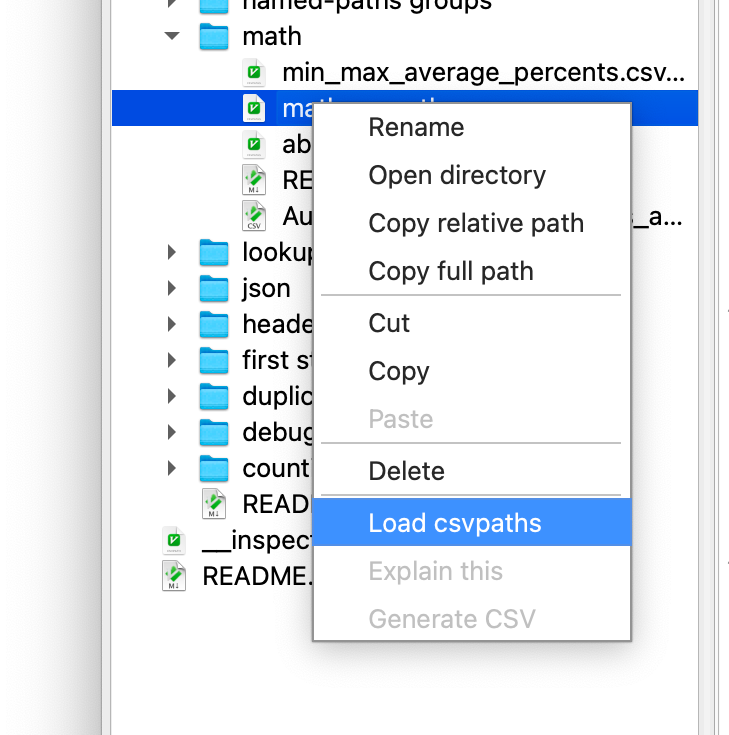
mathdirectory, right-click onmath.csvpathsand clickLoad csvpaths
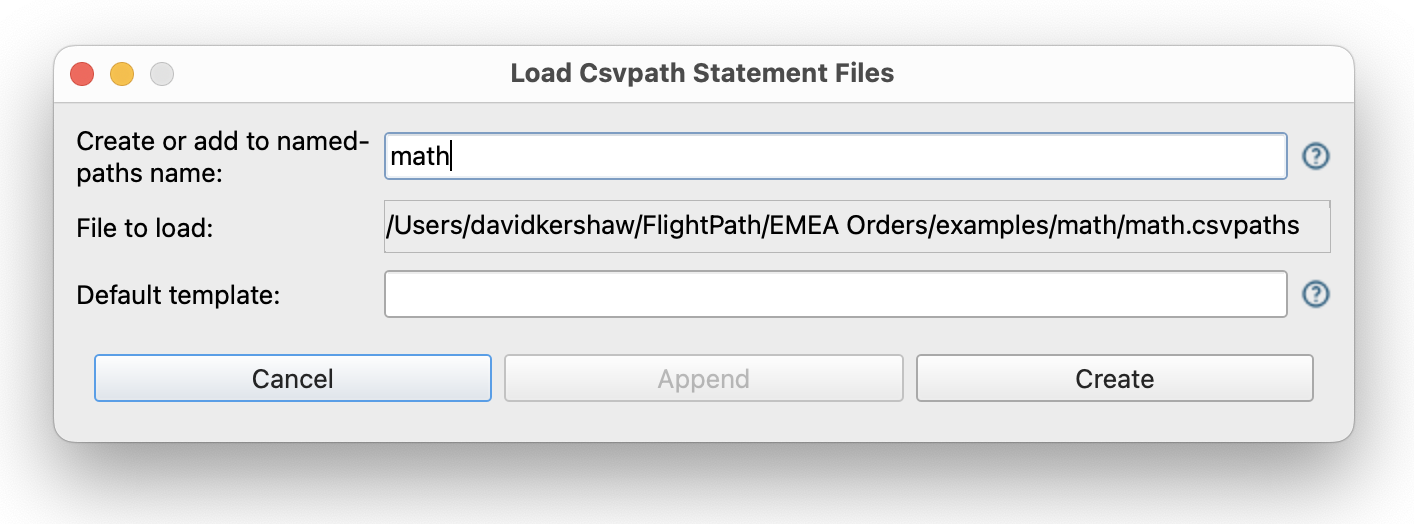
- The Load Dialog opens. Give the new group you are creating the name
math.
- In the named-paths groups helper window on the middle right, right-click on the new group and select
Set webhooks. - Fill in the
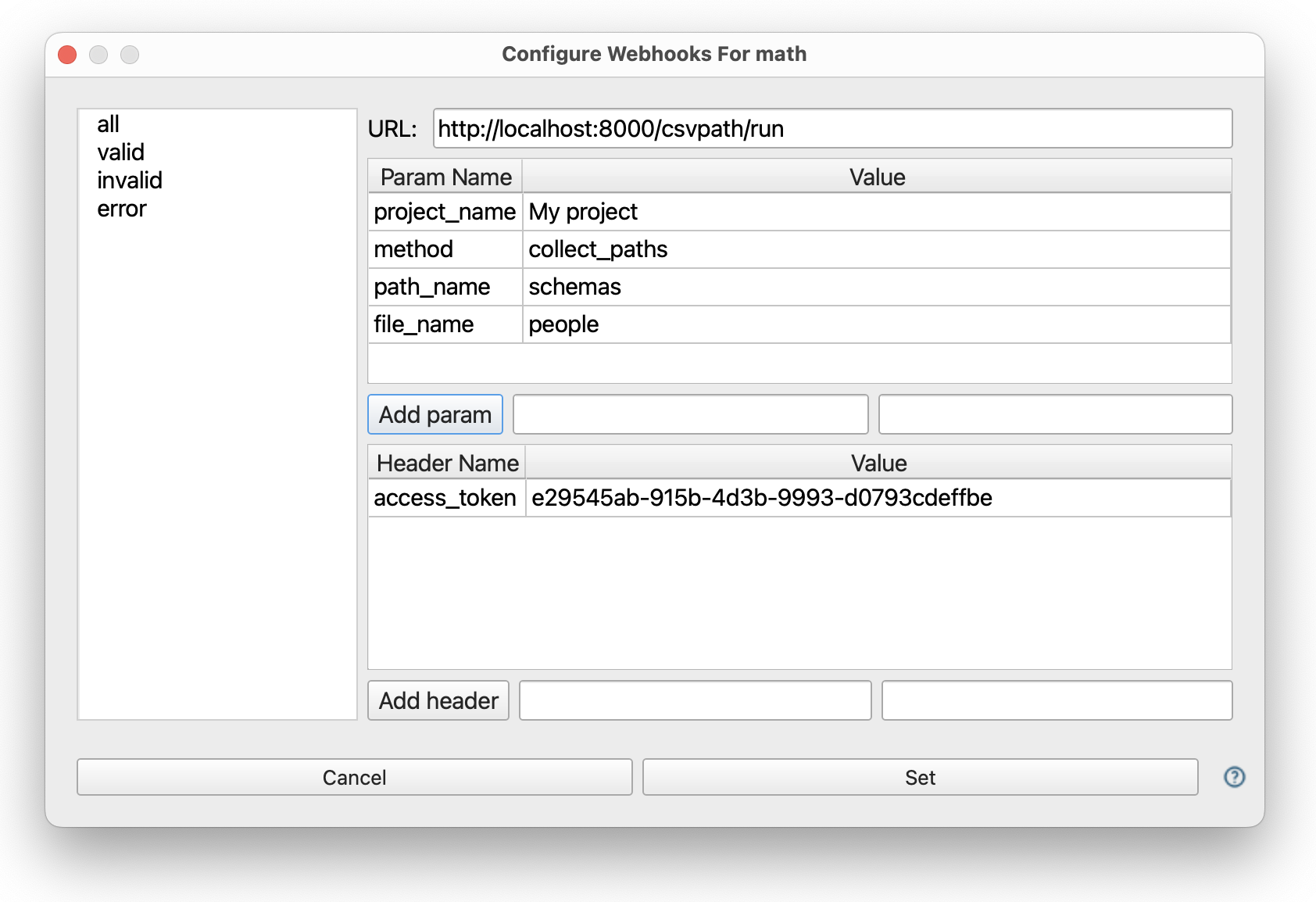
allwebhook with the required fields for the/csvpath/runendpoint:project_name,file_name,path_name, andmethod. - Below the parameters, add your
access_tokenheader with the project’s API key
- In the left-hand project files tree, right-click on the
Automobiles_Annual_Imports_and_Exports_Port_Authority_of_NY.csvfile and selectStage data. In the Stage Dialog name your fileautosand save it. This is the file you are going to run against themathgroup. - Do the same for the
schemas.csvpathsandpeople.csvfiles from theexamples/schemasdirectory. Name themschemasandpeoplerespectively, so that the names match the values you entered in the Webhooks Dialog. When ourmath/autosrun ends theschema/peoplepair will run. - Now simply create a run using your named-file
autosand your csvpath groupmath. To do that, right-click on either themathgroup or theautosfile in the right-hand helper windows where you loaded them. Select theNew runitem in the context menu and make sure the Run Dialog has the correct file and csvpaths group before hitting the submit button.
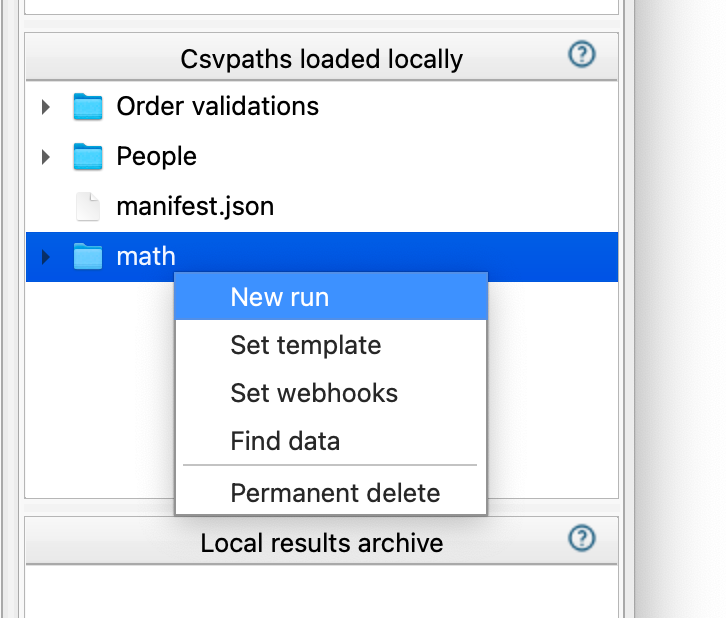
When your autos / math run completes you will see it in the Archive window at the lower left. Shortly after that you should see your people / schemas run in Archive as well, it having been kicked off by the webhook call to FlightPath Server.