🔰 The FlightPath Data UI: The Config Forms
FlightPath Data’s config panel helps you develop and automate local and server projects productively
Cache
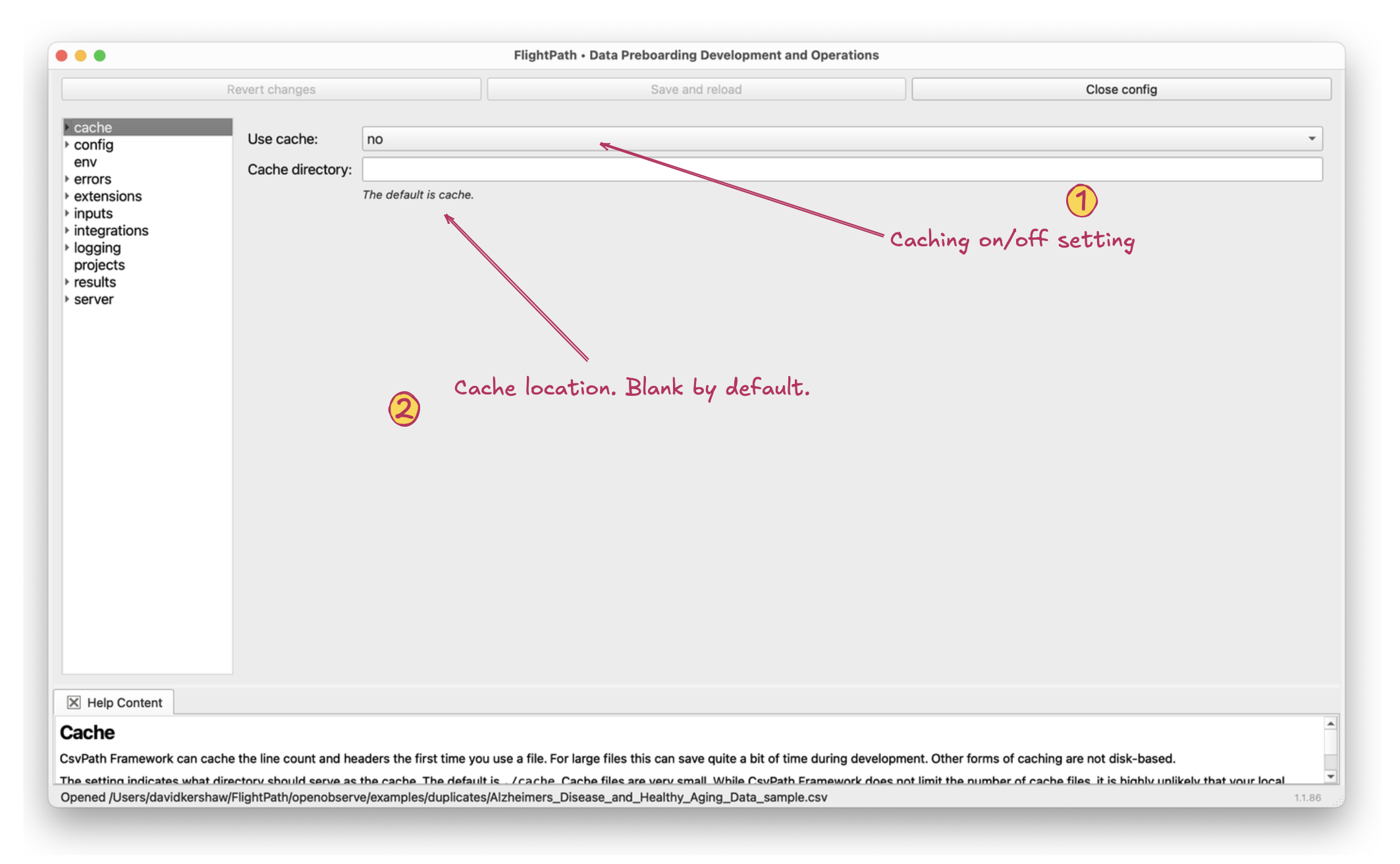
The cache form
- Use cache. This is the on/off switch for local caching of line counts and headers. Generally, for local files, caching should be left on to boost performance.
- Cache directory. The cache files directory can be any location within the project. By default it is
<projecti>/cache.
Config
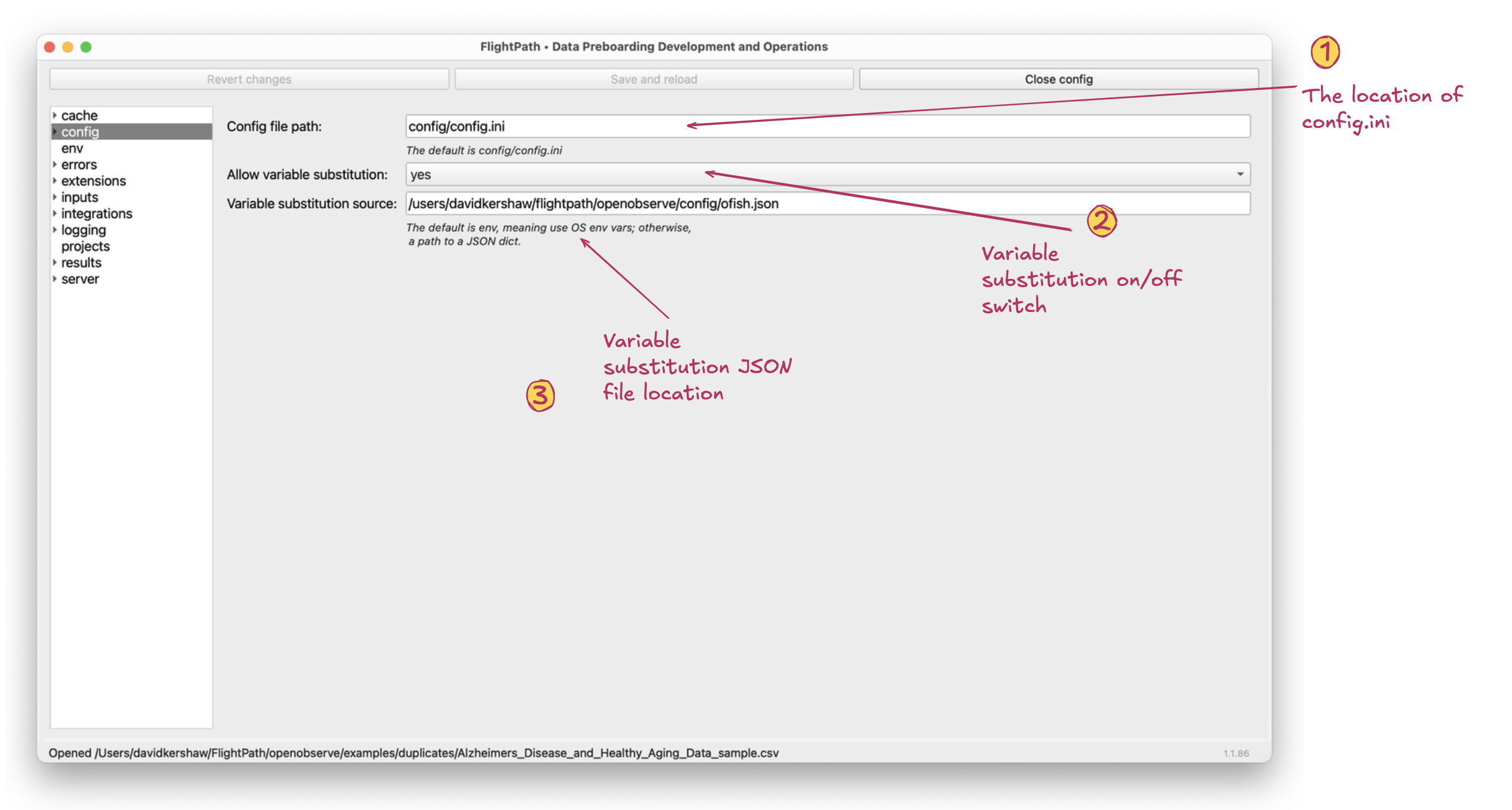
The config form
- Config file path. The config file you are editing through these forms is located at this path. By default it is
<project>/config/config.ini. With FlightPath Data there is usually no advantage to using another location.When you use CsvPath Framework programmatically there are times when moving the config file is useful. - Allow variable substitution. Variable substitution allows you to configure a setting in ALL CAPS and have that value become the value of an OS env var with the same name. I.e.
password=MY_PASSWORDwould setpasswordto the value of the OS env varMY_PASSWORD. - Variable substitution source. By default, when the field is
envor blank, variable substitution uses OS env vars. However, if you add a path to a JSON file with a dictionary structure the key-value pairs in the dictionary are used for lookups instead. FlightPath Server does not allow the use of OS env vars because it is a multi-project, multi-user system. On the server a JSON file is the only option.
Env
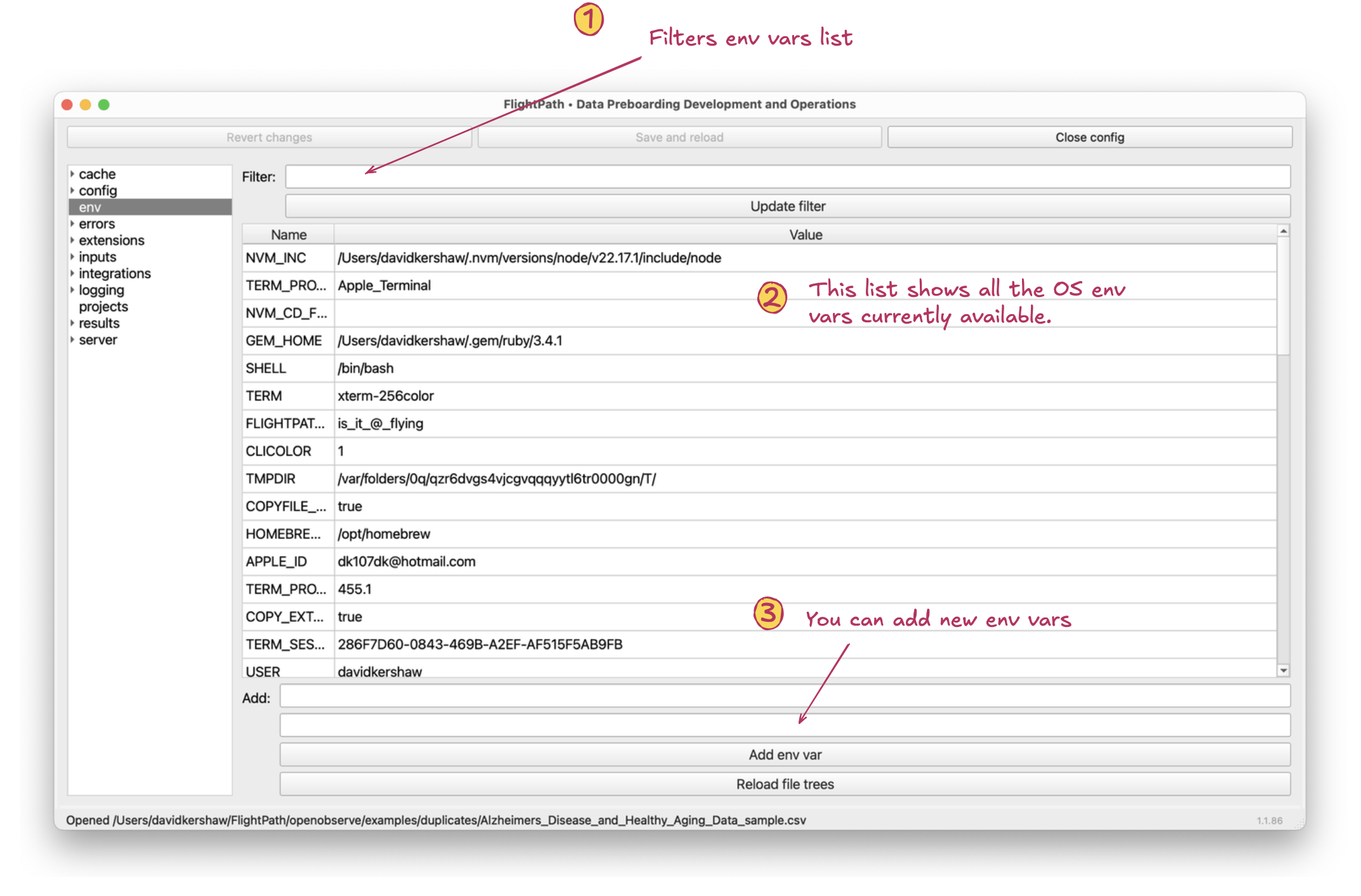
The env form
- Filter. This filter allows you to see only env vars that match a string.
- List of OS env vars. This list shows all OS env vars for the currently logged in user. It includes env vars specifically added using this form for use in FlightPath Data.
- Add env var. Adds an OS env var. OS env vars set during an app session do not persist after the app is shutdown. For this reason, FlightPath Data adds the app not only to the OS env, but also to
.flightpathin the user’s home directory. When FlightPath Data starts it adds all the env vars it knows about to the OS env vars so that the set of variables is consistent for each use of the app.
Errors
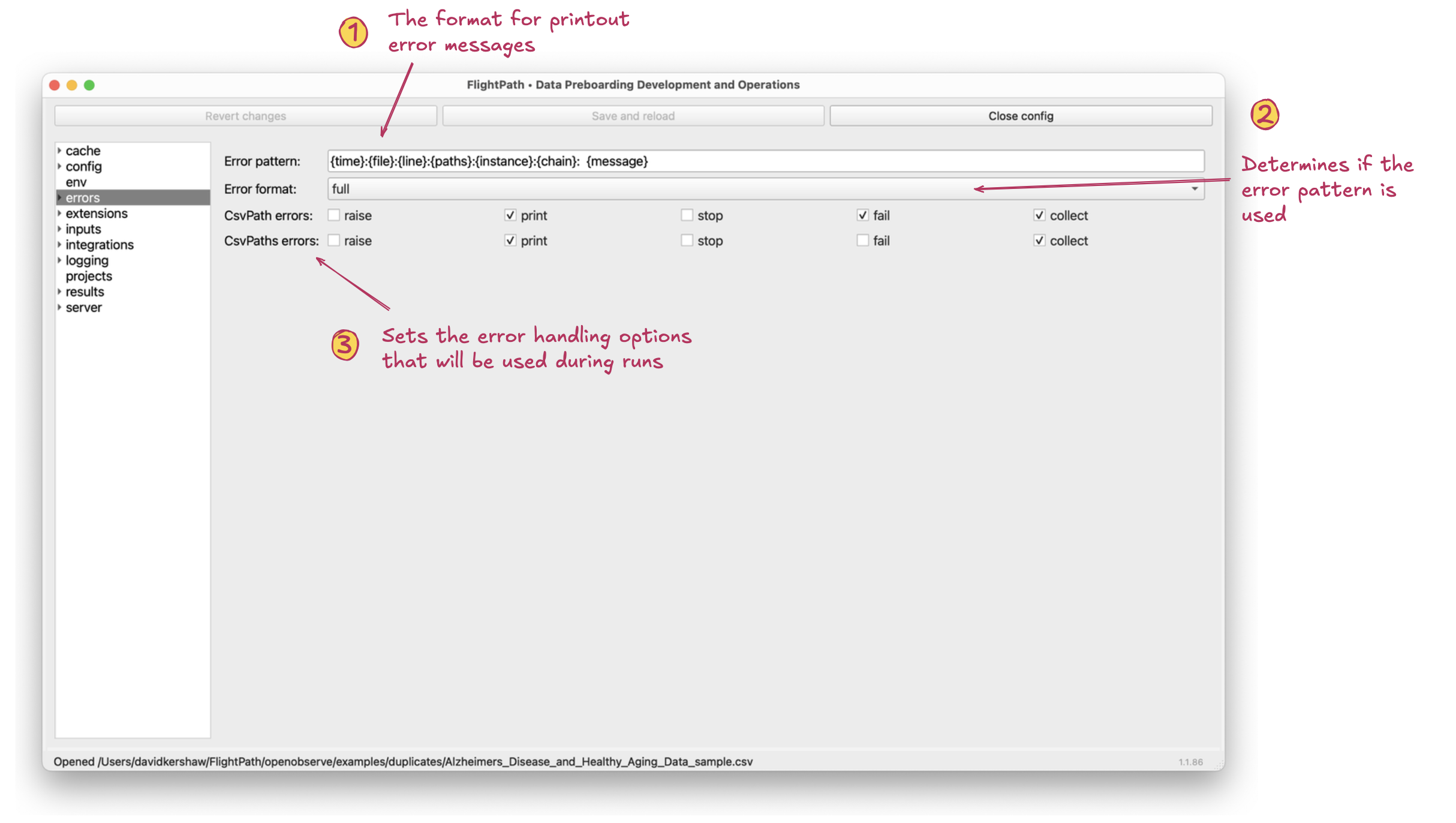
The errors form
- Error pattern. The error pattern determines what is shown when validation errors occur during a run. This does not change the log line output, only the user-presented validation errors. For example, a csvpath like
$[*][add("five", 3)]will generate two errors, one because the add function does not take strings, and one because adding"five"to3is inherently invalid. These are both user-presented errors that may show in the run printouts and errors.json. The error pattern controls what the printout would look like. - Error format. If set to
full, the default, errors will be presented using the error pattern. If set tobareerrors will be presented in the minimal form of a brief narrative message. The former looks like2025-10-27 19h14m27s-448672:projects_with_reset.csv:1::reset headers:add[0]: could not convert string to float: 'five'; whereas, the latter like:could not convert string to float: 'five' - CsvPath Errors and CsvPaths Errors. These settings reference the
CsvPathandCsvPathsclasses in the CsvPath Framework.CsvPathruns individual csvpath statements; for example, a test run in FlightPath Data during development.CsvPathsruns sets of csvpath statements in full, automated runs, such as happen in FlightPath Server. The checkboxes determine how errors are handled:
- Raise: Raising errors means raising an exception that would stop a run cold. You may want to leave this box unchecked in product environments in order to not stop processing on the first validation error. Print: Outputs validation errors to the printout stream(s). Leaving print checked is typical. Stop: Stops processing on the first error, but without raising an exception; thereby allowing results and run wrap up to be handled normally. Fail: Marks a csvpath as invalid, but does not stop the run. Collect: Collects the error with contextual information to errors.json.
Extensions
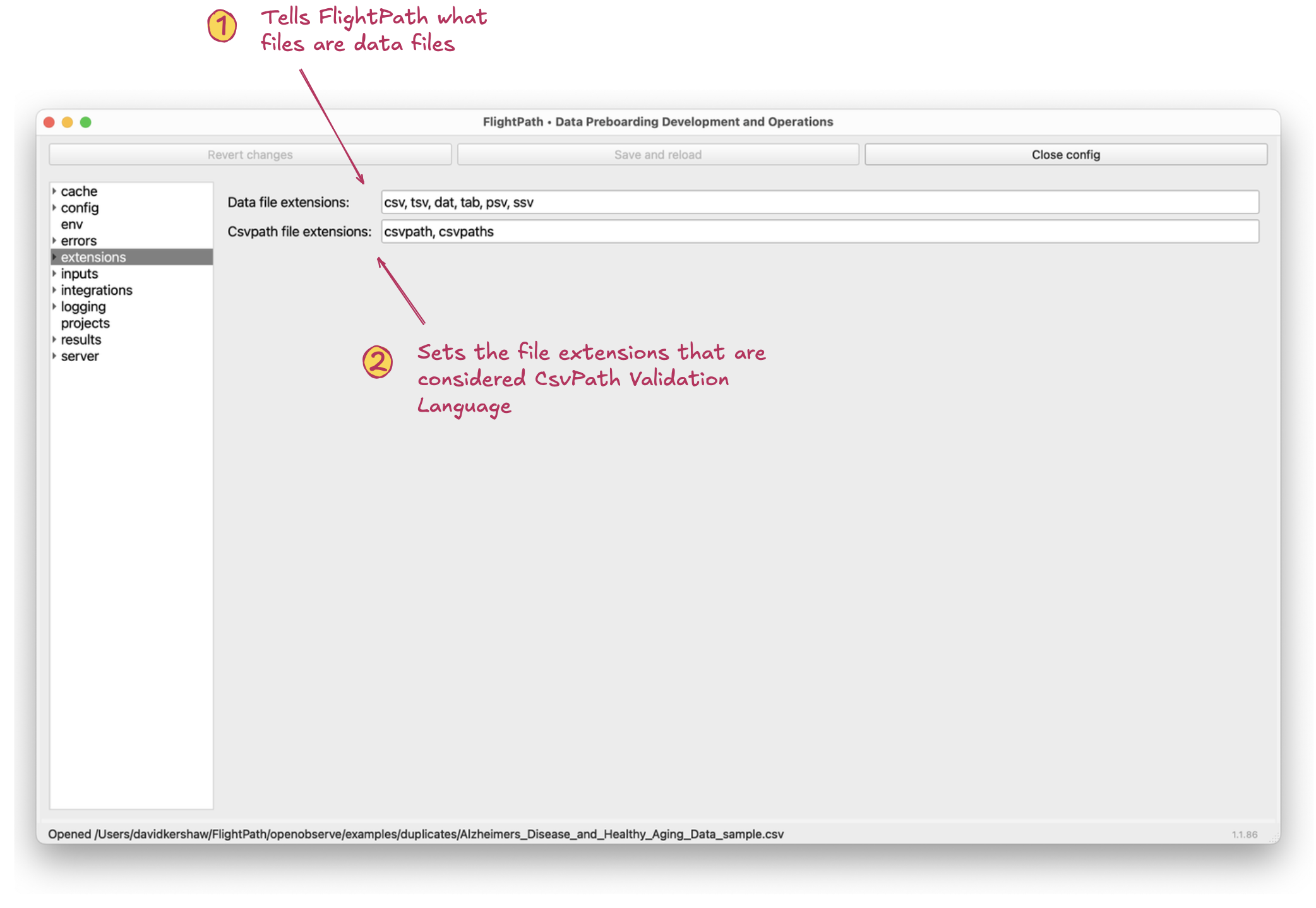
The extensions form
- Data file extensions. These file extensions enable FlightPath and CsvPath Framework to focus on only data files that can and/or should be processed.
.csvand.xlsxare typical. - Csvpath file extensions. This setting indicates what files contain csvpath statements. Usually the defaults,
.csvpathand.csvpaths, don’t need to be changed.
Inputs
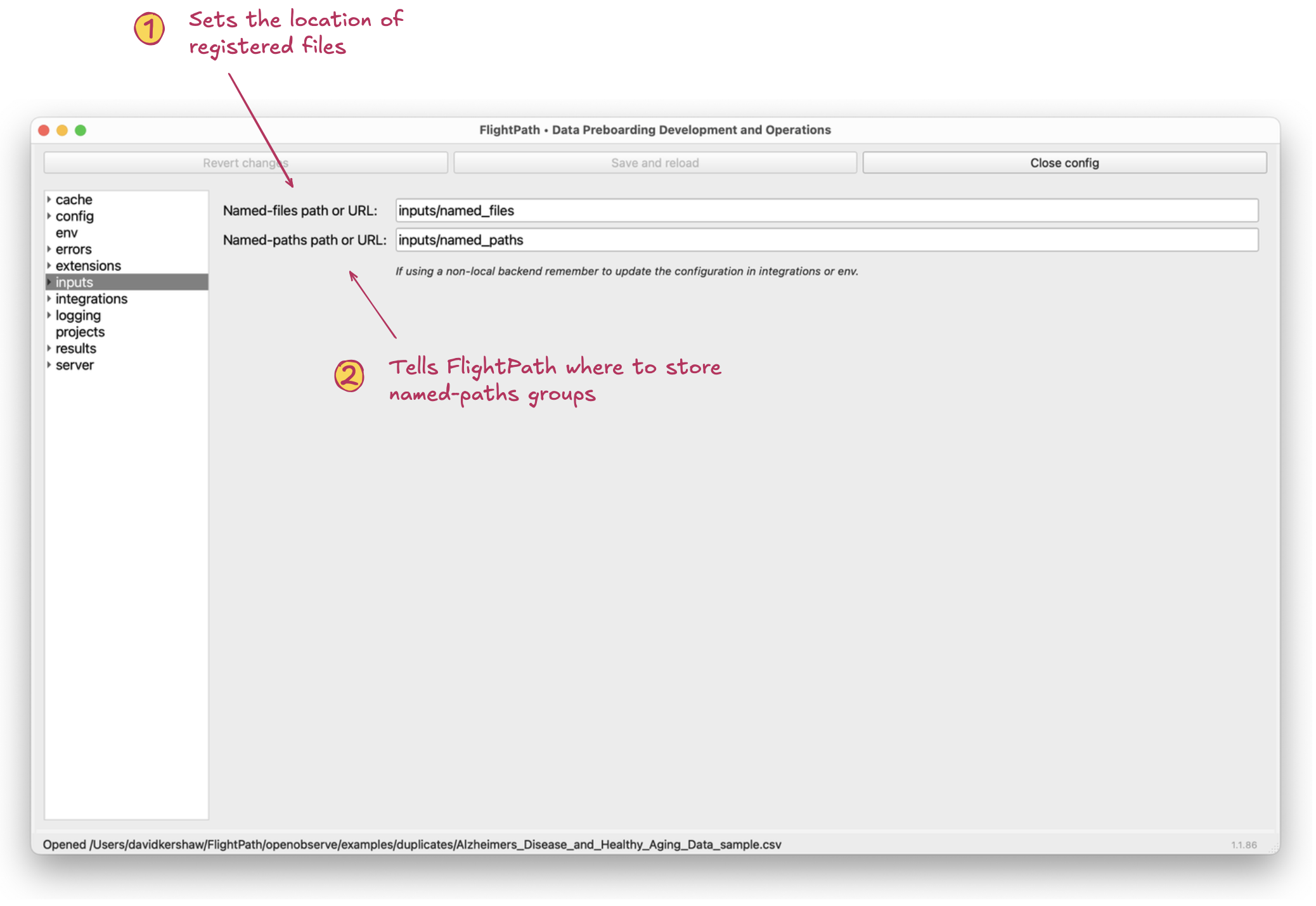
The inputs form
- Files. Determines where named-files are kept.
- Csvpaths. The location of named-paths groups.
These settings can use any of the five storage backends FlightPath Data supports:
- Local POSIX or Windows file system SFTP (sftp://...) AWS S3 (s3://...) Azure Blob Storage (azure://...) Google Cloud Storage (gs://...)
Integrations
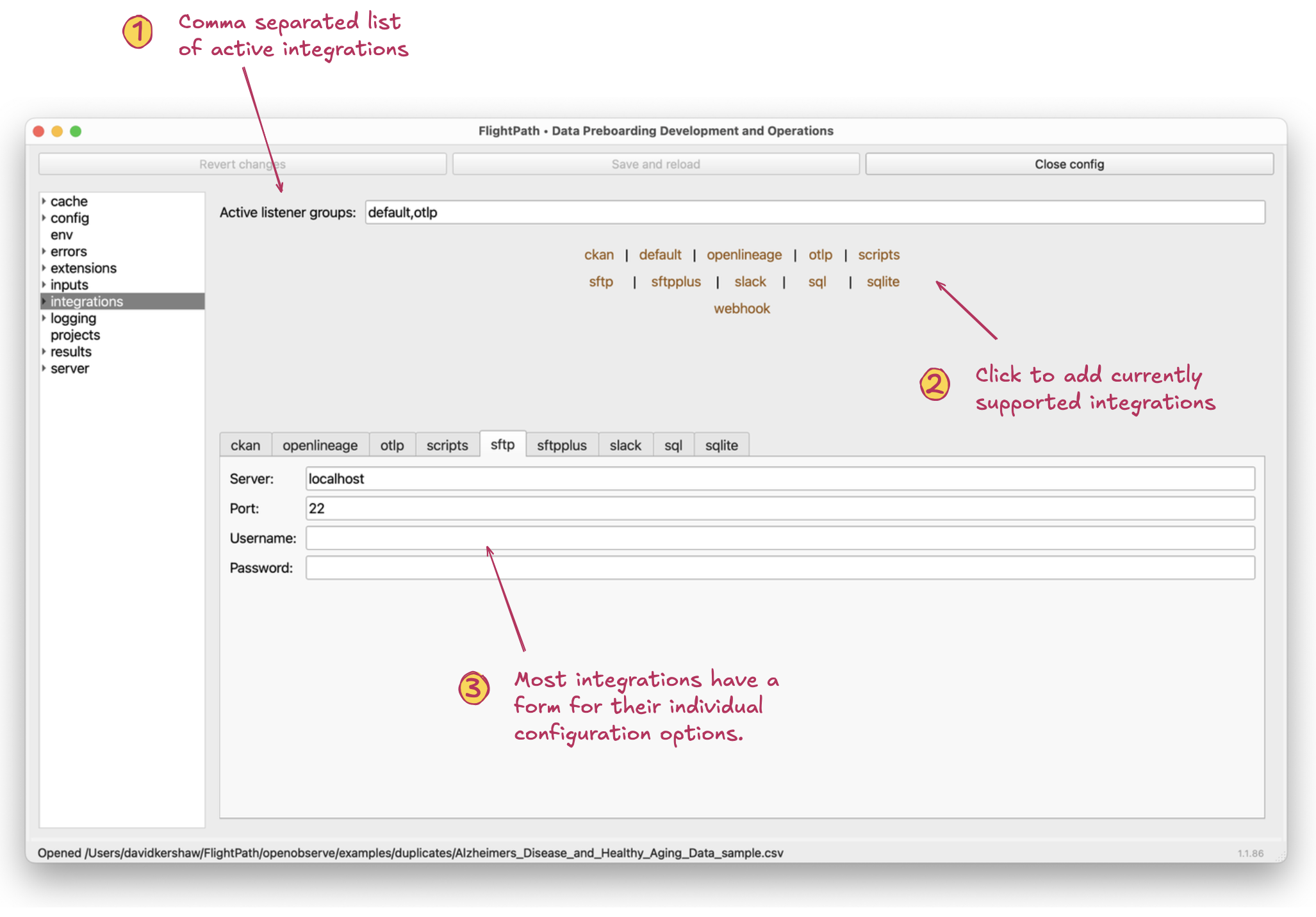
The integration form
- Active listener groups. Integrations, along with some internal CsvPath Framework functionality, operate through listeners that can be turned on and off. This setting is a comma separated list of listener groups that are active.
- Clickable listener group names. Clicking these names adds them to the active listener groups
- Integration configuration forms. Most, but not all, integrations have configuration forms for additional variables. Azure, S3, and GCS, in particular, are examples of integrations that require configuration, but which rely only on env vars, not these forms.
As you can see, the SFTP integration requires a host, port, username, and password. (Any of which can be in ALL CAPS to use variable substitution). See csvpath.org for details about the integrations and examples of how to use them:
- CKAN OpenLineage OpenTelemetry Scripts SFTP Slack SQL databases and Sqlite files Webhooks
Logging
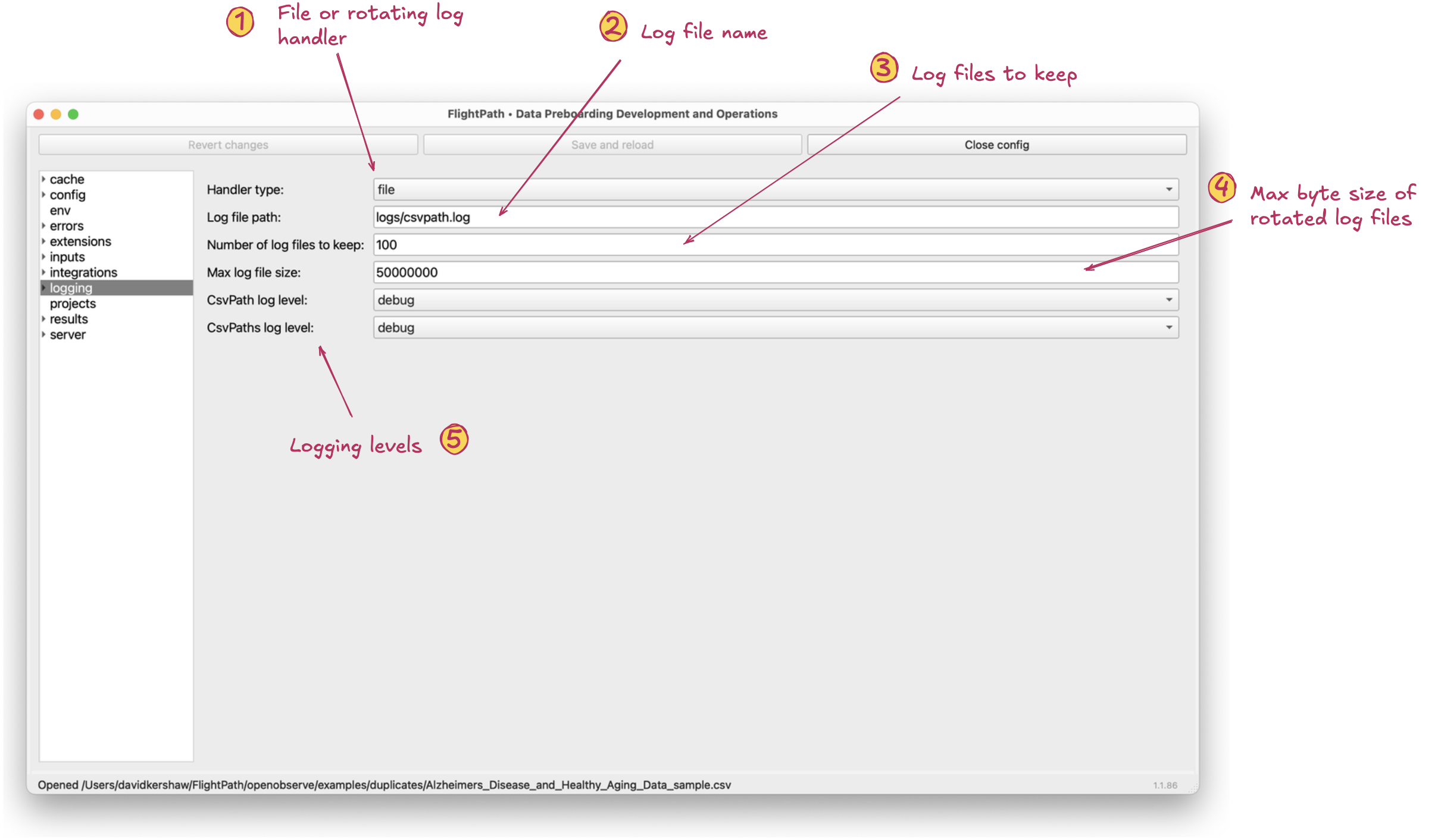
The logging form
- Handler type. Either
rotatingor plainfile. - Log file path. By default,
logs/csvpath.log. There is little advantage to changing the location and FlightPath Server only allows the default. - Number of log files to keep. Logs can get very large if you run on
debug, so pick a number appropriate to the volume you expect. - Max log file size. The default is modestly large. You may want to lower it, depending on your use case.
- CsvPath log level and CsvPaths log level. Again, these refer to the CsvPath Framework classes. The former is used for one-off csvpath runs and the latter is used for full, automated, multi-csvpath runs. You can set the logging level independently in order to focus your efforts. For example, if you have a validation concern you may only run
CsvPathat an elevated log level, rather than both. Likewise, if your concern is integrations or storage management problems you would more likely runCsvPathsat an elevated level.
Projects
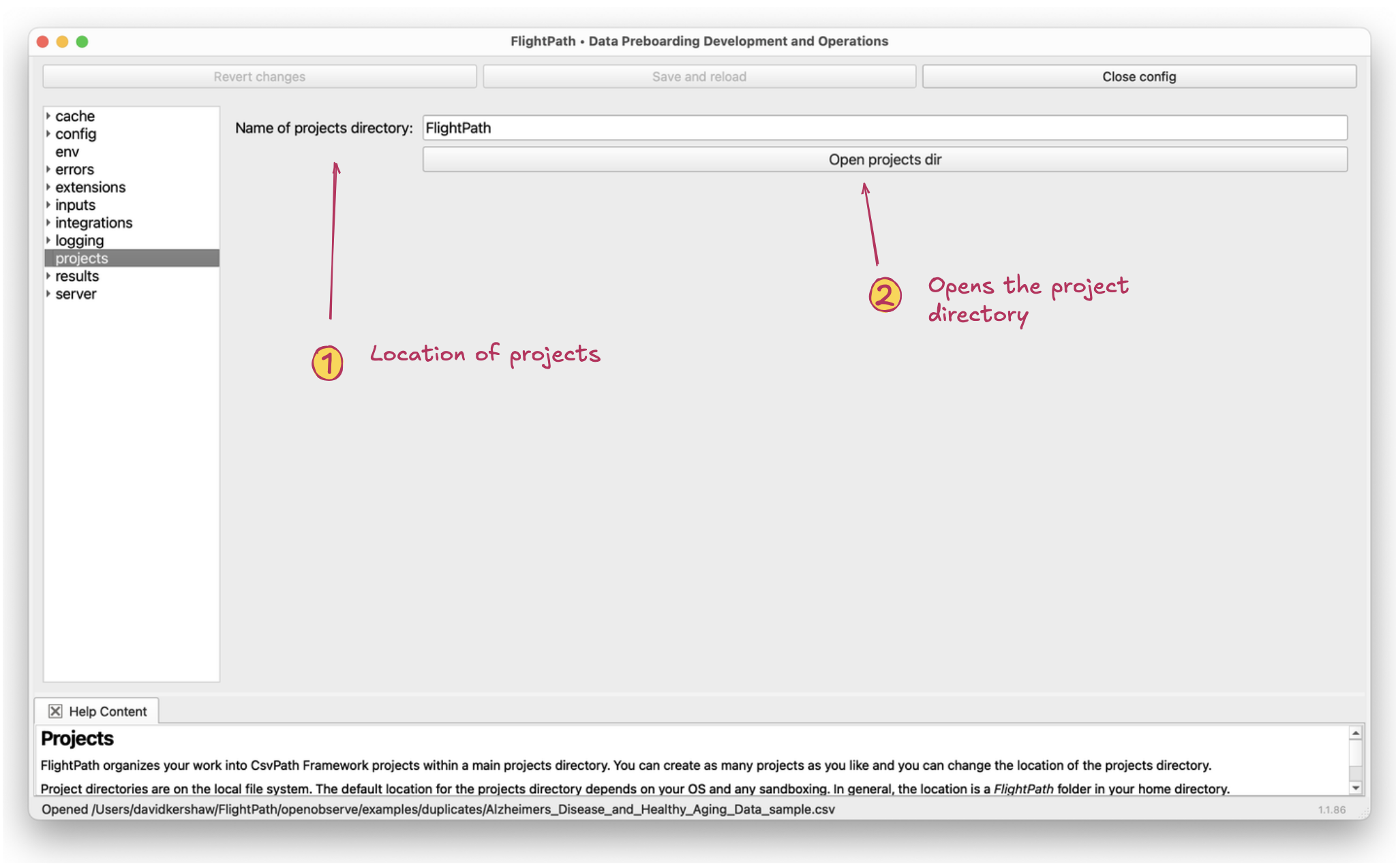
The projects form
- Projects directory name. The default is
FlightPath. There is little reason to change it. You cannot change the project directory used by FlightPath server, which isFlightPathServer. - Open projects directory. Simply opens the directory used for projects. This is useful when you want to edit config.ini files by hand or drag in lots of files.
Results
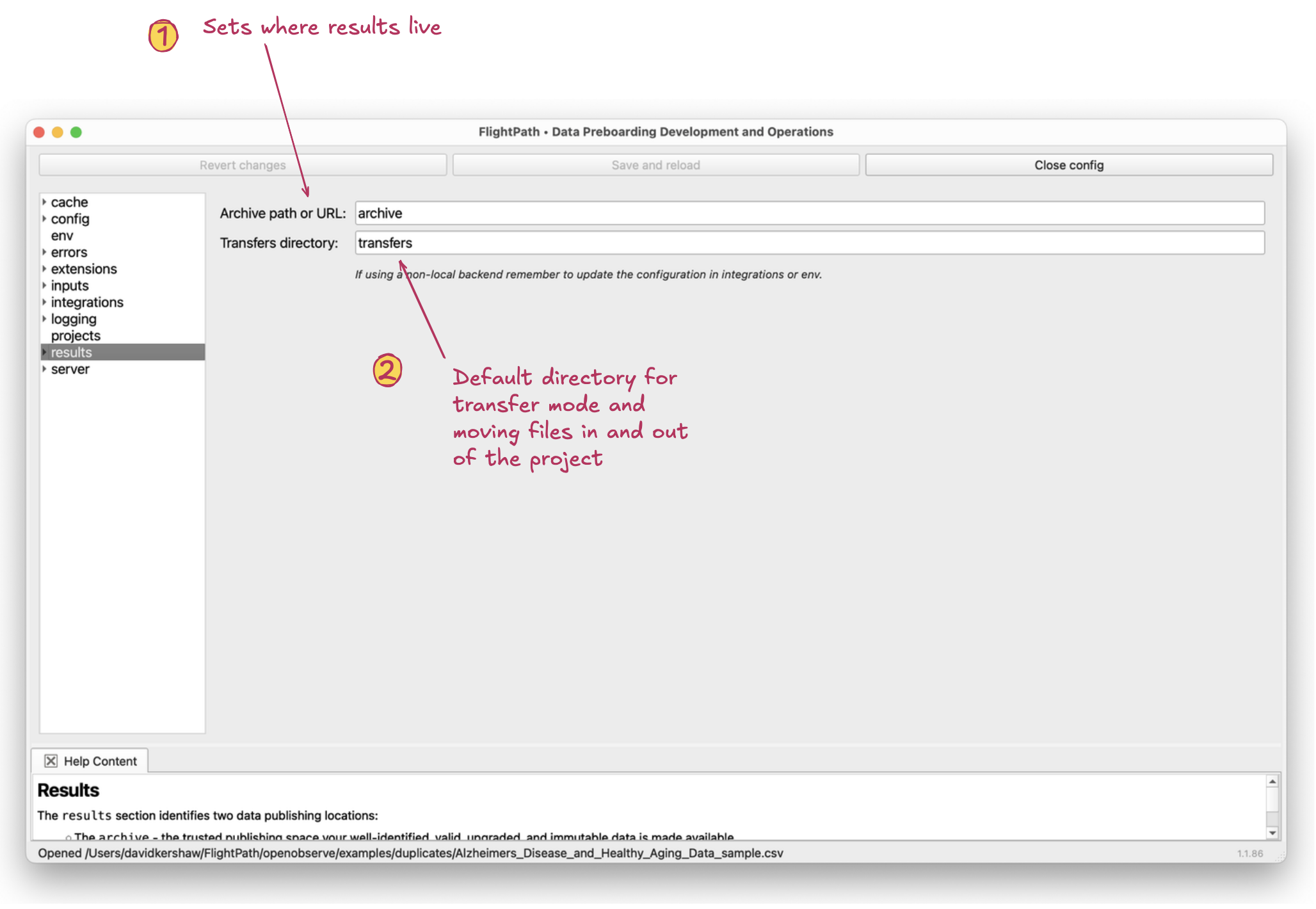
The results form
- Archive. The archive is the location you store results in. You can name the archive directory anything you like. An archive is as much a namespacing construct as it is a file location. Two projects can share an archive. Or two archives can have a common parent but different names. CsvPath Framework encourages more, smaller projects for simplicity, minimizing blast radius, and enabling horizontal scaling. That makes archive naming potentially very useful. An archive can live in any of the five storage backends.
- Transfer directory. The transfer directory supports
transfer-mode, a way of copying result files to a secondary location, as well as the archive, as soon as they are written. Transfer mode is just one of several ways of distributing results, above and beyond publishing them in the archive. The default transfer directory created with new projects can also just be a useful place to copy files to. For more about transfer mode, see csvpath.org.
Server
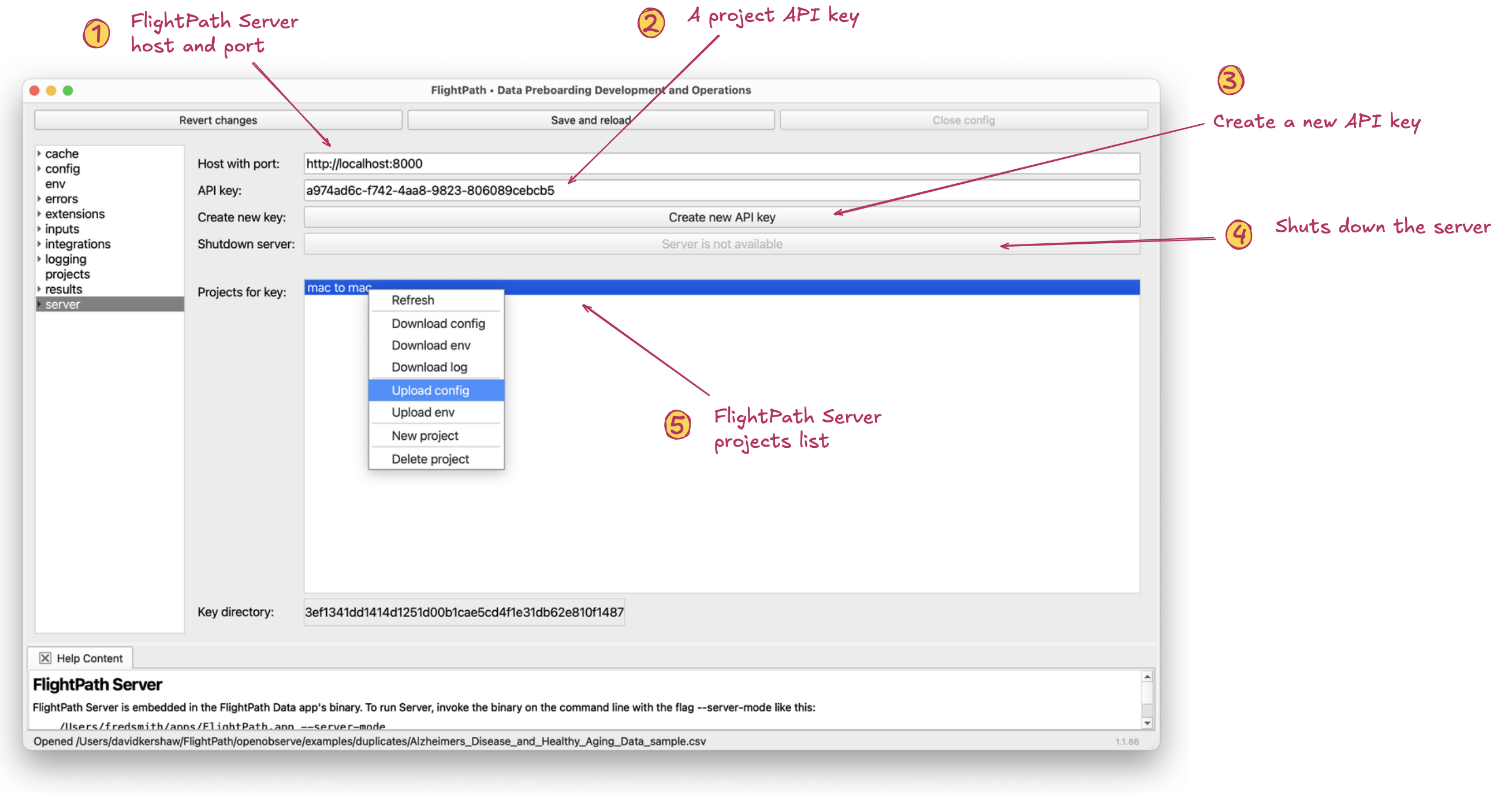
The server form
- Host with port. The location of the FlightPath Server you want to use with this project. Each FlightPath Data project can use a different FlightPath Server.
- API key. FlightPath Server requires each API request have an access_token header containing an API key. Keys are associated with projects, not users. Any user can create a new project associate with a key they hold. As is obvious, FlightPath Server relies on parameter security for its protection. It only uses keys for information control between project teams.
- Create new API key. The first API key created is marked as an admin key a very small set of additional powers. Any user with a valid key can create a another API key that will control a different set of projects.
- Shutdown FlightPath Server. When a FlightPath Server is available, and the API Key is an admin key, this button allows you to shut the server down. Shutdown is immediate.
- Server projects list. This list shows all the projects available to the given key. Right-clicking on a project name brings up a context menu with:
- Refresh: reacquires the projects list. If another user has changed the projects of the given key the list will update. Download config: downloads the config.ini of the project. You will be prompted to open the locally saved file. You will not see the file in your project, typically, because `.ini` is not usually in your extensions list, and is not one of the default visible extensions, .md, .json, .txt, and .html. You can open the downloaded server project config file by opening the project directory in Finder or File Explorer. Download env: similar to the config download, but for the variable substitution file. Download log: after you do at least one run you can download the log file anytime. Upload config: uploading config means sending the current FlightPath Data project's config to be the FlightPath Server config. There are a few fields, primarily local file system paths, that are not settable by uploading the local config to the server. These are reserved in order to fully separate server projects from one another. Upload env: opens a form providing a click-to-add means of creating an env.json from the OS env vars available locally to this FlightPath Data project. The env.json file is uploaded to the server to stand in for OS env vars for the sole use of that server project. Create new project: Creates a new project associated with the current API key. Any holder of a valid API key can create a new project. Delete project: prompts to confirm before irrecoverably deleting the server project.