✨ Features
One-off CsvPath Runs
Each time you iterate on a validation or data upgrading script you will need to run it to check your results. Running a CsvPath Language file is easy. Just right click and select Run. Alternatively hit ctrl-r.
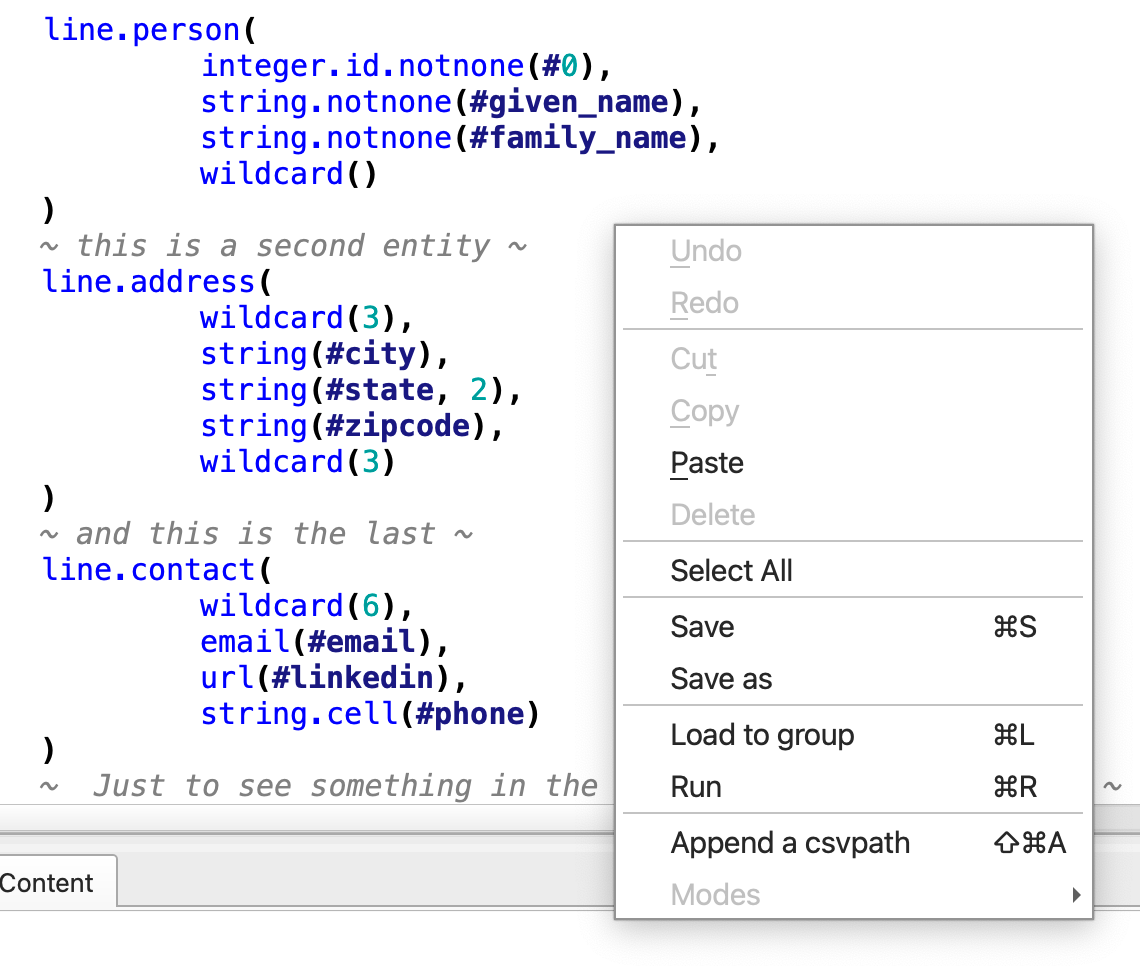
Every one-off run opens the Help and feedback tray with several results tabs:
- Printouts
- Logs and errors
- Matching lines
- An example of how to automate the run
- And the
What Am I Seeing?tab giving details of the run
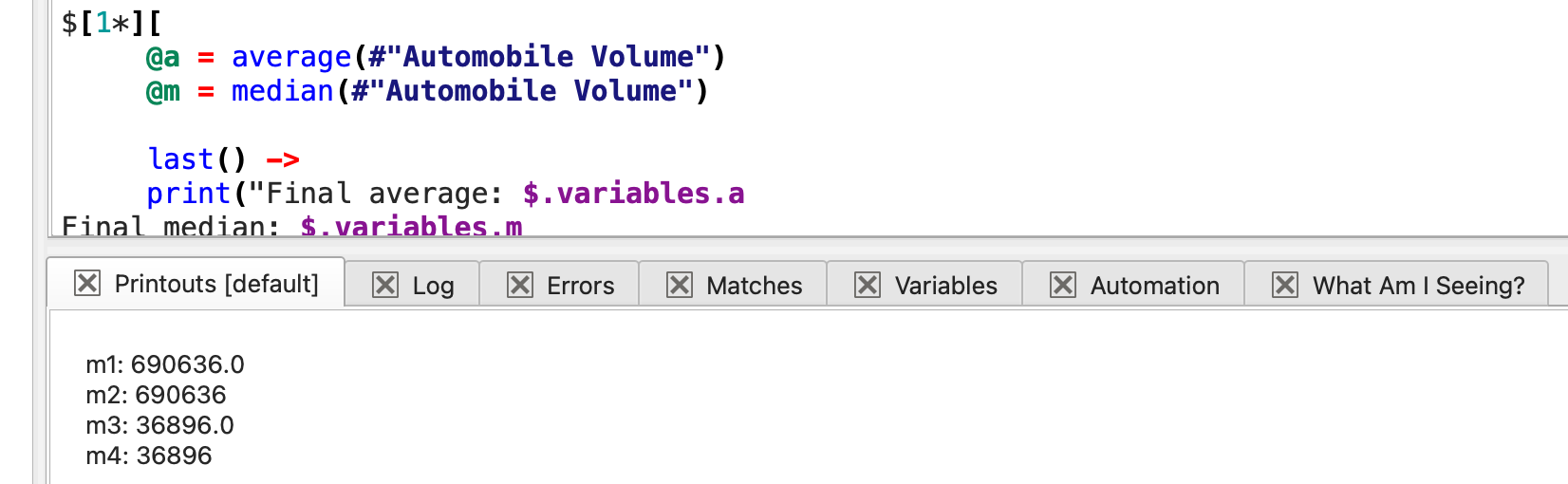
What Am I Seeing? tab explains all the configuration options for the run and how they impacted the results. As well as helping you interpret your results, this is a great place to learn about CsvPath Framework.
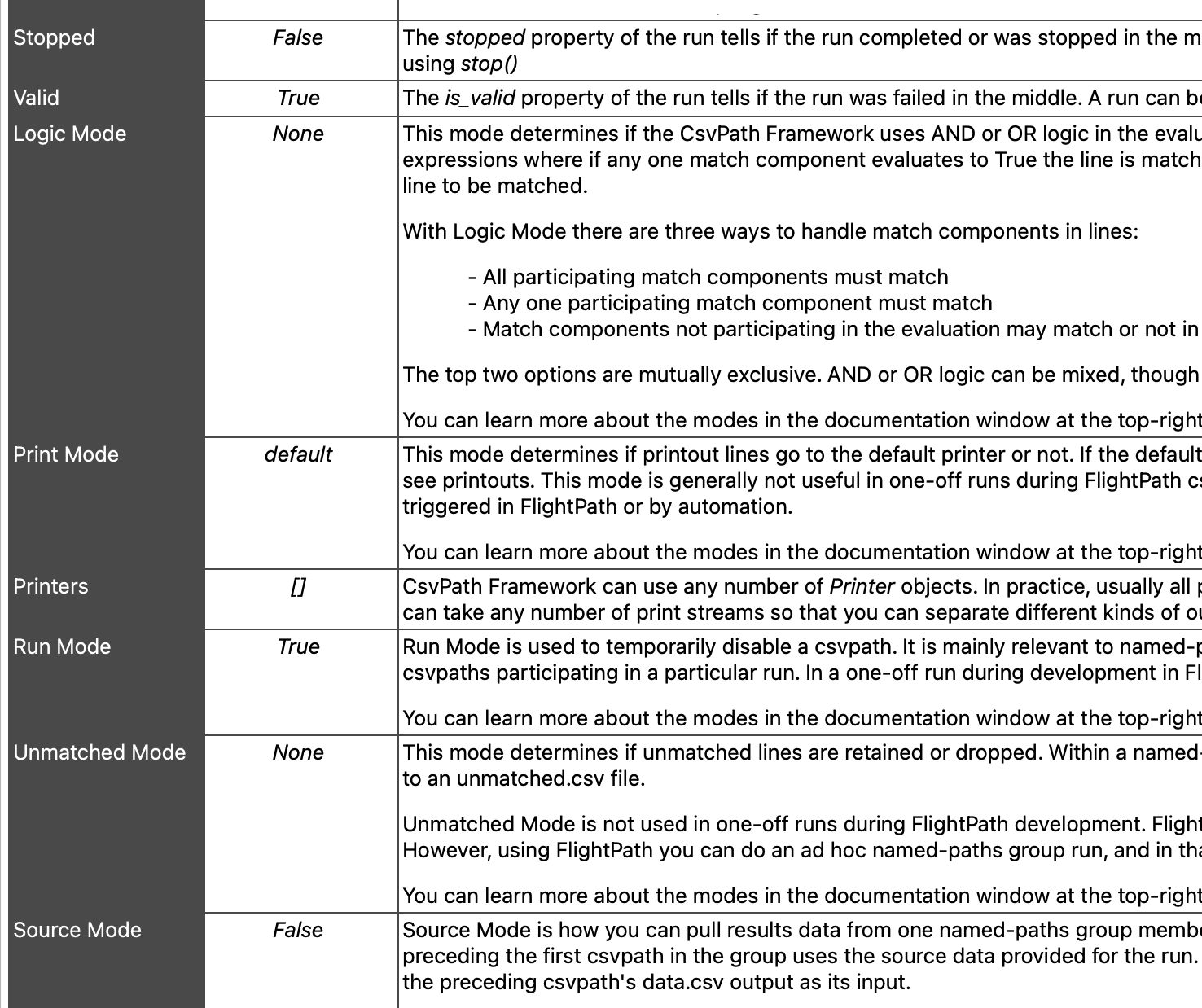
Load Named-paths Groups
Validation and upgrading happens by applying one or more csvpath statements that are grouped together as a unit.
Loading Options
When you’re ready to load your named-paths into CsvPath Framework you just right-click on a file or folder to open the load dialog. There are three options.
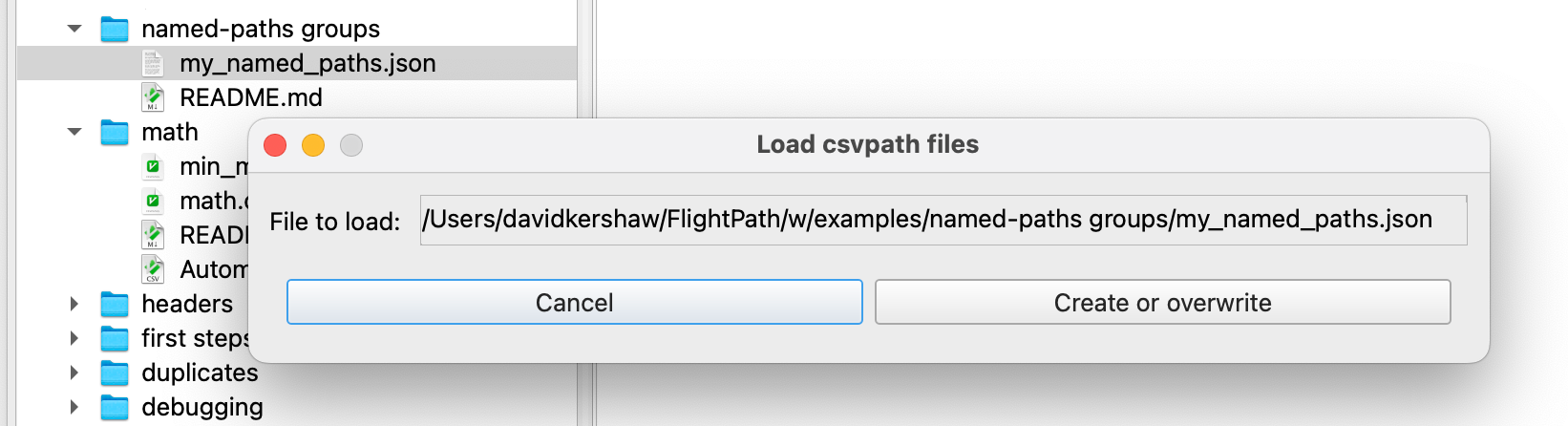
First, if you created a JSON definition, you can just select that file.
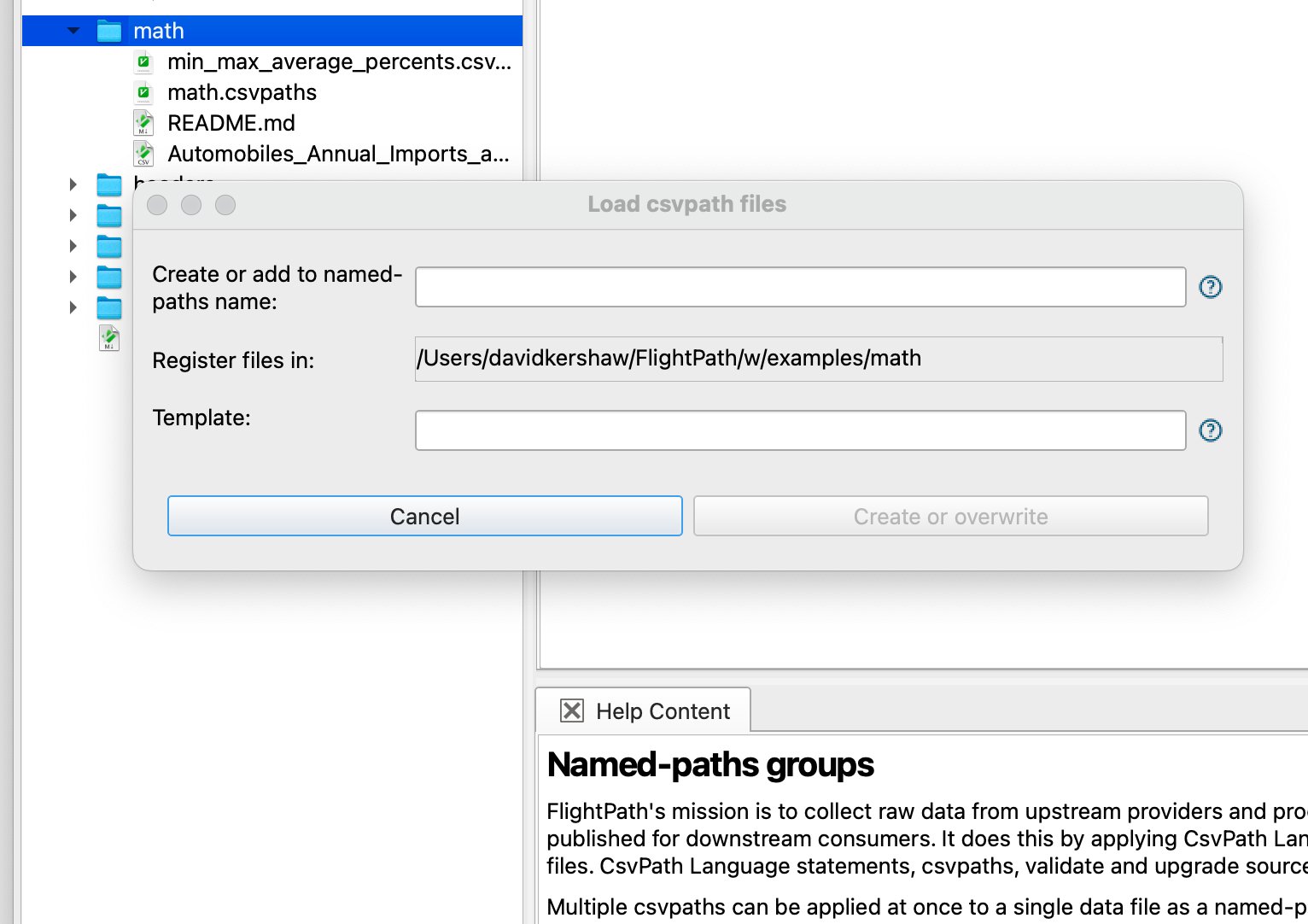
Alternatively, if all your csvpaths are in the same folder you can select to load that folder. When you use a folder you can create one named-paths group with csvpaths from all files included, or you can create one named-paths group for each file in the directory.
Or, if all your csvpaths are in the same file, or you want to add one or more csvpaths from a file into an existing group, you can just select the file.
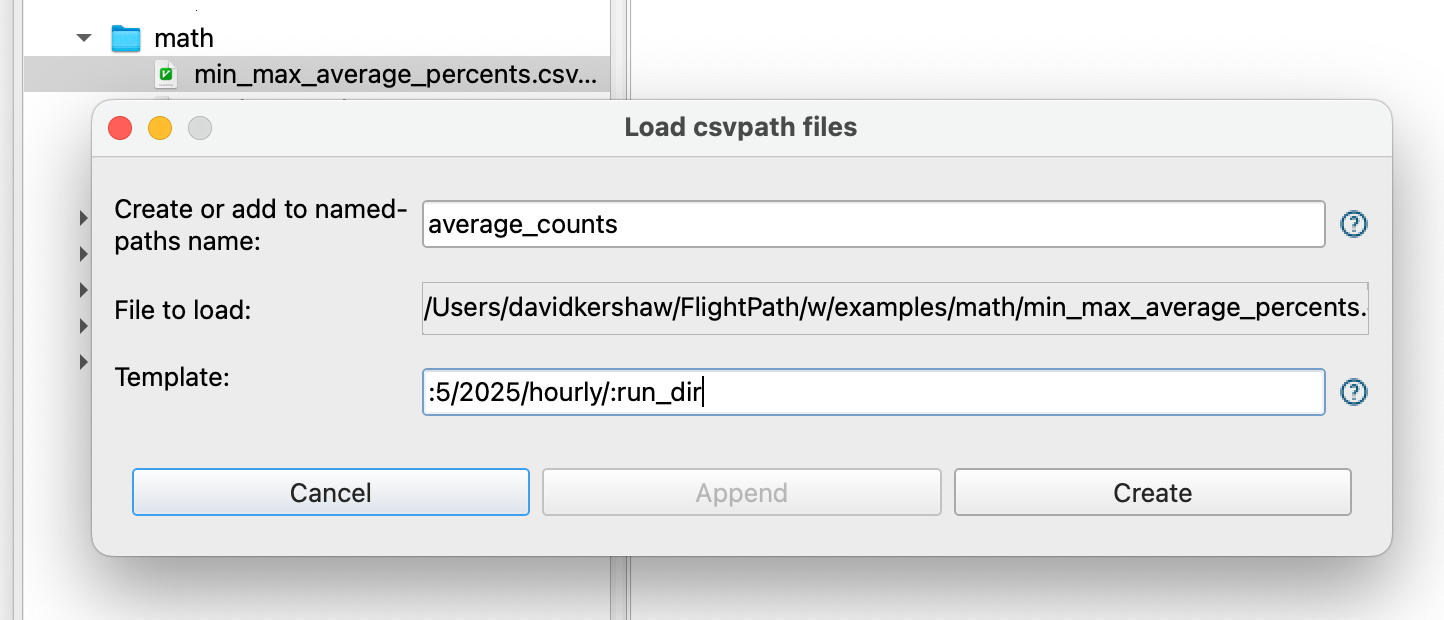
With any of these options you can add a template to organize your results tree to follow a file naming convention or separate runs for any reason.
Run Named-paths Groups
Running named-files through named-paths groups is how validation, data upgrading, and archiving happen. In production runs are automated, but during development FlightPath lets you kick off runs anytime.
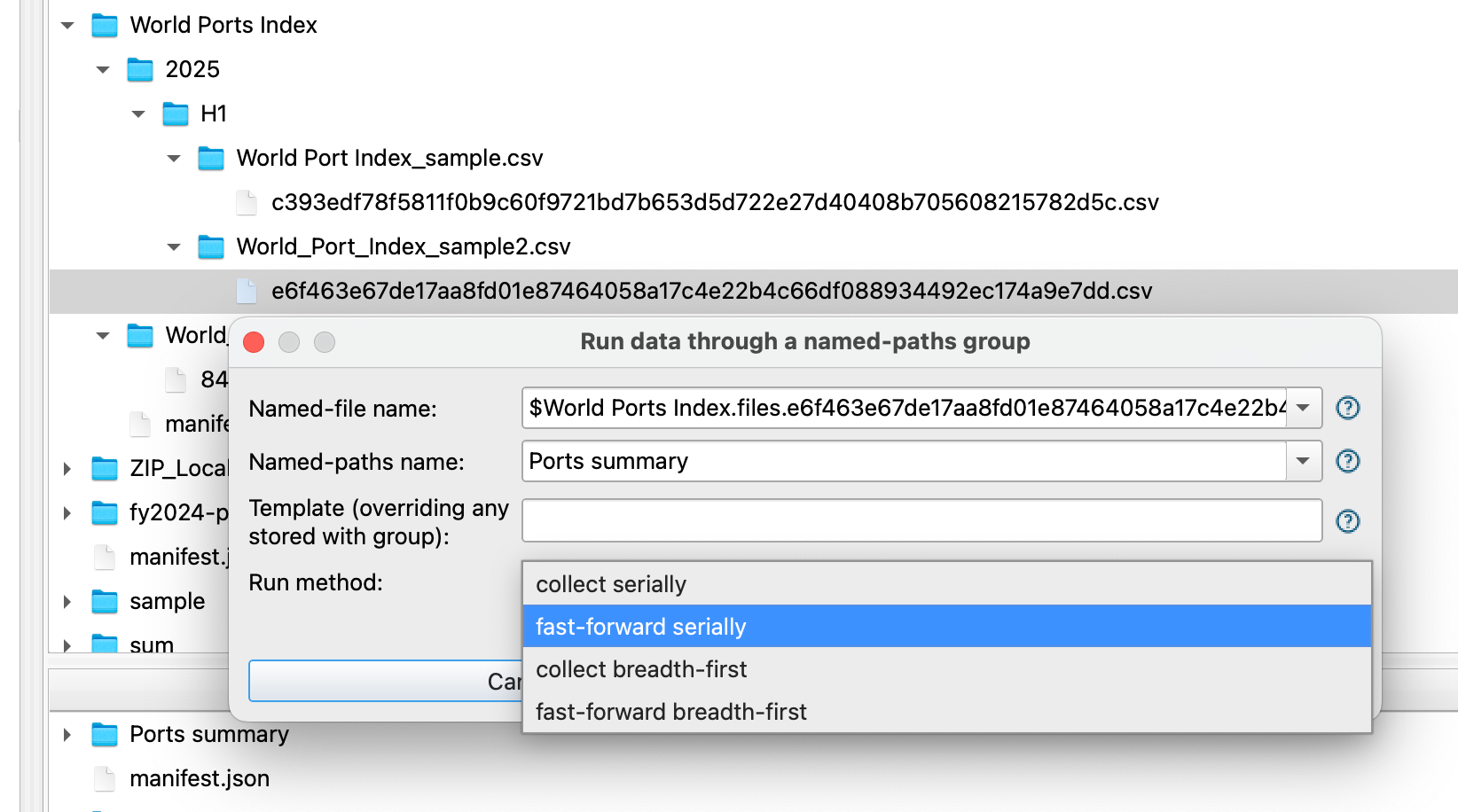
FlightPath’s run-data and find-data dialogs make it easy to create very specific runs targeting just the data versions or csvpaths you want to exercise.
Find and Explore Results
CsvPath Framework stores well-identified data in immutable form with versioning in the data staging area and in the results archive. The result is a clear and explicable source of trustable data. In order to find what you are looking for, you need to be able to navigate. The Find files by reference dialog helps you do that.
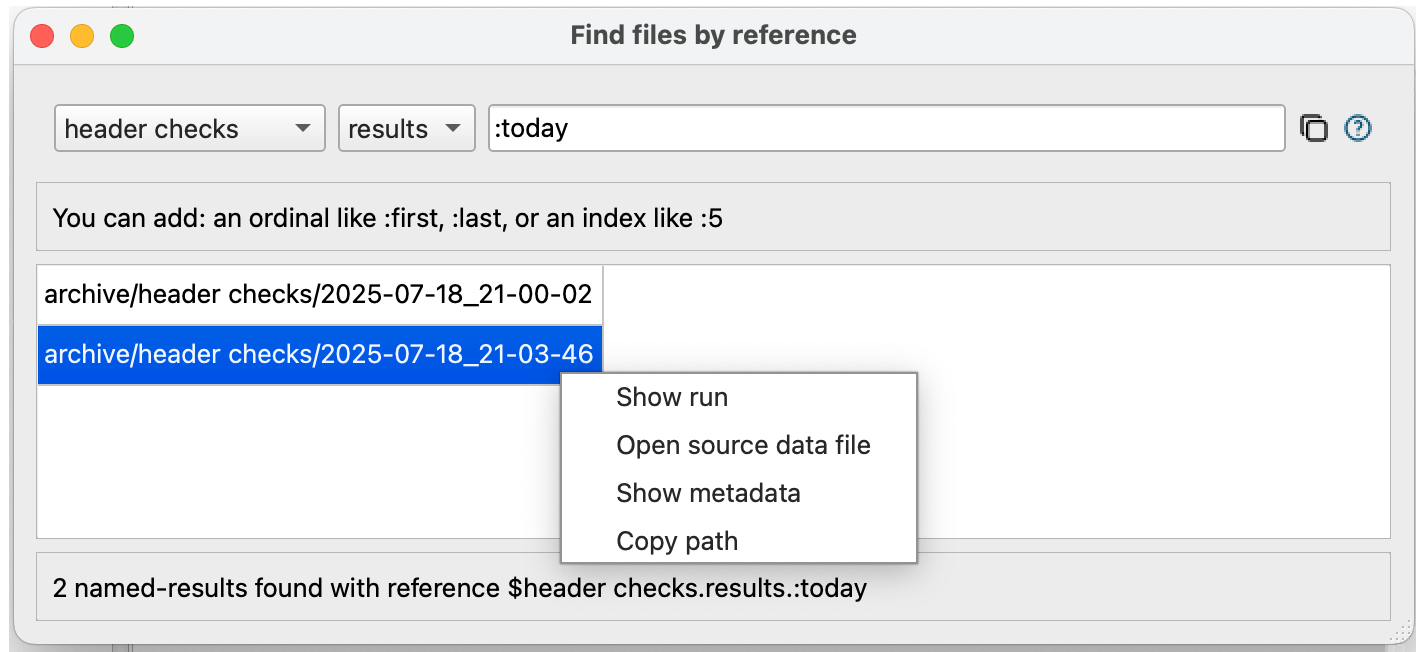
The dialog has two purposes:
- Finding data and metadata
- Creating references to specific data to be used in new runs
CsvPath References are a simple query language for finding versioned files by arrival time, path, csvpath origin, run date, or fingerprint. The Dialog helps you build references with a form structure and syntax help. Once you have your reference you can copy it into the run dialog to do a rerun.
.png)
Replay Runs
FlightPath makes anomaly investigation and triage easier by providing tools to access the identification and traceability metadata CsvPath Framework generates. Once you have identified the cause of an issue you may want to redo a run. To save processing time, you might decide to start the new run in the middle using specific data to address only that part of the past run that was imperfect.
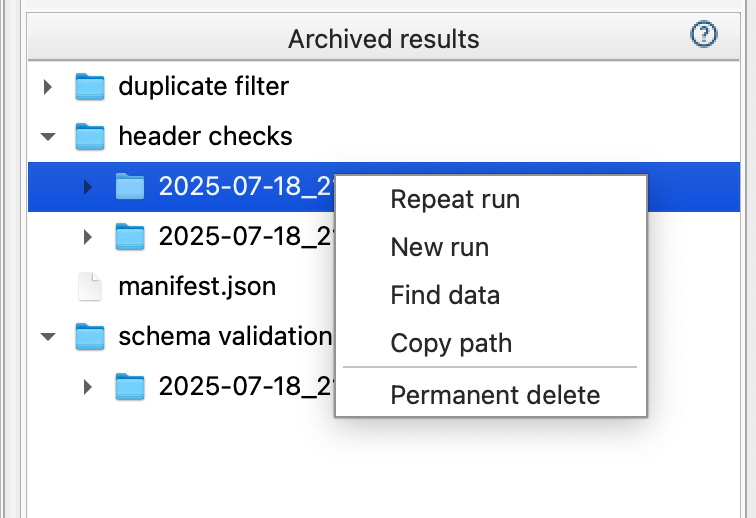
The Archive window context menu gives you the option to easily repeat a run using a named-file version and a specific csvpath within the run’s named-paths group. You can run the complete group or you can start and stop on any of the csvpaths in the group.
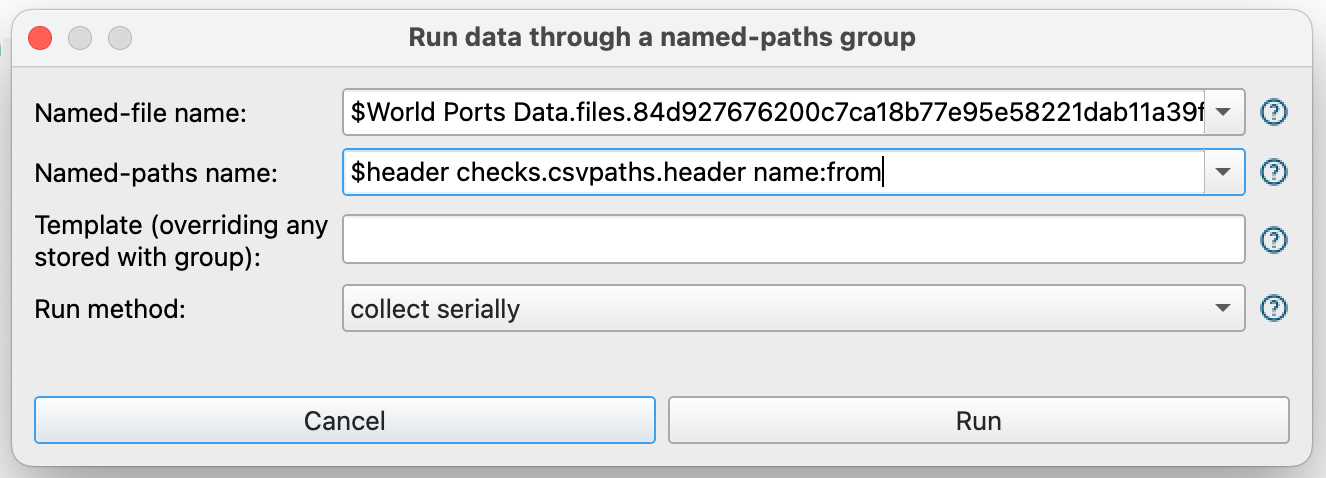
And, of course, for future reference CsvPath Framework shows the references of the rerun in the metadata it collects about the new run.