🔰 FlightPath Data Project Structure
FlightPath Data creates a default project structure for your new projects.
FlightPath Data is opinionated. It allows you to work any way you like, but its preferences can be seen in a new project directory. In most cases, there there’s no advantage to organizing your project another way. You can rename these directories. If you do, make sure you update config.ini using the FlightPath config panel or your favorite editor.
Most of these directories and the files they contain are visible in the FlightPath Data UI. However, in some cases they are not shown. For example, the config.ini file is central to how a project works, but it is not visible. Instead, FlightPath Data’s config panel guides you through configuration faster and with fewer chances for error than editing an ini file by hand.
The structure
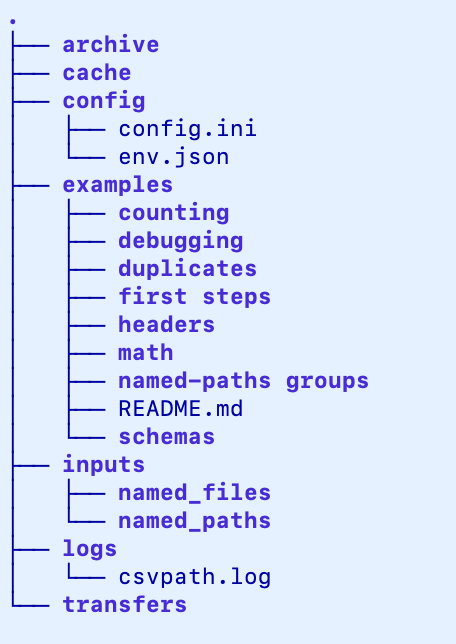
About the directories
Each directory FlightPath creates within your new project is under your control. You can rename them, assign them double-duty, or, in some cases, simply delete them, if needed. Here is a high-level overview of how it all works.
Archive
Your project’s archive is where the results of your runs live. Runs are named for the named-paths groups that created them, so when you open the archive the first level you see is a list of named results. The within each name you may find a list of run directories, or you may see more folder structures before you get to the runs themselves. The additional structure, if any, is created using templates and exists for the benefit of the downstream data consumers. You can read more about templates here.
Archives can act as a namespace, as well as being a repository of run results. A project can only have one archive. But an archive can have as many projects feeding results into it as you like.
Cache
FlightPath Data uses the cache dir to house cache files tracking headers, line counts, and other data that FlightPath doesn’t need to find or calculate twice.
Config
The config dir and config.ini are the heart of a FlightPath project. config.ini contains most of the settings that make your project work. When you use the config panel in FlightPath Data you are editing your project’s config.ini. env.json also lives in the config dir. It is a JSON dictionary that stands in for the OS env vars for all FlightPath Server projects, and optionally also for FlightPath Data projects.
Examples
examples is a FlightPath Data-only feature. The examples are working how-tos for common CsvPath Validation Language activities. They include duplicate checking, calculations, variable use, qualifiers, debugging aids, and more. When you’re done with the examples feel free to delete them.
Inputs
The inputs dir is where FlightPath puts your named-files and named-paths groups. Named-files are how CsvPath Framework registers and stages inbound raw data files. Named-paths groups are how CsvPath Framework collects sets of csvpath statements into a single unit to run against named-files. FlightPath Data follows CsvPath Framework conventions, but you can more your files and csvpaths to whatever location within the project that works for you.
Logs
The logs dir contains project logs. These are typical system log files, but specific to CsvPath Framework. FlightPath app and server logs, and CsvPath Framework-generated user-presented validation messages, are handled elsewhere. For the latter you would look for printouts.txt and errors.json in the run directories in your archive.
Transfers
The transfers folder supports transfer-mode, one of the several ways you can have results data copied out other locations automatically, as well as being published in the archive. You can read more about transfer mode in the CsvPath Validation Language help windows in FlightPath Data and at csvpath.org.