Doing a First Local Dev Run
Learn about CsvPath Framework: Find lots more information and how-tos about CsvPath Framework automating data preboarding at https://www.csvpath.org.
How to do it
- Open FlightPath Data - if you just installed you will be in the
Defaultproject - Click the
Copy data inbutton

The Copy data in button is in the center of the home view
- Select your CSV or Excel file and click Ok - your file should be copied into your project and be visible in the project files window
- Right-click in the file explorer window on the left and select
New file. Call your filetest.csvpath.
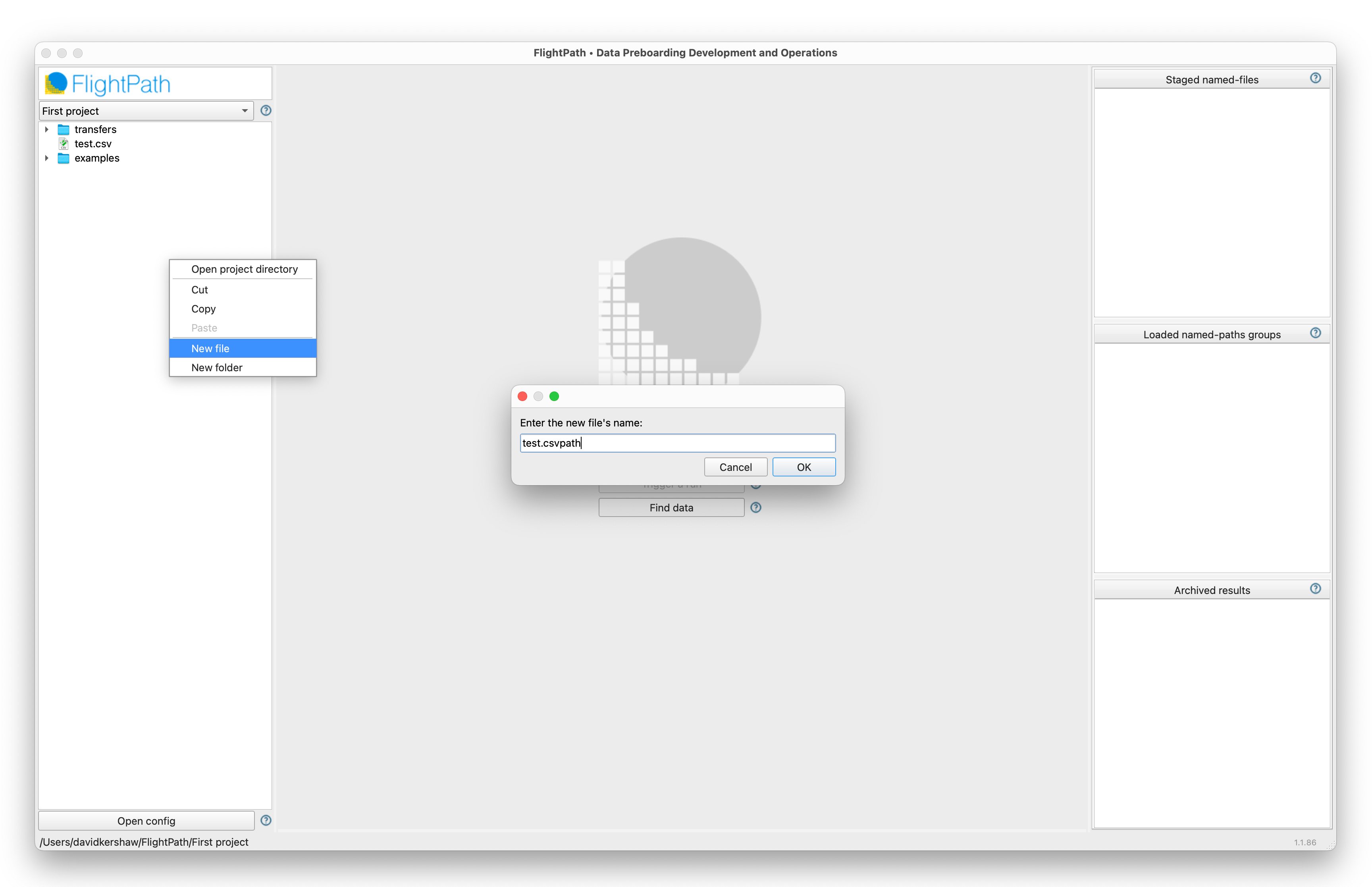
Create a new csvpath file called test.csvpath
- Click on the new file to open it.
- At the top, between the
~characters (a comment) addtest-data: - Right-click on your data file and select
Copy relative path. - Paste (ctrl-v or cmd-v on macOS) the relative path into your csvpath file next to
test-data:so that you have something liketest-data: test.csv.
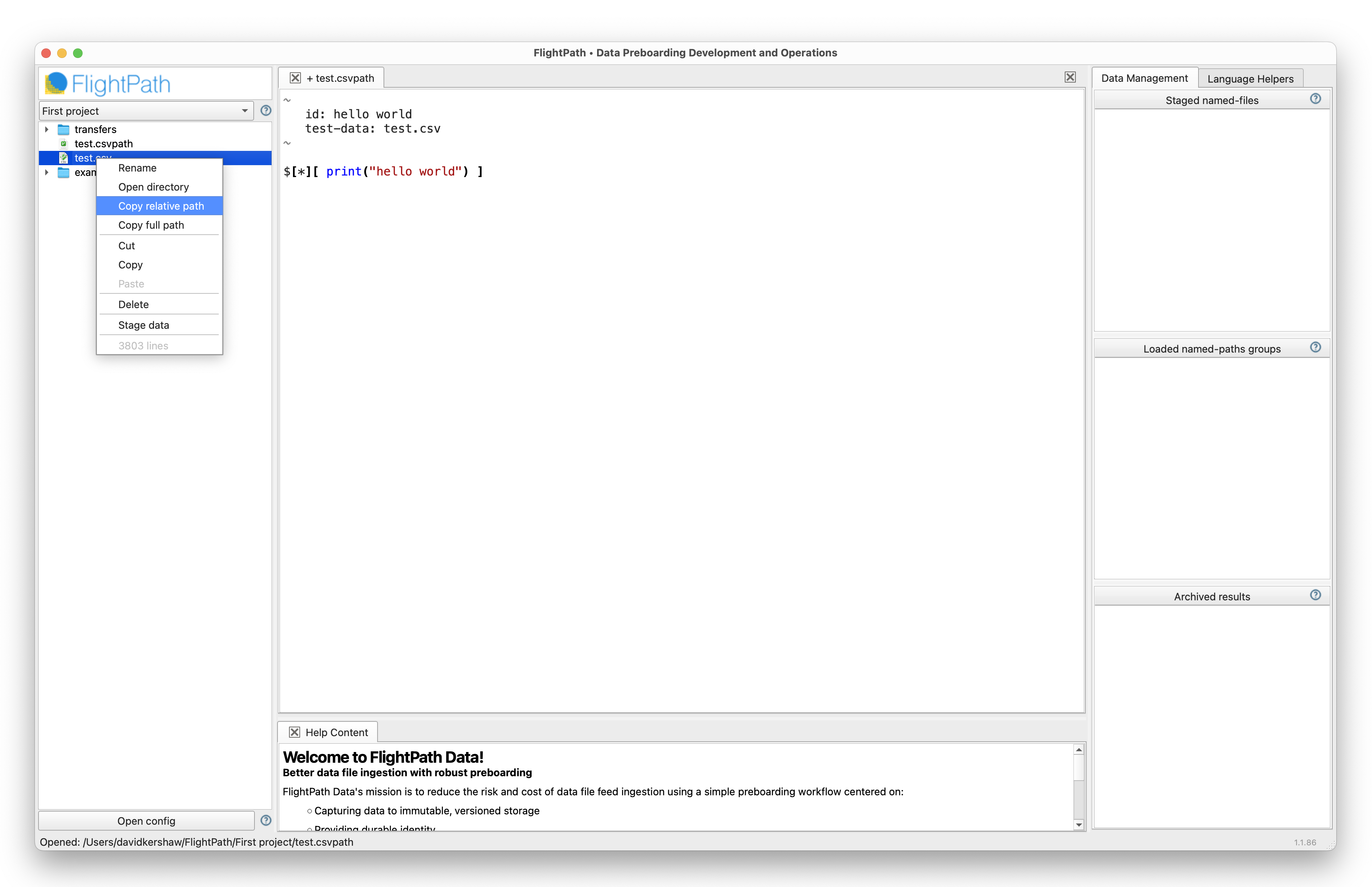
Use the relative path of your test file to tell FlightPath what file to use for test runs. Otherwise you would have to select the file for each run as you develop your csvpath statement.
- Make your csvpath look something like
$[*][last() -> print("hello world")]. This csvpath printshello worldwhen it sees the last line. - With your cursor anywhere in the csvpath or its comment, click ctrl-r (cmd-r on macOS) to run.
- You should see the Help and feedback window open below your csvpath with several tabs of results of the run.
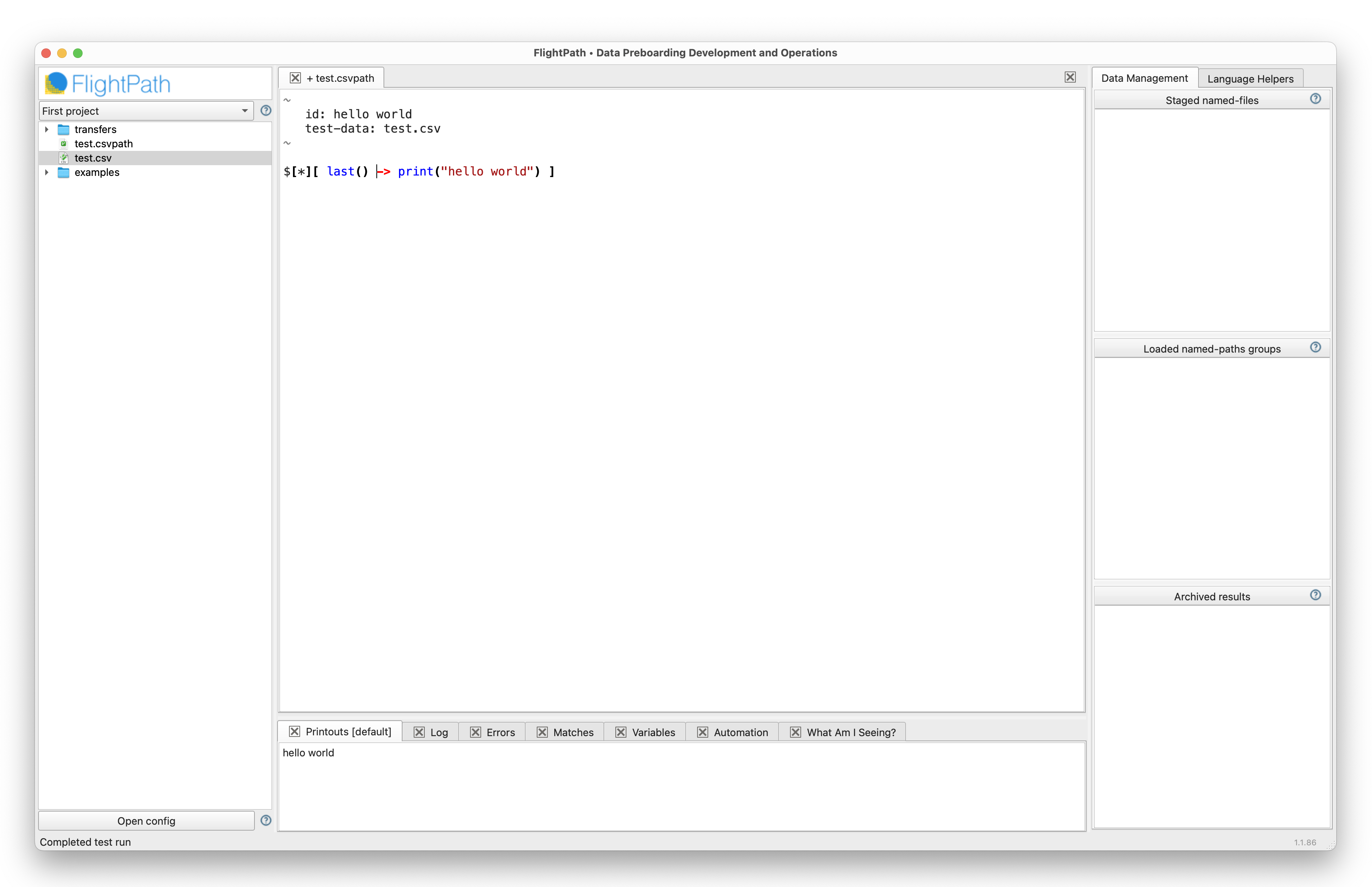
Your csvpath should print "hello world" when it reaches the last line in the file
And that’s it, your first simple csvpath.